Visual Studio Code: A Tutorial for Mastering Its Use in 2025 🚀
Table of Contents
• Introduction to Visual Studio Code in 2025
• Getting Started: Installation and Initial Setup
• Essential VS Code Features Every Developer Should Know
• Advanced Customization and Extensions
• Productivity Hacks and Time-Saving Shortcuts
• Debugging Like a Pro in Visual Studio Code
• Version Control Integration with Git
• Remote Development and Cloud Integration
• Performance Optimization Tips
• Future-Proofing Your VS Code Setup
• Frequently Asked Questions
If you’re a developer in 2025, chances are you’ve heard about Visual Studio Code – or maybe you’re already using it but feel like you’re barely scratching the surface. Trust me, I’ve been there! When I first started using VS Code a few years back, I thought it was just another text editor. Boy, was I wrong. 😅
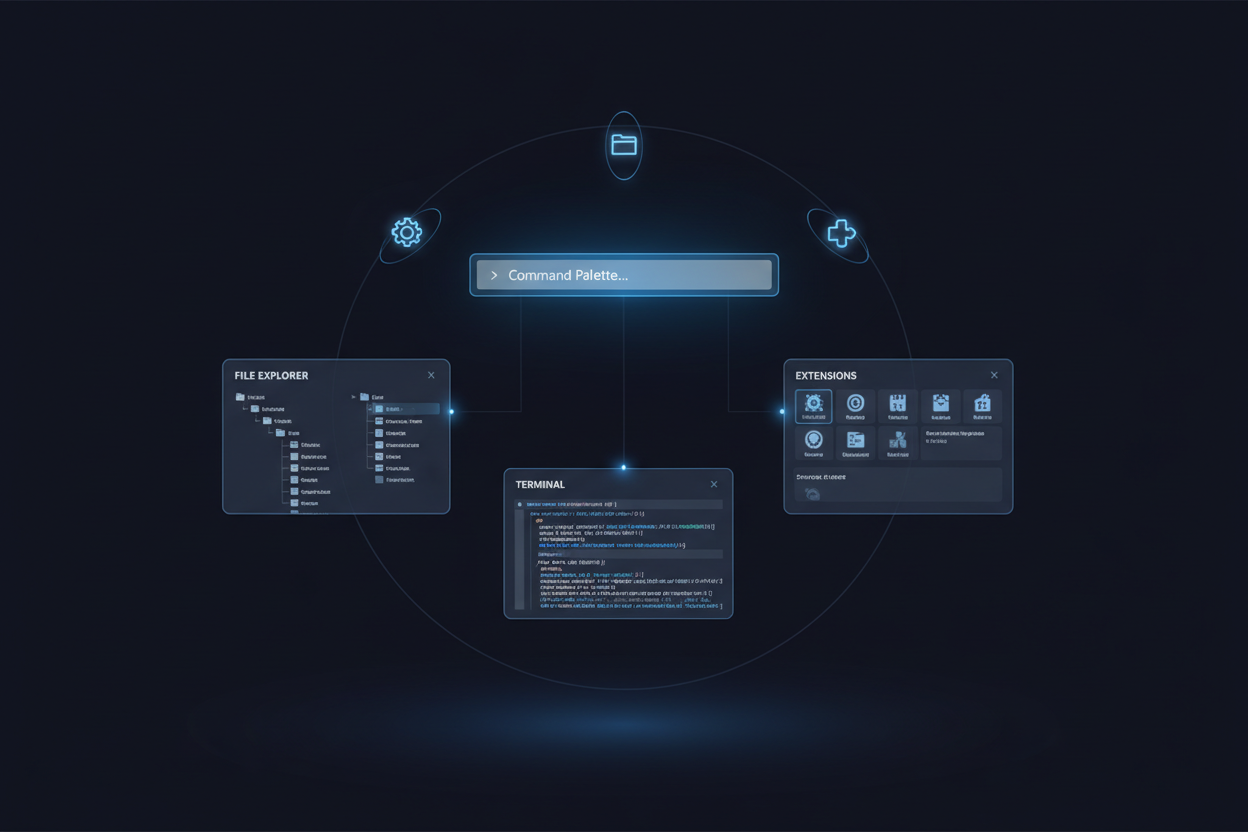
Visual Studio Code has evolved into something truly spectacular. It’s not just Microsoft’s free, open-source code editor anymore – it’s become the Swiss Army knife of development tools. Whether you’re writing Python scripts, building React applications, or diving into machine learning projects, VS Code has probably got your back.
In this comprehensive tutorial, I’ll walk you through everything you need to know to master Visual Studio Code in 2025. We’ll cover the basics, dive into advanced features, and explore some productivity hacks that’ll make your coding sessions feel like magic. Ready to transform your development workflow? Let’s dive in! ✨
Getting Started: Installation and Initial Setup
Before we jump into the exciting stuff, let’s make sure you have VS Code properly set up. The installation process has become even more streamlined in 2025, with Microsoft introducing smart installation profiles that automatically configure your environment based on your development preferences.
Head over to the official Visual Studio Code website and download the latest version for your operating system. The 2025 release includes native support for ARM processors and improved performance across all platforms. During installation, you’ll notice the new “Developer Profile” option – this is a game-changer that sets up your environment based on your primary programming languages.
Once installed, take a moment to explore the welcome screen. It’s been redesigned to provide personalized recommendations based on your GitHub activity and local project files. Pretty neat, right? The setup wizard will guide you through connecting your GitHub account, syncing settings across devices, and selecting your preferred theme.
Pro tip: Enable Settings Sync from day one. This feature has been significantly improved and now includes extension settings, keyboard shortcuts, and even your workspace layouts. It’s a lifesaver when you’re working across multiple machines! 💾
Essential VS Code Features Every Developer Should Know
Now that you’re all set up, let’s explore the core features that make VS Code so powerful. The Command Palette (Ctrl+Shift+P or Cmd+Shift+P) is your gateway to everything in VS Code. Think of it as the search engine for your editor – you can access any command, setting, or feature just by typing.
The Explorer panel on the left gives you a bird’s eye view of your project structure. What’s new in 2025 is the intelligent file grouping feature that automatically organizes related files and suggests project structures based on your framework choice. It’s like having a personal assistant for your codebase organization!
IntelliSense has received major upgrades this year, with AI-powered code completion that learns from your coding patterns. It’s not just about syntax anymore – VS Code now understands context, suggests entire code blocks, and can even predict what you’re trying to implement based on your comments. Sometimes it feels like it’s reading my mind! 🧠
The integrated terminal deserves special mention. You can now run multiple terminal sessions with different environments simultaneously, and the new smart terminal feature automatically detects your project type and suggests relevant commands. No more switching between your editor and external terminal windows!
Advanced Customization and Extensions
Here’s where VS Code truly shines – its extensibility. The Extensions Marketplace has grown exponentially, and finding the right extensions can dramatically improve your productivity. But here’s the thing: more isn’t always better. I’ve learned this the hard way after installing dozens of extensions and watching my editor slow to a crawl.
Start with the essentials: Prettier for code formatting, ESLint for JavaScript linting, and GitLens for enhanced Git integration. The 2025 extension recommendations engine is incredibly smart – it analyzes your codebase and suggests relevant extensions without overwhelming you with options.
Themes and icons might seem superficial, but they genuinely impact your coding experience. The new adaptive theming system adjusts colors based on your ambient lighting and time of day. It’s subtle but makes long coding sessions much more comfortable on your eyes. 👀
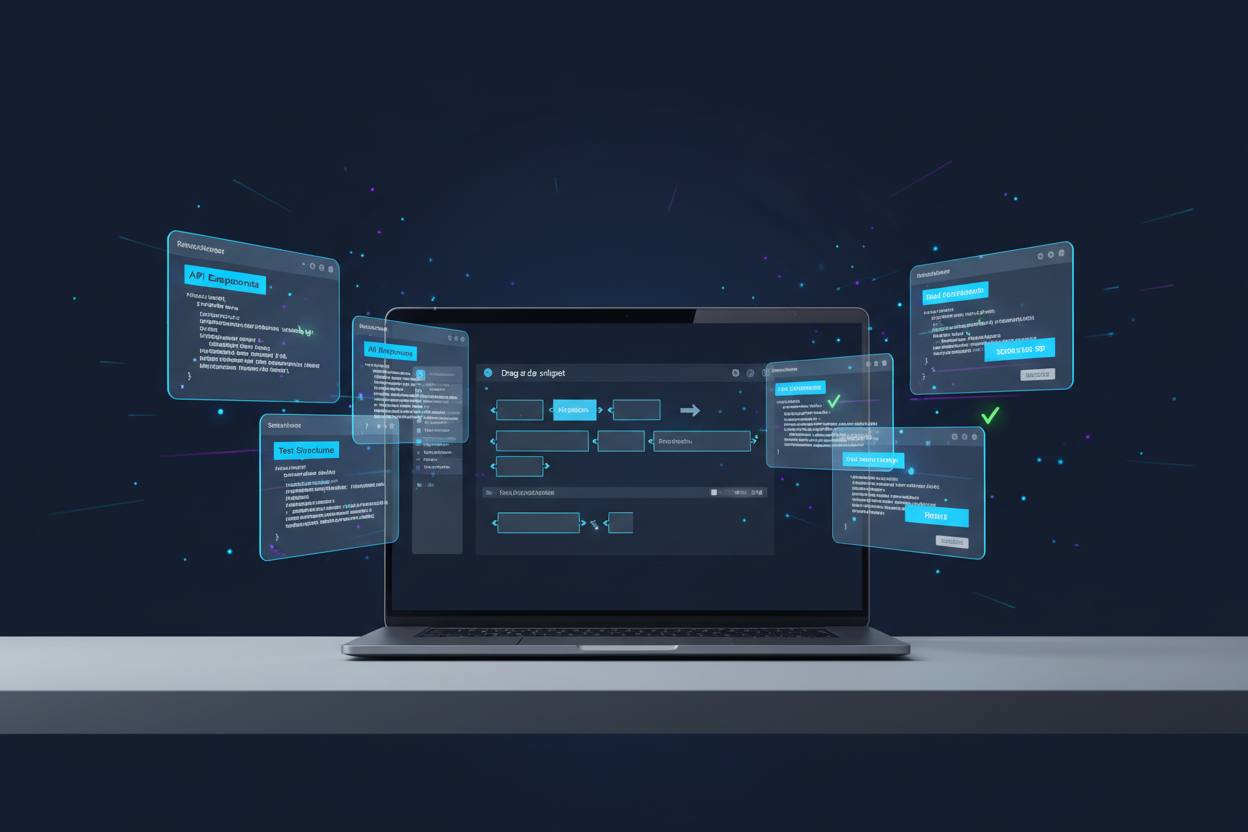
Custom snippets are another powerful feature that many developers overlook. You can create reusable code templates for common patterns in your projects. I’ve saved countless hours by setting up snippets for React components, API endpoints, and test structures. The snippet editor has been redesigned with a visual interface that makes creating complex snippets much more intuitive.
Productivity Hacks and Time-Saving Shortcuts
Let’s talk about the shortcuts and techniques that separate VS Code beginners from power users. Multi-cursor editing (Alt+Click) is probably the most mind-blowing feature when you first discover it. You can edit multiple lines simultaneously, which is perfect for refactoring variable names or making repetitive changes.
The Quick Open feature (Ctrl+P or Cmd+P) lets you jump to any file in your project instantly. But here’s a lesser-known trick: you can use symbols like @ to search for functions, # for symbols across files, and : to go to specific line numbers. It’s like having superpowers for navigation! ⚡
Workspace management has been revolutionized in 2025. You can now save entire workspace configurations, including open files, terminal sessions, and extension states. I have different workspaces for different projects, and switching between them feels seamless.
The new Focus Mode eliminates distractions by hiding unnecessary UI elements and highlighting only the code you’re working on. It’s perfect for those deep-focus coding sessions when you need to get in the zone.
Debugging Like a Pro in Visual Studio Code
Debugging in VS Code has always been solid, but the 2025 improvements are remarkable. The visual debugger now includes time-travel debugging for JavaScript and Python, allowing you to step backward through your code execution. It’s like having a time machine for your bugs! 🕰️
Setting breakpoints is straightforward – just click in the gutter next to your line numbers. But conditional breakpoints are where the real power lies. You can set conditions that trigger breakpoints only when specific criteria are met, saving you from manually stepping through hundreds of iterations.
The Debug Console isn’t just for viewing output anymore. You can execute code in the current debugging context, modify variables on the fly, and even test fixes without stopping your debugging session. The new interactive debugging mode makes this process incredibly smooth.
For web developers, the browser debugging integration is phenomenal. You can set breakpoints in your VS Code editor and have them trigger in your browser, creating a unified debugging experience across your entire development stack.
Version Control Integration with Git
Git integration in VS Code has matured beautifully. The Source Control panel provides a clean interface for staging changes, writing commit messages, and managing branches. The new smart commit feature analyzes your changes and suggests commit message templates based on the type of modifications you’ve made.
Branch management is visual and intuitive. You can see your branch history as a graph, compare branches side by side, and merge conflicts with a three-way merge editor that clearly shows the differences. The conflict resolution interface has been redesigned to be more user-friendly, especially for developers who find command-line Git intimidating.
GitLens extension integration provides blame information, commit history, and repository insights directly in your editor. You can see who wrote each line of code, when it was written, and the commit message associated with it. It’s invaluable for understanding code history and collaborating with team members. 🤝
Remote Development and Cloud Integration
Remote development capabilities have become essential, and VS Code leads the pack here. The Remote Development extensions let you code on remote servers, containers, or even in the cloud while maintaining the full VS Code experience locally.
GitHub Codespaces integration is seamless in 2025. You can spin up a complete development environment in the cloud with a single click, complete with your extensions, settings, and project dependencies. It’s perfect for quick fixes, code reviews, or working on different machines without setup overhead.
The new Container Development feature automatically detects when you’re working with containerized applications and offers to set up the appropriate development environment. Docker integration feels native, and you can debug applications running inside containers as if they were running locally.
Cloud storage integration means your projects, settings, and even your workspace layouts sync across all your devices. Whether you’re coding on your laptop at a coffee shop or your desktop at home, everything stays in sync automatically. ☁️
Performance Optimization Tips
As projects grow larger and more complex, keeping VS Code responsive becomes crucial. The 2025 release includes significant performance improvements, but there are still ways to optimize your setup for maximum efficiency.
Extension management is key. Use the new Extension Profiler to identify which extensions are impacting performance. You might be surprised to find that some seemingly innocent extensions are consuming significant resources. The smart extension loading feature only activates extensions when they’re needed, reducing startup time and memory usage.
Large file handling has been improved with virtual scrolling and lazy loading. You can now open massive files without VS Code grinding to a halt. The search functionality has been optimized for large codebases, with indexing that happens in the background without blocking your workflow.
Workspace optimization involves excluding unnecessary folders from file watching and search indexing. Configure your .gitignore and VS Code settings to ignore node_modules, build artifacts, and other generated content. Your editor will thank you with faster search results and reduced memory usage! 🚀
Future-Proofing Your VS Code Setup
Technology evolves rapidly, and your development environment should evolve with it. VS Code’s update mechanism ensures you’re always running the latest version with the newest features and security patches. The insider builds program lets you test upcoming features before they’re released to the stable channel.
Stay connected with the VS Code community through GitHub discussions, Twitter, and developer blogs. The development team is incredibly responsive to feedback, and many features we use today started as community suggestions.
Backup and migration strategies are important as your customization grows. Export your settings, extension lists, and custom configurations regularly. The new profile export feature makes it easy to package your entire VS Code setup for sharing with team members or migrating to new machines.
Learning never stops in software development. VS Code’s built-in learning resources, tutorial integration, and documentation access help you stay current with new features and best practices. The editor itself becomes a learning platform! 📚
Visual Studio Code has truly become an indispensable tool for developers in 2025. From its humble beginnings as a simple text editor, it has evolved into a comprehensive development environment that adapts to your workflow rather than forcing you to adapt to it.
We’ve covered a lot of ground in this tutorial – from basic setup to advanced productivity techniques. The key is to start with the fundamentals and gradually incorporate more advanced features as you become comfortable. Don’t try to master everything at once; VS Code is designed to grow with you as your skills develop.
Remember, the best development environment is the one that gets out of your way and lets you focus on what matters most: writing great code. VS Code excels at this by providing powerful features when you need them while maintaining simplicity for everyday tasks.
As we move further into 2025, VS Code continues to evolve with new features, performance improvements, and community contributions. The future looks bright for this amazing editor, and I’m excited to see what new capabilities will emerge.
Happy coding, and may your VS Code setup serve you well on your development journey! 🎉
Frequently Asked Questions
Q: Is Visual Studio Code really free to use?
A: Yes, VS Code is completely free and open-source. Microsoft provides it at no cost, and you can use it for both personal and commercial projects without any licensing fees.
Q: How much disk space does VS Code require in 2025?
A: The base installation requires about 200MB of disk space. However, extensions, settings, and cached data can add up, so plan for 1-2GB of total space for a well-configured setup.
Q: Can I use VS Code for languages other than JavaScript and Python?
A: Absolutely! VS Code supports virtually every programming language through extensions. Popular languages like Java, C++, Go, Rust, and PHP all have excellent extension support with features like IntelliSense and debugging.
Q: How do I sync my VS Code settings across multiple computers?
A: Enable Settings Sync through your GitHub or Microsoft account. This feature synchronizes your extensions, settings, keyboard shortcuts, and even UI state across all your devices automatically.
Q: Is VS Code suitable for large enterprise projects?
A: Yes, VS Code handles large codebases very well. Features like workspace management, remote development, and performance optimizations make it suitable for enterprise-scale development. Many major companies use VS Code as their primary development environment.
Q: What’s the difference between VS Code and Visual Studio?
A: VS Code is a lightweight, cross-platform editor focused on modern web and cloud development. Visual Studio is a full IDE primarily for Windows and .NET development. VS Code is more flexible and extensible, while Visual Studio offers more built-in tools for specific Microsoft technologies.