Todoist: A Beginner’s Guide to Getting Organized in 2025 📋
Let’s be honest – we’ve all been there. You wake up with the best intentions to tackle your to-do list, but by the end of the day, you’re staring at a scattered collection of sticky notes, half-forgotten tasks, and that nagging feeling that you’ve forgotten something important. If this sounds familiar, you’re not alone, and more importantly, you’re in the right place.
In 2025, staying organized isn’t just a nice-to-have skill – it’s essential for managing the increasing complexity of our daily lives. Whether you’re juggling work projects, family responsibilities, or personal goals, having a reliable task management system can be the difference between feeling overwhelmed and feeling in control.
Enter Todoist, one of the most popular and intuitive task management apps available today. This comprehensive guide will walk you through everything you need to know to get started with Todoist and transform your chaotic schedule into an organized, manageable system that actually works.

Table of Contents
• What Is Todoist and Why Should You Care?
• Getting Started: Setting Up Your Todoist Account
• Understanding Todoist’s Core Features
• Creating Your First Project and Tasks
• Mastering Labels, Filters, and Due Dates
• Advanced Organization Techniques
• Todoist vs. Other Task Management Apps
• Tips for Building Lasting Organizational Habits
• Common Mistakes to Avoid
• Frequently Asked Questions
What Is Todoist and Why Should You Care? 🤔
Todoist is a cross-platform task management application that helps you organize, plan, and collaborate on projects and tasks. Think of it as your digital brain that never forgets anything – from grocery lists to major work deadlines.
What sets Todoist apart from other productivity apps is its perfect balance of simplicity and power. You can start using it immediately without any learning curve, but as you become more comfortable, you’ll discover advanced features that can handle even the most complex project management needs.
The app works seamlessly across all your devices – your phone, tablet, computer, and even smartwatch. This means you can capture ideas on the go, review your tasks during your commute, and check things off from anywhere. In our increasingly mobile world, this flexibility is invaluable.
But here’s what really matters: Todoist isn’t just about making lists. It’s about creating a system that reduces mental clutter, helps you prioritize what’s truly important, and gives you the satisfaction of actually completing what you set out to do.
Getting Started: Setting Up Your Todoist Account 🚀
Creating your Todoist account is refreshingly straightforward. Simply visit todoist.com or download the app from your device’s app store. You can sign up with your email address or use your Google account for even faster setup.
Once you’re in, you’ll notice Todoist’s clean, minimalist interface. Don’t worry if it looks almost too simple – this is intentional. The app is designed to get out of your way so you can focus on what matters: your tasks.
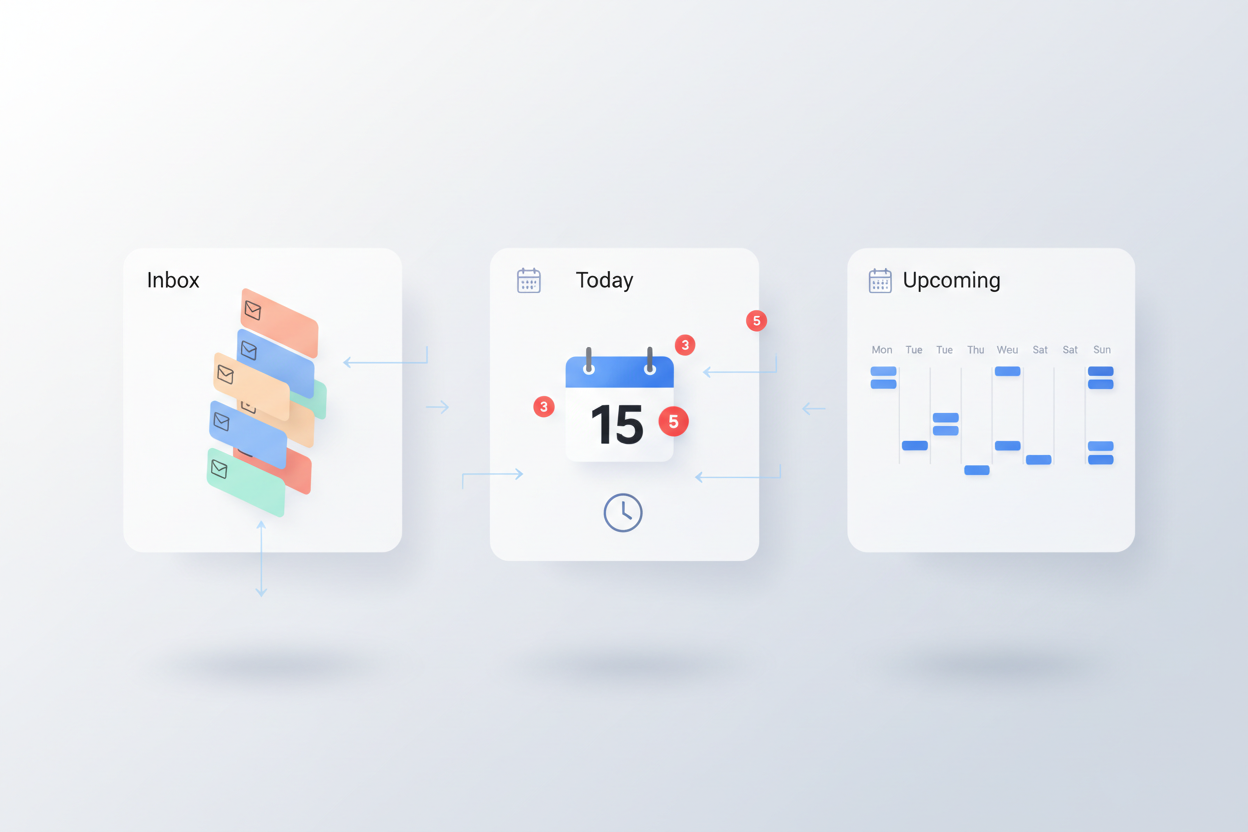
Your first step should be exploring the main areas of the app. You’ll see an Inbox (where all new tasks go by default), a Today view (showing what’s due today), and an Upcoming view (your tasks for the next seven days). These three views will become your command center for daily task management.
Take a moment to adjust your settings. Go to Settings and customize your theme, notification preferences, and time zone. These small tweaks will make your experience much more pleasant from day one.
Understanding Todoist’s Core Features 💡
Before diving into creating tasks, let’s understand the building blocks of Todoist’s organization system. Think of these as the foundation upon which you’ll build your productivity empire.
Projects are the main containers for your tasks. You might have projects like “Work,” “Home Renovation,” “Health Goals,” or “Vacation Planning.” Each project can contain multiple tasks and even sub-projects for more complex endeavors.
Tasks are the individual items you need to complete. They can be as simple as “Buy milk” or as complex as “Prepare quarterly presentation.” The beauty of Todoist is that it handles both with equal ease.
Labels are like tags that help you categorize tasks across different projects. For example, you might use labels like “@phone” for calls you need to make, “@errands” for tasks you can do while you’re out, or “@waiting” for tasks that depend on someone else.
Filters are powerful tools that let you create custom views of your tasks. You can filter by labels, due dates, projects, or any combination of criteria. This feature becomes incredibly useful as your task list grows.
Creating Your First Project and Tasks ✅
Now for the fun part – actually using Todoist! Let’s start by creating your first project. Click the “+” button next to “Projects” and give it a name. If you’re new to task management, I recommend starting with broad categories like “Work,” “Personal,” and “Household.”
Adding tasks is incredibly intuitive. Simply click in the task field and type what you need to do. Todoist’s natural language processing is surprisingly smart – if you type “Call dentist tomorrow at 2pm,” it will automatically set the due date and time for you.
Here’s a pro tip that changed my productivity game: be specific with your task descriptions. Instead of writing “Work on presentation,” try “Create outline for Q1 sales presentation.” The more specific you are, the easier it becomes to actually start the task when you see it on your list.
Don’t forget about subtasks! If you have a complex task, break it down into smaller, manageable pieces. For example, “Plan birthday party” might include subtasks like “Choose venue,” “Send invitations,” and “Order cake.” This approach makes overwhelming projects feel much more achievable.
Mastering Labels, Filters, and Due Dates 📅
Once you’ve got the basics down, it’s time to level up your organization game. Labels are your secret weapon for creating a truly functional system. The key is to create labels that reflect how you actually work and live.
Consider context-based labels like “@computer” for tasks that require your laptop, “@phone” for calls, or “@errands” for things you can do while you’re out and about. This way, when you find yourself with 15 minutes and your phone, you can quickly see all the calls you need to make.
Due dates in Todoist are flexible and forgiving. You can set specific dates and times, or use relative terms like “tomorrow,” “next week,” or “in 3 days.” The app even understands recurring tasks – type “every Monday” or “every 2 weeks” and Todoist will automatically reschedule the task when you complete it.
Priority levels (P1 through P4) help you focus on what’s truly urgent and important. I use P1 for genuine emergencies, P2 for important deadlines, P3 for normal tasks, and P4 for someday/maybe items. This system prevents everything from feeling equally urgent.
Advanced Organization Techniques 🎯
As you become more comfortable with Todoist, you’ll want to explore some advanced features that can really supercharge your productivity. One of my favorites is the karma system – it gamifies your productivity by tracking your task completion and streaks. It might sound silly, but there’s something deeply satisfying about maintaining a high karma score!
Templates are another powerful feature, especially if you find yourself creating similar projects repeatedly. You can create templates for things like “Weekly Planning,” “Travel Preparation,” or “Project Launch” and reuse them whenever needed.
The comments and file attachment features turn Todoist into a lightweight project management tool. You can add notes, attach relevant documents, and even collaborate with others on shared projects. This is particularly useful for work projects or planning events with family and friends.
Consider implementing the Getting Things Done (GTD) methodology within Todoist. Create projects for different areas of your life, use labels for contexts, and maintain an “Inbox” for quick capture. This approach helps ensure nothing falls through the cracks.
Todoist vs. Other Task Management Apps ⚖️
You might be wondering how Todoist stacks up against other popular options like Asana, Trello, or Apple Reminders. Each has its strengths, but Todoist strikes an excellent balance between simplicity and functionality.
Compared to Asana, Todoist is much more user-friendly for personal use and small teams. Asana can feel overwhelming for simple task management, while Todoist remains approachable even as your needs become more complex.
Trello’s card-based system is visually appealing, but it can become unwieldy for large numbers of tasks. Todoist’s list-based approach scales much better and offers superior filtering and search capabilities.
Apple Reminders is great if you’re deeply embedded in the Apple ecosystem, but it lacks the cross-platform compatibility and advanced features that make Todoist so powerful. Plus, Todoist’s natural language processing is significantly more sophisticated.
Tips for Building Lasting Organizational Habits 🌱
Having a great tool is only half the battle – the real challenge is building habits that stick. Start small and be consistent. Rather than trying to organize your entire life overnight, begin by capturing just your work tasks or household chores in Todoist.
Establish a daily review routine. Spend 5-10 minutes each morning looking at your Today view and planning your priorities. This simple habit will help you start each day with clarity and purpose.
Don’t be afraid to adjust your system as you learn what works for you. Maybe you discover that you prefer due dates over priority levels, or that certain labels aren’t as useful as you thought. Todoist is flexible enough to adapt to your changing needs.
Remember the two-minute rule: if a task takes less than two minutes, do it immediately rather than adding it to your list. This prevents your system from becoming cluttered with tiny tasks that create more overhead than value.
Common Mistakes to Avoid ⚠️
Even with the best intentions, it’s easy to fall into common traps when starting with any new organizational system. One of the biggest mistakes I see is over-organizing from the start. You don’t need 20 different projects and 50 labels on day one. Start simple and add complexity only when you need it.
Another common pitfall is treating Todoist like a dumping ground for every random thought. While it’s great for capturing ideas, not everything needs to become a task. Use your judgment to distinguish between actionable items and general notes or ideas.
Don’t ignore the mobile app! Todoist’s real power comes from having your tasks available everywhere. Make sure you have the app installed on your phone and get comfortable adding tasks on the go. The best organizational system is the one you actually use consistently.
Finally, resist the urge to constantly tinker with your setup. It’s tempting to spend more time organizing your tasks than actually doing them. Set up your system, use it for at least a week before making major changes, and focus on completion rather than perfection.
Frequently Asked Questions ❓
Is Todoist free to use?
Yes! Todoist offers a robust free tier that includes up to 80 projects, 5 people per project, and basic filters and labels. The Pro version adds features like reminders, labels, filters, and file uploads for a reasonable monthly fee.
Can I use Todoist offline?
Absolutely. Todoist works offline and will sync your changes when you reconnect to the internet. This makes it reliable even when you’re traveling or in areas with poor connectivity.
How do I share projects with family members or colleagues?
Simply click on the project you want to share, select “Share,” and enter the email addresses of people you want to collaborate with. They’ll receive an invitation to join the project.
Can I import my existing tasks from other apps?
Yes! Todoist supports importing from many popular apps including Wunderlist, Any.do, and even simple CSV files. Check their website for the most current list of supported import formats.
What happens if I accidentally delete something important?
Don’t panic! Todoist keeps a complete activity log, and you can restore deleted tasks and projects from your account settings. Pro users get even more detailed backup and restore options.
How do I set up recurring tasks?
When creating or editing a task, simply use natural language like “every Monday,” “every 2 weeks,” or “every month on the 15th.” Todoist will automatically understand and set up the recurrence pattern.
Conclusion: Your Journey to Better Organization Starts Now 🎉
Getting organized with Todoist isn’t about becoming a productivity robot or squeezing every second of efficiency from your day. It’s about creating space in your mind for what matters most by ensuring nothing important gets forgotten or overlooked.
The beauty of Todoist lies in its ability to grow with you. Whether you’re a student managing assignments, a professional juggling multiple projects, or a parent trying to keep track of family activities, Todoist can adapt to your unique needs and workflow.
Remember, the best organizational system is the one you’ll actually use consistently. Start simple, be patient with yourself as you build new habits, and don’t be afraid to adjust your approach as you learn what works best for your lifestyle.
Take the first step today: download Todoist, create your first project, and add a few tasks. You might be surprised at how quickly this simple act can bring clarity and calm to your daily routine. Your future, more organized self will thank you for starting this journey in 2025!
Ready to transform your productivity? Give Todoist a try and discover how good it feels to have everything in its right place. After all, life’s too short to spend it feeling scattered and overwhelmed when the solution is just a few clicks away. 🚀