Image Editing in 2025: The Ultimate Guide to Using GIMP vs Photoshop 📸
As we dive deeper into 2025, the world of digital image editing continues to evolve at breakneck speed. Whether you’re a seasoned photographer, a budding graphic designer, or someone who just wants to make their vacation photos pop on social media, choosing the right image editing software can make or break your creative journey. Today, I’m going to walk you through the ultimate comparison between two titans of the image editing world: GIMP and Adobe Photoshop.
Having spent countless hours wrestling with both programs over the years (and trust me, there have been moments of pure frustration and moments of pure joy), I can tell you that this decision isn’t as straightforward as it might seem. Both tools have their passionate advocates, and for good reason. Let’s dive in and explore what makes each of these powerhouses tick in 2025.
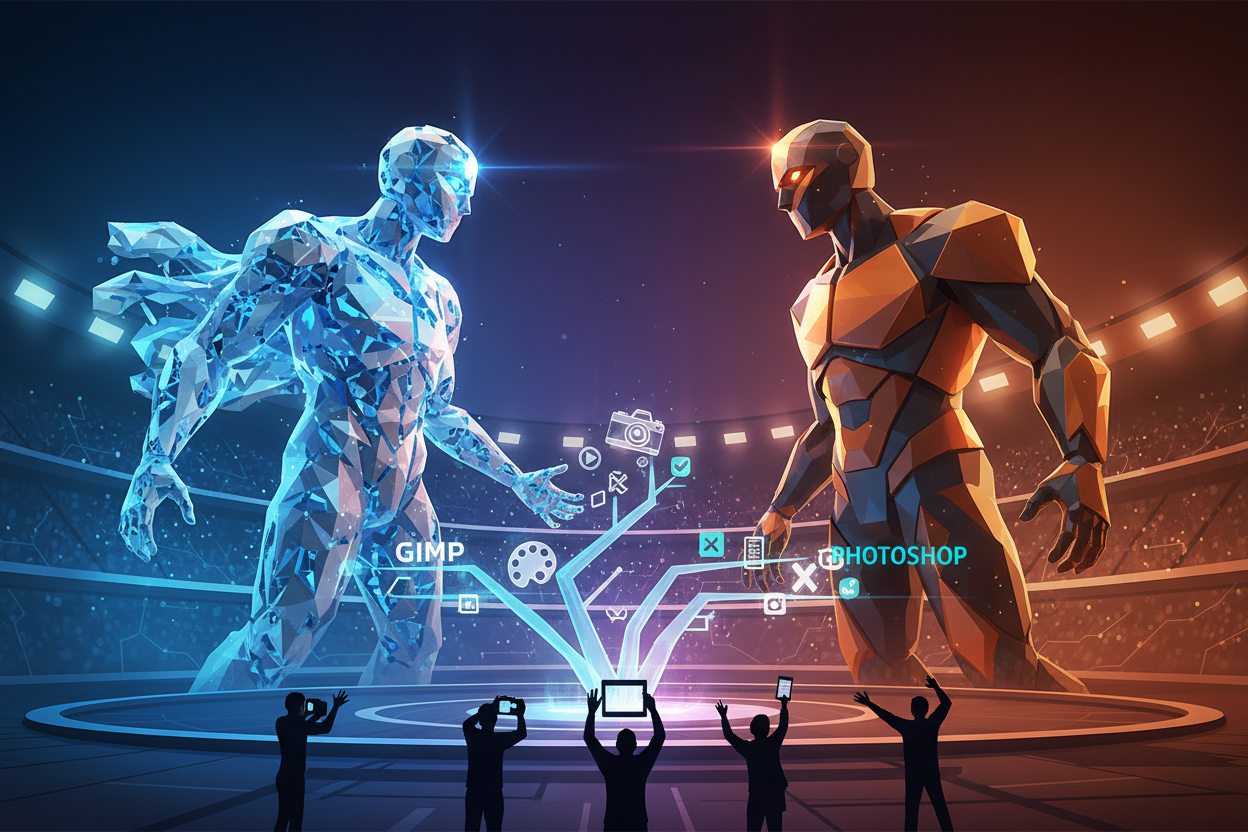
Table of Contents 📋
• Understanding the Basics: GIMP vs Photoshop Overview
• Cost Analysis: Free vs Premium Investment
• User Interface and Learning Curve Comparison
• Feature Showdown: What Can Each Program Do?
• Performance and System Requirements
• Community Support and Resources
• Professional Use Cases and Industry Standards
• Making the Right Choice for Your Needs
• Frequently Asked Questions
Understanding the Basics: GIMP vs Photoshop Overview 🎨
Let’s start with the fundamentals. GIMP (GNU Image Manipulation Program) has been the go-to free alternative to expensive image editing software since 1996. It’s open-source, which means a community of developers constantly works to improve it, and you’ll never pay a dime to use it.
Adobe Photoshop, on the other hand, has been the industry standard since 1987. It’s a subscription-based powerhouse that professionals worldwide rely on for everything from simple photo retouching to complex digital art creation.
In 2025, both programs have matured significantly. GIMP has addressed many of the user interface complaints that plagued earlier versions, while Photoshop has integrated AI features that seemed like science fiction just a few years ago.
Cost Analysis: Free vs Premium Investment 💰
Here’s where things get interesting. GIMP remains completely free, and I mean completely. No hidden fees, no premium features locked behind paywalls, no subscription renewals to worry about. You download it, install it, and start creating.
Photoshop, however, requires an Adobe Creative Cloud subscription. As of 2025, you’re looking at around $20.99 per month for Photoshop alone, or $54.99 per month for the full Creative Cloud suite. That’s roughly $252 to $660 per year, depending on your needs.
But here’s something I’ve learned from working with both: sometimes the “free” option isn’t actually free when you factor in your time. If you’re running a business or working professionally, the time saved with Photoshop’s streamlined workflows might justify the cost. However, if you’re a hobbyist or student, GIMP’s zero price tag is pretty hard to beat.
User Interface and Learning Curve Comparison 🖥️
I’ll be honest – this is where personal preference really shines through. GIMP’s interface in 2025 has come a long way from its clunky beginnings. The single-window mode feels more cohesive, and the tool organization makes more sense than it used to.
Photoshop’s interface, meanwhile, has remained relatively consistent over the years, which is both a blessing and a curse. If you learned Photoshop ten years ago, you can still navigate it today. The learning curve for Photoshop tends to be gentler initially, thanks to better tooltips, guided tutorials, and more intuitive icon design.
That said, GIMP’s learning curve isn’t as steep as people make it out to be. I’ve taught both programs to beginners, and while Photoshop might have a slight edge in user-friendliness, GIMP users often develop a deeper understanding of image editing fundamentals because they’re forced to think about what they’re doing rather than relying on automated features.
Feature Showdown: What Can Each Program Do? ⚡
This is where things get really exciting. Both programs are incredibly capable, but they excel in different areas.
GIMP’s Strengths in 2025:
GIMP has seriously stepped up its game. The program now includes advanced features like non-destructive editing through layers, sophisticated selection tools, and a plugin system that rivals many commercial alternatives. The scripting capabilities are particularly impressive – if you know Python, you can automate almost anything.
The color management has improved dramatically, making GIMP suitable for print work that would have been questionable in earlier versions. Plus, the community has created thousands of plugins and scripts that extend functionality in ways Adobe never imagined.
Photoshop’s Advantages:
Photoshop’s AI integration is simply mind-blowing in 2025. Features like Content-Aware Fill, Sky Replacement, and the new Neural Filters can accomplish in seconds what might take hours in GIMP. The Camera Raw integration is seamless, and if you shoot in RAW format regularly, this alone might justify the subscription cost.
The 3D capabilities, video editing features, and seamless integration with other Adobe products create an ecosystem that’s hard to match. When I’m working on a project that involves multiple media types, Photoshop’s ability to play nice with After Effects, Illustrator, and Premiere Pro saves me countless hours.
Performance and System Requirements 🚀
Here’s something that might surprise you: GIMP is often more resource-efficient than Photoshop, especially on older hardware. I’ve run GIMP smoothly on computers that struggle with Photoshop’s memory hunger.
However, Photoshop’s optimization has improved significantly in recent years. The program now takes better advantage of multi-core processors and GPU acceleration. If you have a modern, well-equipped computer, Photoshop’s performance advantages become more apparent, especially when working with large files or complex operations.
GIMP’s multi-threading support has also improved, though it still lags behind Photoshop in this area. For basic editing tasks, you probably won’t notice the difference, but for professional workflows involving hundreds of high-resolution images, Photoshop’s speed advantages add up quickly.
Community Support and Resources 📚
Both programs have vibrant communities, but they’re quite different in character. GIMP’s community feels more grassroots – you’ll find passionate users sharing techniques, creating plugins, and helping newcomers on forums and social media. The documentation is extensive, though sometimes it requires a bit more digging to find what you need.
Photoshop’s community is massive and includes everyone from weekend warriors to industry professionals. Adobe’s official tutorials are polished and comprehensive, and there are countless third-party educational resources. If you get stuck, you’re usually just a YouTube search away from finding a solution.
The trade-off? GIMP’s community often provides more detailed explanations of why something works the way it does, while Photoshop tutorials sometimes focus more on the “how” without the “why.”
Professional Use Cases and Industry Standards 🏢
Let’s talk about the elephant in the room: industry standards. In most professional environments, Photoshop is still king. Advertising agencies, photography studios, and design firms typically standardize on Adobe products because of file compatibility, client expectations, and workflow integration.
However, I’ve noticed a growing acceptance of GIMP in certain professional contexts, particularly in organizations that prioritize open-source software or have budget constraints. Some freelancers have built successful careers using primarily GIMP, though they often need to be prepared to work with Photoshop files from clients.
If you’re planning a career in graphic design or photography, learning Photoshop is probably essential, even if you prefer GIMP for personal projects. But if you’re working independently or in a more flexible environment, GIMP can absolutely meet professional standards.
Making the Right Choice for Your Needs 🎯
After working with both programs extensively, here’s my honest assessment:
Choose GIMP if:
You’re budget-conscious, value open-source software, enjoy customizing your tools, or primarily work on personal projects. GIMP is also excellent for learning image editing fundamentals without the pressure of a monthly subscription.
Choose Photoshop if:
You work in a professional environment, need seamless integration with other Adobe products, frequently work with RAW files, or want access to the latest AI-powered features. The subscription cost is justified if image editing is central to your income.
My Personal Recommendation:
If you’re just starting out, begin with GIMP. Learn the fundamentals, explore your creativity, and see if image editing becomes a serious passion or profession. You can always upgrade to Photoshop later, and the skills transfer surprisingly well.
If you’re already making money from image editing or it’s central to your career goals, Photoshop’s advantages probably justify the cost. The time savings and professional features will likely pay for themselves.
Frequently Asked Questions ❓
Can GIMP open Photoshop files?
Yes, GIMP can open PSD files, though some advanced features and layer effects might not transfer perfectly. For basic layer structures, it works quite well.
Is GIMP really as powerful as Photoshop?
For most image editing tasks, absolutely. GIMP lacks some of Photoshop’s advanced features and AI tools, but it’s incredibly capable for photo retouching, graphic design, and digital art.
Which program is better for beginners?
Photoshop has a gentler learning curve initially, but GIMP teaches better fundamental understanding. Both are suitable for beginners with patience and dedication.
Can I use GIMP professionally?
Yes, many professionals use GIMP successfully. However, you should be prepared to work with Photoshop files from clients and potentially face some industry bias toward Adobe products.
Does GIMP have AI features like Photoshop?
GIMP has some AI-powered plugins developed by the community, but it doesn’t match Photoshop’s integrated AI features as of 2025.
Which program handles RAW files better?
Photoshop’s Camera Raw integration is superior, though GIMP can work with RAW files through plugins like RawTherapee or by preprocessing in other RAW converters.
Conclusion: The Best Choice is the One You’ll Actually Use 🌟
As we wrap up this comprehensive comparison, I want to leave you with this thought: the best image editing software is the one you’ll actually use consistently and enjoyably. Both GIMP and Photoshop are incredibly powerful tools that can help you create stunning images.
In 2025, the gap between these programs has narrowed considerably. GIMP has matured into a truly professional-grade application, while Photoshop continues to push the boundaries with AI integration and workflow improvements.
Your choice should ultimately depend on your specific needs, budget, and career goals. Don’t let anyone tell you that one is definitively “better” than the other – they’re different tools for different situations, and both have their place in the modern creative landscape.
Whether you choose the free, open-source flexibility of GIMP or the industry-standard power of Photoshop, the most important thing is to start creating. Pick one, dive in, and begin your journey into the amazing world of digital image editing. Trust me, once you start seeing your creative visions come to life, you’ll wonder why you waited so long to begin! 🚀