Getting Started with Visual Studio Code: Advanced Tutorials for 2025 🚀
If you’ve been coding for a while, chances are you’ve heard about Visual Studio Code (VS Code) – Microsoft’s free, open-source code editor that’s taken the development world by storm. But here’s the thing: most developers barely scratch the surface of what this powerhouse can do. As we dive into 2025, VS Code has evolved into something that feels almost magical when you know how to harness its full potential.
I remember when I first started using VS Code back in 2016. I thought I was pretty clever with my basic syntax highlighting and file navigation. Boy, was I wrong! Fast forward to today, and I can honestly say that mastering VS Code’s advanced features has transformed not just how I code, but how I think about development workflows entirely.

Whether you’re a seasoned developer looking to level up your game or someone who’s been using VS Code for basic tasks and wants to unlock its hidden superpowers, this comprehensive guide will walk you through the most game-changing advanced features that will make you a VS Code ninja by 2025. 💪
Table of Contents
• Advanced Extensions and Customization
• Multi-Cursor Magic and Advanced Editing
• Debugging Like a Pro
• Git Integration Mastery
• Remote Development Revolution
• AI-Powered Coding with GitHub Copilot
• Performance Optimization Tips
• Workspace Management Strategies
• Advanced Terminal Integration
• Custom Snippets and Automation
Advanced Extensions and Customization: Building Your Perfect Development Environment 🛠️
Let’s start with something that completely changed my development experience – creating a truly personalized VS Code environment. The extension marketplace isn’t just about adding pretty themes (though we love those too). It’s about building a development environment that anticipates your needs and eliminates friction from your workflow.
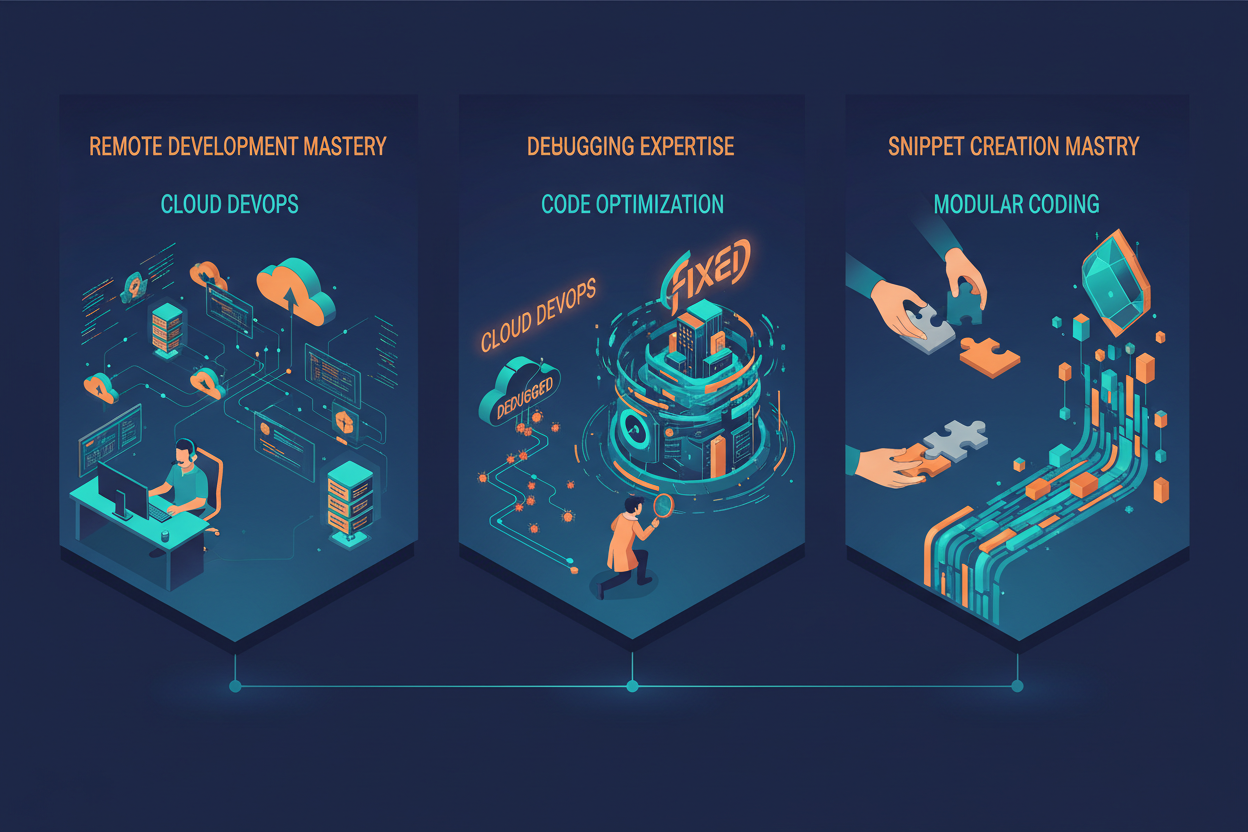
The key to extension mastery isn’t installing everything that looks cool – trust me, I’ve been there and ended up with a sluggish editor. Instead, focus on extensions that solve specific problems in your workflow. For 2025, here are the game-changers you should consider:
The **Remote Development extension pack** has revolutionized how we work with different environments. You can literally code on a Windows machine while your code runs in a Linux container on a cloud server. It’s like having a teleportation device for your development environment.
**Settings Sync** (now built into VS Code) ensures your carefully crafted setup follows you everywhere. I can’t tell you how many times this has saved me when setting up a new machine or helping a teammate replicate an issue.
For customization, dive deep into VS Code’s settings.json file. This is where the real magic happens. You can customize everything from how your editor behaves with different file types to creating custom color schemes that reduce eye strain during those late-night coding sessions.
Multi-Cursor Magic and Advanced Editing: Becoming a Text Manipulation Wizard ✨
Here’s where VS Code starts feeling like it’s reading your mind. Multi-cursor editing isn’t just about holding Alt and clicking around randomly – though that’s fun too! It’s about understanding patterns and leveraging VS Code’s intelligence to make bulk edits that would take hours manually.
The **Column Selection** feature (Alt+Shift+drag) is perfect for editing structured data or making identical changes across multiple lines. But the real power comes from combining this with **Find and Replace with regex**. Once you master regex patterns in VS Code, you’ll feel like you have superpowers.
One of my favorite tricks is using **Ctrl+Shift+L** to select all occurrences of the current selection. This is incredibly useful when refactoring variable names or updating repeated patterns across a file. Combined with **Ctrl+D** to select the next occurrence, you can make surgical edits with precision.
The **Command Palette** (Ctrl+Shift+P) is your gateway to advanced editing commands. Commands like “Transform to Uppercase,” “Sort Lines,” and “Remove Duplicate Lines” can save you significant time when working with data or cleaning up code.
Debugging Like a Pro: Beyond Console.log 🔍
If you’re still debugging with console.log statements (and honestly, we all do sometimes), you’re missing out on one of VS Code’s most powerful features. The integrated debugger can make you feel like you have X-ray vision into your code’s execution.
Setting up debugging configurations might seem intimidating at first, but once you have your launch.json configured properly, debugging becomes as simple as pressing F5. The ability to set breakpoints, inspect variables, and step through code line by line is invaluable for understanding complex logic flows.
**Conditional breakpoints** are a game-changer when you’re dealing with loops or functions that get called frequently. Instead of stopping at every iteration, you can set conditions like “only break when userId === ‘admin'” – this has saved me countless hours when debugging user-specific issues.
The **Debug Console** allows you to execute code in the current debugging context. This means you can test fixes on the fly without stopping the debugging session and restarting your application. It’s like having a conversation with your running code.
Git Integration Mastery: Version Control That Doesn’t Get in Your Way 🌿
VS Code’s Git integration has evolved to the point where I rarely need to touch the command line for version control tasks. The **Source Control** panel provides a visual interface that makes complex Git operations intuitive.
The **Timeline view** shows the history of changes to your current file, including Git commits, file saves, and even test runs. This chronological view helps you understand how your code evolved and can be invaluable when tracking down when a bug was introduced.
**GitLens** extension deserves special mention here. It adds blame annotations, repository insights, and powerful comparison tools that make collaborative development much smoother. Being able to see who wrote each line of code and when, directly in your editor, is incredibly useful for understanding context and asking the right questions.
The **Merge Editor** introduced in recent versions provides a three-way merge interface that makes resolving conflicts less painful. Instead of staring at angle brackets and equal signs, you get a clear visual representation of the changes from both branches.
Remote Development Revolution: Code Anywhere, Run Everywhere 🌐
Remote development has transformed from a nice-to-have feature to an essential capability, especially in our increasingly distributed work environment. VS Code’s remote development capabilities are so seamless that you’ll forget you’re not working locally.
**Dev Containers** allow you to define your development environment as code. This means every team member can have an identical development setup, regardless of their operating system or local configuration. No more “it works on my machine” problems!
The **Remote-SSH** extension lets you connect to any machine you have SSH access to and develop as if you were working locally. This is perfect for working with cloud instances, development servers, or even a more powerful machine in your home lab.
**GitHub Codespaces** integration takes this even further, allowing you to spin up a complete development environment in the cloud directly from a GitHub repository. It’s like having a development machine that exists in the browser.
AI-Powered Coding with GitHub Copilot: Your AI Pair Programming Partner 🤖
GitHub Copilot has fundamentally changed how I approach coding. It’s not just about autocomplete on steroids – it’s about having an AI pair programming partner that can understand context, suggest entire functions, and even help with documentation.
The key to getting the most out of Copilot is learning how to write good prompts. Clear, descriptive comments often result in better suggestions. Instead of just writing “// sort array,” try “// sort array of user objects by last login date, most recent first.”
**Copilot Chat** takes this interaction to the next level. You can ask questions about your code, request explanations of complex algorithms, or even ask for help refactoring functions. It’s like having a senior developer available 24/7 to bounce ideas off.
One of my favorite uses for Copilot is generating test cases. By describing what a function should do and what edge cases to consider, Copilot can generate comprehensive test suites that I might not have thought of myself.
Performance Optimization Tips: Keeping VS Code Lightning Fast ⚡
As you add more extensions and work with larger projects, VS Code performance can start to suffer. Here are some advanced techniques to keep your editor running smoothly:
**Extension profiling** helps identify which extensions are slowing down your startup time. Use the “Developer: Show Running Extensions” command to see which extensions are consuming the most resources.
**File watching exclusions** can significantly improve performance in large projects. Configure your settings.json to exclude node_modules, build directories, and other folders that don’t need to be watched for changes.
The **TypeScript server** can become a memory hog in large projects. Learning to configure tsconfig.json properly and using project references can keep memory usage under control while maintaining fast IntelliSense.
Workspace Management Strategies: Organizing Multiple Projects Like a Pro 📁
**Multi-root workspaces** allow you to work with multiple related projects simultaneously. This is incredibly useful for full-stack development where you might have separate frontend and backend repositories that need to work together.
**Workspace settings** let you configure different behaviors for different projects. You might want different linting rules for a legacy project versus a new one, or different themes for different types of work.
The **Tasks** system allows you to define and run project-specific commands. You can set up tasks for building, testing, deploying, or any custom scripts your project needs. These tasks can even depend on each other, creating complex build pipelines.
Advanced Terminal Integration: Command Line Superpowers 💻
VS Code’s integrated terminal isn’t just a convenience – it’s a powerful tool that can be customized and automated to fit your workflow perfectly.
**Terminal profiles** allow you to set up different shell configurations for different purposes. You might have one profile for general development, another for deployment tasks, and a third for database operations.
**Terminal splitting** and **terminal tabs** help organize multiple command-line sessions. The ability to run your development server in one terminal while having another open for Git commands and a third for running tests makes multitasking much smoother.
**Shell integration** features like command decorations and the ability to navigate to specific lines from terminal output create a seamless bridge between your terminal and editor.
Custom Snippets and Automation: Building Your Personal Development Assistant 🔧
Custom snippets are like having a personal assistant that remembers all the boilerplate code you write regularly. But advanced snippet creation goes beyond simple text replacement.
**Dynamic snippets** can include variables like the current date, file name, or clipboard content. They can even execute JavaScript to generate complex code structures based on user input.
**Snippet scoping** allows you to create language-specific or even project-specific snippets. Your React snippets won’t clutter your Python development, and your API testing snippets can be specific to your current project.
**User-defined commands** through the Command Palette can automate complex workflows. You can create commands that run multiple tasks, open specific file combinations, or even integrate with external tools.
Frequently Asked Questions
Q: How do I backup my VS Code settings and extensions?
A: Use the built-in Settings Sync feature (sign in with GitHub or Microsoft account) or manually backup your settings.json, keybindings.json, and extensions list using the “Extensions: Show Installed Extensions” command.
Q: Can I use VS Code for large enterprise projects?
A: Absolutely! VS Code handles large codebases well, especially with proper configuration. Use workspace folders, exclude unnecessary files from search, and consider using remote development for very large projects.
Q: How do I troubleshoot slow performance in VS Code?
A: Start by checking the “Developer: Reload Window” command, then use “Developer: Show Running Extensions” to identify problematic extensions. Also, check your file exclusion settings and consider disabling unused features.
Q: What’s the difference between user and workspace settings?
A: User settings apply globally to all VS Code instances, while workspace settings only apply to the current project. Workspace settings override user settings when there’s a conflict.
Q: How can I share my VS Code configuration with my team?
A: Create a .vscode folder in your project root with settings.json, extensions.json, and launch.json files. These will be shared with anyone who opens the project.
Wrapping Up: Your Journey to VS Code Mastery 🎯
Mastering VS Code isn’t about memorizing every keyboard shortcut or installing every extension that catches your eye. It’s about understanding how this incredibly flexible tool can adapt to your specific workflow and needs. The features we’ve explored today represent just the tip of the iceberg – VS Code’s extensibility means there’s always something new to discover.
As we move through 2025, the development landscape continues to evolve rapidly. AI-assisted coding, remote development, and cloud-native workflows are becoming the norm rather than the exception. VS Code’s strength lies in its ability to evolve with these trends while maintaining the simplicity and performance that made it popular in the first place.
My advice? Pick one or two advanced features from this guide and really dive deep into them. Master remote development if you work with cloud services frequently. Become a debugging wizard if you spend a lot of time tracking down complex bugs. Learn to create powerful snippets if you find yourself writing similar code patterns repeatedly.
The time you invest in mastering these advanced VS Code features will pay dividends in your daily productivity and coding enjoyment. After all, the best development tool is the one that gets out of your way and lets you focus on what you do best – creating amazing software. Happy coding! 🚀