Enhancing Google Drive: File Sharing Tips and Tricks for 2025 📁
Table of Contents
• Introduction: Why Google Drive Sharing Matters More Than Ever
• Setting Up Smart Permission Levels for Maximum Security
• Advanced Link Sharing Strategies That Actually Work
• Collaboration Features You’re Probably Not Using
• Organization Hacks for Seamless File Management
• Security Best Practices for Professional Teams
• Mobile Optimization Tips for On-the-Go Sharing
• Troubleshooting Common Sharing Issues
• Future-Proofing Your Google Drive Workflow
• Frequently Asked Questions
Let’s be honest – we’ve all been there. You’re rushing to share an important document, frantically clicking through Google Drive’s sharing options, wondering if you’ve given the right people the right access. Or maybe you’ve accidentally shared something with your entire organization when you meant to send it to just one person. 😅
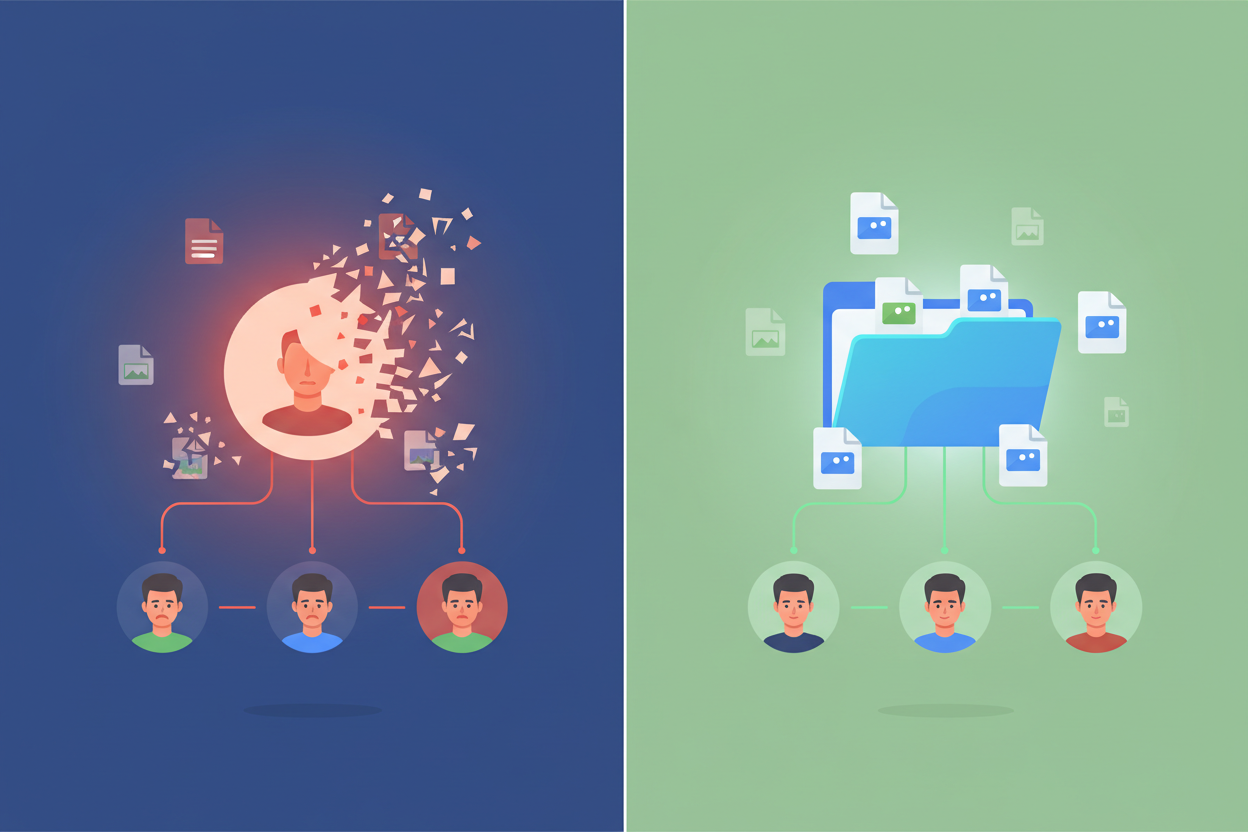
Google Drive has evolved significantly since its launch, and 2025 brings even more sophisticated sharing capabilities. Whether you’re a remote worker juggling multiple projects, a student collaborating on group assignments, or a business owner managing sensitive documents, mastering Google Drive’s sharing features isn’t just convenient – it’s essential.
In this comprehensive guide, I’ll walk you through the most effective file sharing strategies, hidden features that can transform your workflow, and security practices that’ll keep your data safe. These aren’t just basic tips you’ll find everywhere else; these are battle-tested techniques I’ve discovered through years of helping teams optimize their digital collaboration.
Setting Up Smart Permission Levels for Maximum Security 🔒
The foundation of effective Google Drive sharing lies in understanding permission levels. Most people stick to the basic “can edit” or “can view” options, but there’s so much more nuance available.
Start by thinking about your sharing hierarchy. For sensitive business documents, consider using “can comment” permissions as your default. This allows collaborators to provide feedback without accidentally modifying your original content. I’ve seen too many important presentations ruined by well-meaning team members who accidentally deleted key slides.
Here’s a permission strategy that works particularly well for project management: Give core team members “can edit” access, stakeholders “can comment” permissions, and external reviewers “can view” only. This creates clear boundaries while maintaining collaboration flow.
The “can suggest” option is a game-changer for document reviews. Unlike direct editing, suggestions appear as proposed changes that you can accept or reject. This feature has saved me countless hours of tracking down who made what changes in collaborative documents.
Advanced Link Sharing Strategies That Actually Work 🔗
Link sharing seems straightforward, but there are subtle techniques that can dramatically improve your sharing effectiveness. The key is matching your sharing method to your specific use case.
For time-sensitive documents, always set expiration dates on shared links. Google Drive allows you to automatically revoke access after a specified period, which is perfect for temporary project collaborations or client reviews. I typically set 30-day expirations for external shares and 90-day limits for internal team documents.
Password-protected links add an extra security layer without complicating the sharing process. This feature is particularly valuable when sharing financial documents or confidential reports via email. The recipient gets the convenience of direct access while you maintain control over who actually opens the file.
Domain restrictions are underutilized but incredibly powerful for business users. By limiting access to specific email domains, you can share broadly within your organization while preventing accidental external exposure. This works especially well for company-wide resources like style guides or policy documents.
Collaboration Features You’re Probably Not Using 🤝
Google Drive’s collaboration tools extend far beyond basic sharing. The comment and suggestion systems create structured feedback loops that keep projects moving forward efficiently.
Action items within comments transform casual feedback into trackable tasks. When you assign comments to specific team members, those individuals receive notifications and can mark items as resolved. This creates accountability without requiring separate project management tools.
Version history is your safety net for collaborative editing. Most users don’t realize you can name specific versions, making it easy to return to important milestones. Before major revisions or client presentations, I always create a named version like “Final Draft – Client Review” or “Pre-Launch Version.”
The notification settings deserve special attention. Instead of getting overwhelmed by every small change, customize your notifications to focus on comments directed at you and major document modifications. This keeps you informed without drowning in update alerts.
Organization Hacks for Seamless File Management 📋
Effective sharing starts with smart organization. Your folder structure directly impacts how easily others can navigate and contribute to your shared content.
Create template folders with pre-configured sharing settings for recurring project types. When starting a new client project, duplicate your template folder and all the permission levels carry over automatically. This consistency reduces setup time and minimizes sharing mistakes.
Color-coding folders based on sharing levels creates visual cues for access control. I use red for confidential documents, yellow for internal-only files, and green for publicly shareable content. This simple system prevents accidental oversharing.
Shared drives work better than individual folder sharing for team projects. Unlike personal folder shares, shared drives maintain access even when the original creator leaves the organization. This prevents the frustrating “access denied” scenarios that plague many teams.
Security Best Practices for Professional Teams 🛡️
Security doesn’t have to complicate your sharing workflow. The right practices become second nature and actually streamline your process.
Regular access audits should be part of your monthly routine. Google Drive’s sharing activity panel shows who has access to what, making it easy to spot outdated permissions. I recommend reviewing shared file access quarterly and removing anyone who no longer needs access.
Two-factor authentication isn’t just for your main Google account – ensure all team members have it enabled. This single step prevents most unauthorized access attempts and gives you peace of mind when sharing sensitive documents.
Download restrictions prevent shared documents from being saved locally without permission. This feature is particularly important for confidential business documents or copyrighted materials that shouldn’t be redistributed.
Mobile Optimization Tips for On-the-Go Sharing 📱
Mobile sharing often gets overlooked, but it’s where many sharing decisions happen. The key is setting up your mobile Drive app for quick, secure sharing.
Offline access for frequently shared folders ensures you can grant access even without internet connectivity. The changes sync automatically when you reconnect, preventing delays in time-sensitive collaborations.
Quick share widgets on your mobile home screen streamline the sharing process. Instead of opening the full Drive app, these widgets let you share recent files directly from your phone’s main screen.
Mobile-specific sharing shortcuts work differently than desktop options. Learn the long-press gestures and swipe actions that make mobile sharing faster than traditional menu navigation.
Troubleshooting Common Sharing Issues 🔧
Even with perfect setup, sharing problems occasionally arise. Knowing how to quickly diagnose and fix these issues keeps your workflow smooth.
Permission conflicts usually stem from multiple sharing rules applying to the same file. When someone can’t access a document they should be able to see, check both individual file permissions and parent folder settings. Often, a restrictive folder permission overrides more permissive file settings.
Storage quota issues can block sharing without clear error messages. If shared files aren’t syncing properly, verify that all parties have sufficient Google Drive storage space. Shared files count against the owner’s quota, which can create unexpected limitations.
Sync delays between devices are normal but can cause confusion during active collaborations. When real-time collaboration seems slow, try refreshing the document or switching to a different device to force a sync update.
Future-Proofing Your Google Drive Workflow 🚀
Google Drive continues evolving, and staying ahead of these changes ensures your sharing strategies remain effective. The integration with AI tools and enhanced security features coming in 2025 will change how we think about file collaboration.
Smart suggestions for sharing permissions are becoming more sophisticated. Google’s AI can now recommend appropriate access levels based on file content and your sharing history. While these suggestions aren’t perfect, they provide helpful starting points for complex sharing decisions.
Integration with third-party security tools is expanding rapidly. Many organizations now use Google Drive alongside specialized compliance and data loss prevention tools. Understanding these integrations helps you maintain security while preserving collaboration efficiency.
Cross-platform compatibility improvements mean your Google Drive sharing strategies will work seamlessly with Microsoft Office users and other productivity suites. This interoperability reduces friction in mixed-platform environments.
Conclusion
Mastering Google Drive sharing isn’t about memorizing every feature – it’s about developing systematic approaches that match your specific needs. The techniques I’ve outlined here have been refined through real-world use across different industries and team sizes.
Start by implementing the permission strategies that address your biggest current pain points. Maybe that’s setting up expiration dates for external shares, or perhaps it’s organizing your folders with better access controls. Small improvements compound quickly when it comes to digital collaboration.
Remember that effective sharing is as much about communication as it is about technology. The best Google Drive setup in the world won’t help if your team doesn’t understand the system. Take time to train your colleagues on these practices – the investment pays dividends in reduced confusion and improved security.
As we move further into 2025, the ability to share and collaborate effectively will only become more critical. By mastering these Google Drive techniques now, you’re building capabilities that will serve you well regardless of how the platform evolves. Your future self will thank you for taking the time to get this right. ✨
Frequently Asked Questions
Q: Can I recover files that were accidentally deleted by someone with edit access?
A: Yes! Google Drive keeps deleted files in the trash for 30 days. You can also use version history to restore previous versions of edited documents. For additional protection, consider using “can suggest” permissions instead of “can edit” for sensitive documents.
Q: How many people can I share a single Google Drive file with?
A: You can share individual files with up to 100 people directly. For larger sharing needs, use link sharing with appropriate restrictions, or consider moving the content to a shared drive which supports more extensive collaboration.
Q: What happens to shared files if I delete my Google account?
A: Files you own will be deleted, even if they’re shared with others. Before closing an account, transfer ownership of important shared files to another user. This is why shared drives are recommended for team projects – they persist regardless of individual account changes.
Q: Can I track who downloads my shared files?
A: Google Drive provides basic access logs showing who viewed files and when, but detailed download tracking isn’t available for standard accounts. Google Workspace accounts have more comprehensive activity reporting features.
Q: How do I share files with people who don’t have Google accounts?
A: Use link sharing with “anyone with the link” permissions. Recipients can view and interact with most file types without signing in to Google. However, they won’t be able to comment or suggest edits without creating an account.