Cloud

Apps, Cloud, Guides, How To, Resources, Reviews, SaaS, Software, Tutorials, Websites

Editing PDFs Made Easy: The Best Free Apps in 2025

Editing PDFs Made Easy: The Best Free Apps in 2025 In today’s digital age, PDFs have become an integral part of our daily lives, whether for personal use, business, or academia. However, editing these files can sometimes feel like cracking a code. Luckily, with the advancement of technology, there are now numerous apps available that make editing PDFs a breeze. In this post, we’ll explore the best free apps in 2025 that can help you modify your PDF documents with ease. Let’s dive in! 📄✨ Table of Contents 1. Introduction 2. Why Edit PDFs? 3. The Best Free PDF Editing Apps in 2025     a. PDF-XChange Editor     b. Sejda PDF Editor     c. LibreOffice Draw     d. Smallpdf     e. PDFescape 4. Conclusion 5. FAQs Why Edit PDFs? Before we delve into the apps, let’s discuss why editing PDFs is essential. PDFs are widely used because they preserve the format of documents across all devices and operating systems. Whether you’re signing a contract, annotating a research paper, or filling out a form, the need to edit PDFs arises frequently. The right tools can save you time, maintain document quality, and enhance productivity. 🌟 The Best Free PDF Editing Apps in 2025 PDF-XChange Editor One of the most popular tools for editing PDFs, PDF-XChange Editor, offers a robust set of features. It allows users to annotate, comment, and highlight text with ease. The interface is user-friendly and supports OCR (Optical Character Recognition), enabling you to edit scanned documents. While the free version includes a watermark on edited PDFs, the app’s functionality makes it a top choice for many. 🖋️ Sejda PDF Editor Sejda PDF Editor stands out for its simplicity and effectiveness. It’s a web-based tool that doesn’t require any installation, making it convenient for quick edits. You can add text, images, and signatures effortlessly. Sejda offers a clean, intuitive interface and supports files up to 200 pages or 50 MB for free. It’s perfect for users who need to edit PDFs occasionally and don’t want to download software. 🌐 LibreOffice Draw If you’re looking for a free, open-source solution, LibreOffice Draw is an excellent choice. Part of the LibreOffice suite, it allows PDF editing with features comparable to premium tools. While it may not offer the sleekest interface, its comprehensive editing options make it a powerful tool for those familiar with open-source software. 📚 Smallpdf Smallpdf is a versatile online platform that offers various PDF tools, including editing. It’s known for its sleek design and easy navigation. The editor allows you to add text, images, shapes, and annotations. While the free version limits access to two tasks per day, its wide range of features makes it a favorite among users who need to perform basic edits. 🖼️ PDFescape PDFescape provides both an online and desktop version for PDF editing. The online tool is free and lets you edit text, add forms, and annotate PDFs. Its drag-and-drop interface is easy to use, and it supports files up to 10 MB. PDFescape is perfect for quick edits without the need for advanced features. 🏷️ Conclusion Editing PDFs doesn’t have to be a daunting task. With the right tools, you can make modifications effortlessly and efficiently. Whether you prefer a desktop application or an online tool, the apps mentioned above offer a variety of features to suit your needs, all for free. As technology continues to evolve, these tools will only get better, making PDF editing a seamless part of our digital workflow. 🚀 FAQs 1. Are these apps really free? Yes, all the apps listed offer free versions with basic editing capabilities. However, some may include premium features or limitations in their free versions. 2. Can I edit scanned PDFs with these apps? PDF-XChange Editor and Smallpdf offer OCR functionality, which allows you to edit scanned PDFs. 3. Do these apps work on both Windows and Mac? Yes, most of these apps are compatible with both Windows and Mac. Web-based tools like Sejda and Smallpdf can be accessed from any device with an internet connection. 4. Will editing a PDF affect its formatting? These apps are designed to maintain the original formatting of the PDF as much as possible. However, complex documents might experience slight changes. 5. Is there a file size limit for editing? Yes, some tools like Sejda and PDFescape have file size limits for their free versions, typically up to 50 MB or 10 MB respectively. Check Out More On My Page

Apps, Cloud, Guides, How To, Resources, Reviews, SaaS, Software, Tutorials, Websites

Protect Your Online Privacy: Best Free VPNs in 2025

Protect Your Online Privacy: Best Free VPNs in 2025 In today’s digital age, maintaining online privacy is more crucial than ever. With increasing cyber threats and data breaches, ensuring your internet activities remain private is paramount. Virtual Private Networks (VPNs) have become essential tools for safeguarding online privacy. But not everyone can afford premium services. Fortunately, several free VPN options offer robust security features. In this blog post, we will explore the best free VPNs in 2025 to help you protect your online privacy without breaking the bank. 🌐🔒 Table of Contents 1. Introduction 2. Why Use a VPN? 3. The Best Free VPNs in 2025     a. ProtonVPN     b. Windscribe     c. TunnelBear     d. Hotspot Shield     e. Hide.me 4. How to Choose the Right Free VPN 5. Conclusion 6. FAQs Why Use a VPN? Before diving into the best free VPNs, it’s essential to understand why using a VPN is critical for your online security. A VPN encrypts your internet connection, masking your IP address and making your online actions virtually untraceable. Whether you’re concerned about privacy, bypassing geo-restrictions, or protecting sensitive information on public Wi-Fi networks, a VPN is your best friend. 🛡️ The Best Free VPNs in 2025 ProtonVPN ProtonVPN is a standout choice for a free VPN service in 2025. Developed by the team behind ProtonMail, it places a strong emphasis on security and privacy. ProtonVPN offers unlimited data with its free plan, albeit with access to servers in only a few countries. Its strict no-logs policy ensures your data remains private, and you can enjoy secure browsing without any annoying ads. ✨ Windscribe Windscribe offers an impressive free VPN service with a monthly data allowance of 10GB. It provides access to servers in over 10 countries, giving you a fair degree of flexibility in choosing your virtual location. Windscribe’s built-in ad blocker and firewall add an extra layer of protection, making it a reliable choice for securing your online activities. 🛡️ TunnelBear TunnelBear is known for its user-friendly interface and charming design. While its free version limits you to 500MB of data per month, you can gain extra data by promoting the service on social media. TunnelBear’s strong encryption and commitment to privacy make it a favorite among users, especially those new to VPNs. 🐻 Hotspot Shield Hotspot Shield’s free version offers a daily data limit of 500MB, with access to one U.S. server. It uses military-grade encryption and includes a proprietary Catapult Hydra protocol for fast and secure browsing. While the free plan is ad-supported, its robust security features make it a worthwhile option for casual users. 🚀 Hide.me Hide.me provides a free VPN service with a data limit of 10GB per month. It offers servers in five locations and boasts a no-logs policy to ensure user privacy. Hide.me’s strong encryption and no-ads experience make it a respectable choice for anyone seeking a free VPN in 2025. 🔐 How to Choose the Right Free VPN With several free VPN options available, selecting the right one can be daunting. Here are some factors to consider: Data Limit: Evaluate your internet usage to choose a VPN with an appropriate data cap. Server Locations: Ensure the VPN provides servers in the regions you need for accessing specific content. Security Features: Look for strong encryption, a no-logs policy, and additional features like ad-blocking. User Experience: Opt for a VPN with an intuitive interface, especially if you’re new to using such services. Conclusion In 2025, protecting your online privacy is more accessible than ever with the availability of free VPNs. While they may come with certain limitations, the options listed above provide excellent security features without costing you a dime. Remember, the right VPN can transform your online experience, offering peace of mind and safeguarding your personal information. Stay safe, and happy browsing! 🌍🔍 FAQs Q: Are free VPNs safe to use? A: Yes, many free VPNs are safe, but it’s crucial to choose reputable providers known for their robust security features. Q: Can I stream content using free VPNs? A: Streaming capabilities vary by VPN. Some free VPNs may offer limited access to streaming services due to data caps and server restrictions. Q: Will a free VPN slow down my internet? A: Free VPNs might slow down your connection due to limited server options and bandwidth restrictions. However, choosing a VPN with optimized servers can minimize this issue. Q: Do free VPNs work on all devices? A: Most free VPNs support multiple devices, including smartphones, tablets, and computers. Always check device compatibility before installing. Check Out More On My Page

Apps, Cloud, Guides, How To, Resources, Reviews, SaaS, Software, Tutorials, Websites

Visual Studio Code: Tips and Tricks for 2025

Visual Studio Code: Tips and Tricks for 2025 In the fast-paced world of software development, having the right tools at your fingertips is crucial. Visual Studio Code (VS Code) has long been a favorite among developers for its versatility and power. As we step into 2025, it’s time to uncover some of the latest tips and tricks that can supercharge your coding experience. Whether you’re a seasoned pro or just starting out, these insights will help you make the most of this incredible tool. Let’s dive in! 🚀 Table of Contents 1. Introduction 2. Customize Your Interface 3. Master Keyboard Shortcuts 4. Leverage IntelliSense 5. Extensions to Boost Productivity 6. Optimize Performance 7. Collaborative Coding 8. Conclusion 9. FAQs Introduction Visual Studio Code has been a game-changer in the development ecosystem. Its lightweight nature combined with powerful features makes it an essential tool for developers across the globe. But as technology evolves, so does VS Code. 2025 brings with it new features and enhancements that can significantly impact your workflow. This blog post will explore these advancements and offer practical tips to enhance your coding efficiency. Customize Your Interface One of the standout features of VS Code is its ability to be customized to fit your personal workflow. In 2025, customization has reached new heights: 1. Themes: Dive into the world of themes to make your editor visually appealing. With the new AI-powered theme generator, you can now create themes that adjust based on the time of day or your mood. 🌈 2. Layout: Arrange your workspace to maximize efficiency. Utilize the advanced grid layout to snap windows exactly where you want them, ensuring you have all your tools in reach. These customizations not only make your editor look good but also enhance productivity by creating an environment tailored to your needs. Master Keyboard Shortcuts Time is of the essence in coding, and keyboard shortcuts are your best friend. Here are some must-know shortcuts for 2025: 1. Command Palette: Use Ctrl + Shift + P (Windows/Linux) or Cmd + Shift + P (Mac) to quickly access commands. 2. Multi-Cursor Editing: Hold Alt and click to place multiple cursors, allowing you to edit in multiple places simultaneously. Invest time in learning these shortcuts, and you’ll soon find your efficiency skyrocketing. ⏰ Leverage IntelliSense IntelliSense is a powerful feature within VS Code that provides smart completions based on variable types, function definitions, and imported modules. In 2025, IntelliSense has become even more intuitive with AI enhancements: 1. Code Suggestions: IntelliSense now offers context-aware code suggestions, learning from your coding style and preferences over time. 2. Error Detection: It can predict and highlight potential errors before you run your code, saving you valuable debugging time. By fully utilizing IntelliSense, you can write cleaner, error-free code faster than ever before. 💡 Extensions to Boost Productivity VS Code’s extension marketplace is a treasure trove for developers. Here are some top picks for 2025: 1. GitLens: Enhance your Git capabilities with this extension, providing insights into code authorship and timelines. 2. Prettier: Automatically format your code, ensuring consistency and readability without manual intervention. 3. Live Share: Collaborate with peers in real-time, writing and debugging code together seamlessly. These extensions are designed to simplify your workflow and eliminate repetitive tasks, allowing you to focus on what truly matters: coding. 🛠️ Optimize Performance As projects grow, so can the demands on your editor. Here’s how to keep VS Code running smoothly: 1. Disable Unused Extensions: Too many active extensions can slow down your editor. Regularly review and disable those you don’t need. 2. Adjust Settings: Tweak settings like file watcher exclusions to prevent VS Code from consuming excessive resources. Keeping your editor’s performance in check ensures a responsive and enjoyable coding experience. ⚙️ Collaborative Coding In 2025, the world of remote work and collaboration is more prevalent than ever. VS Code’s collaborative features are designed to keep you connected: 1. Live Share: As mentioned earlier, Live Share allows you to collaborate in real-time. It’s perfect for pair programming and code reviews. 2. Cloud IDE: With the new Cloud IDE integration, you can access your VS Code environment from anywhere, facilitating seamless collaboration regardless of location. These features ensure that distance is no barrier to productive teamwork. 🤝 Conclusion Visual Studio Code continues to be a pivotal tool for developers in 2025, offering a plethora of features to enhance productivity, collaboration, and coding enjoyment. By customizing your interface, mastering shortcuts, leveraging IntelliSense, utilizing extensions, optimizing performance, and embracing collaboration, you can unlock the full potential of VS Code. Whether you’re working solo or with a team, these tips and tricks will ensure you stay ahead in the ever-evolving landscape of software development. Happy coding! 🥳 FAQs Q1: How do I install extensions in VS Code? A: You can install extensions by clicking on the Extensions icon in the Activity Bar on the side of the window or by using the command Ctrl + Shift + X (Windows/Linux) or Cmd + Shift + X (Mac). Q2: Can I use VS Code for languages other than JavaScript? A: Absolutely! VS Code supports a wide range of programming languages including Python, Java, C++, and more through its extensive extension marketplace. Q3: Is Live Share free? A: Yes, Live Share is a free extension offered by Microsoft that enables real-time collaboration within VS Code. Q4: How can I improve the startup time of VS Code? A: To improve startup time, disable unnecessary extensions, keep your VS Code updated, and adjust settings to optimize performance. By keeping these FAQs in mind, you’ll be well-equipped to tackle any challenges you encounter while using Visual Studio Code in 2025. 😊 Check Out More On My Page

Apps, Cloud, Guides, How To, Resources, Reviews, SaaS, Software, Tutorials, Websites

The Top Code Editor Apps Every Developer Should Know in 2025

The Top Code Editor Apps Every Developer Should Know in 2025 As we continue to advance in the digital age, developers are constantly seeking tools that can enhance productivity, streamline workflows, and foster creativity. By 2025, the landscape of code editors is set to be more dynamic than ever, with innovative features and integrations aimed at making coding a seamless experience. In this blog post, we’ll explore the top code editor apps every developer should be familiar with in 2025. Whether you’re a seasoned professional or an enthusiastic beginner, these tools can significantly impact your coding journey. Table of Contents 1. Introduction 2. Visual Studio Code 3. Sublime Text 4. Atom 5. JetBrains IntelliJ IDEA 6. GitHub Codespaces 7. Conclusion 8. FAQs Visual Studio Code Visual Studio Code (VS Code) continues to be a favorite among developers worldwide in 2025. With its robust set of features, including IntelliSense, debugging capabilities, and Git integration, it’s no surprise that this tool is a go-to for many. The extensive library of extensions allows developers to customize their environment to fit their specific needs. The collaborative features, such as Live Share, make pair programming and team collaboration effortless. Moreover, the community support and frequent updates ensure that VS Code remains at the forefront of development tools. 🚀 Sublime Text Known for its speed and simplicity, Sublime Text remains a reliable code editor in 2025. It’s lightweight yet powerful, with a focus on performance. Sublime Text’s package ecosystem is rich, providing developers with plugins that cater to a variety of languages and frameworks. The editor’s split editing and distraction-free mode are particularly beneficial for developers who want to boost their productivity. Additionally, Sublime Text 4, with its refreshed UI and enhanced syntax definitions, continues to attract developers who appreciate a minimalist yet effective environment. 🖋️ Atom Atom, “the hackable text editor for the 21st century,” maintains its popularity due to its flexibility and user-friendly interface. Developed by GitHub, Atom’s open-source nature allows developers to customize the experience to their liking. Its Teletype feature enables real-time collaboration, making it a preferred choice for team projects. With thousands of open-source packages available, Atom can be tailored to support virtually any programming language or framework. In 2025, Atom’s strong community and continuous improvements ensure it remains a top contender in the world of code editors. 💻 JetBrains IntelliJ IDEA For those working extensively with Java, JetBrains IntelliJ IDEA is indispensable. This IDE (Integrated Development Environment) is renowned for its intelligent coding assistance and ergonomic design. Its deep understanding of Java and related languages, combined with powerful refactoring tools, makes it a must-have for developers focused on Java development. In 2025, IntelliJ IDEA’s seamless integration with popular version control systems and its robust plugin ecosystem ensure it remains a top choice among professional developers. 🧠 GitHub Codespaces GitHub Codespaces is revolutionizing the way developers code by bringing the development environment to the cloud. By 2025, Codespaces allows developers to set up their environment in seconds, eliminating the hassle of local setup and maintenance. Its deep integration with GitHub repositories makes it easy to collaborate on projects from anywhere. With the ability to run on any device, Codespaces offers the flexibility that modern developers need, making it a game-changer in remote and distributed development. ☁️ Conclusion The year 2025 promises to be an exciting time for developers, with code editors offering unprecedented features and flexibility. Whether you prefer the robust functionality of Visual Studio Code, the speed of Sublime Text, the hackability of Atom, the intelligence of JetBrains IntelliJ IDEA, or the cloud-based convenience of GitHub Codespaces, there’s a tool tailored to your needs. The right code editor can significantly enhance your productivity and creativity, so take the time to explore these options and find the one that best suits your workflow. Happy coding! 🎉 FAQs Q: Are these code editors free to use? A: Most of these code editors, like Visual Studio Code, Atom, and GitHub Codespaces, offer free versions. Sublime Text offers a free trial, but a license purchase is required for continued use. IntelliJ IDEA offers a community edition for free, with more advanced features available in the paid version. Q: Can I use these editors for languages other than JavaScript or Java? A: Absolutely! These editors support a wide range of programming languages. They have extensive plugin ecosystems that allow you to customize your setup for virtually any language or framework you are working with. Q: How do I choose the right code editor for my needs? A: Consider factors like the languages you work with, your workflow preferences, collaboration needs, and the specific features you require. Trying out different editors can help you find the one that best aligns with your personal and project needs. Check Out More On My Page

Apps, Cloud, Guides, How To, Resources, Reviews, SaaS, Software, Tutorials, Websites

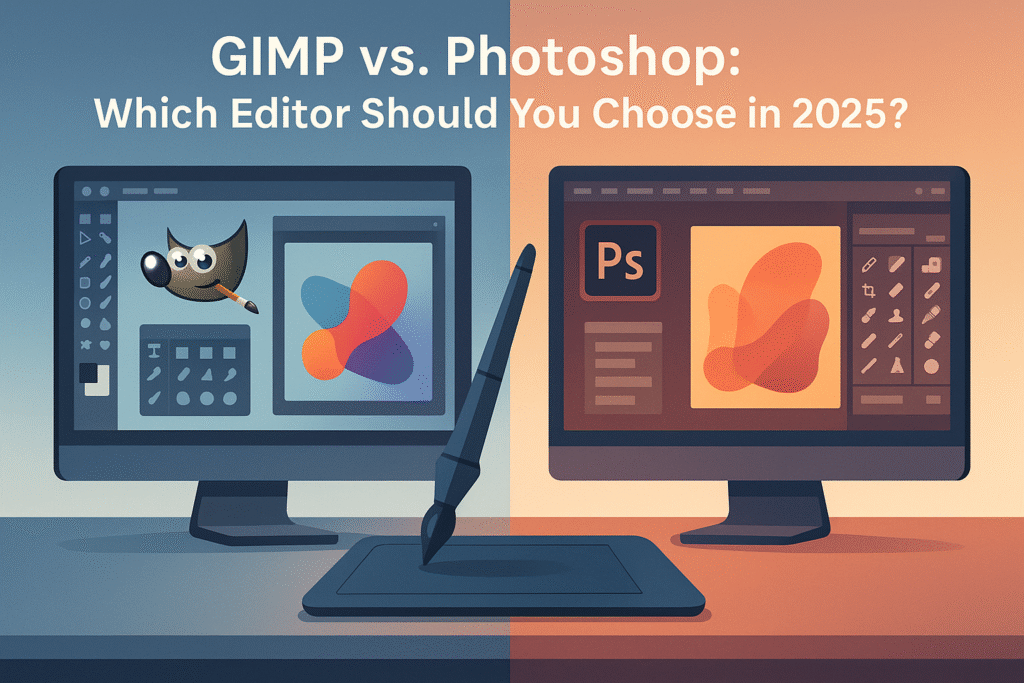
GIMP vs. Photoshop: Which Editor Should You Choose in 2025?

GIMP vs. Photoshop: Which Editor Should You Choose in 2025? Welcome to the world of digital artistry, where your choice of software can make or break your creative journey! As we sail into 2025, the debate between GIMP and Photoshop continues to stir the digital waters. Whether you’re a seasoned graphic designer or a budding artist, choosing the right tool is crucial. In this post, we will dive deep into the features, strengths, and weaknesses of both GIMP and Photoshop, helping you make an informed decision. 🎨 Table of Contents 1. Introduction 2. GIMP: A Free Alternative 3. Photoshop: The Industry Standard 4. Feature Comparison 5. Usability and Interface 6. Pricing 7. Community and Support 8. Conclusion 9. FAQs Introduction When it comes to photo editing and graphic design, two names stand tall: GIMP and Photoshop. GIMP, known for being a robust open-source software, challenges the might of Photoshop, the reigning heavyweight in the industry. But with advancements in technology and changing user needs, which one should you choose in 2025? Let’s explore the ins and outs of each editor to find out. 🖌️ GIMP: A Free Alternative GIMP, short for GNU Image Manipulation Program, has long been the go-to choice for those seeking a free, powerful image editor. It’s a versatile tool that offers a wide range of features, from basic photo retouching to complex graphic design tasks. But what makes GIMP stand out? Firstly, it’s open-source, meaning it’s continually being improved by a dedicated community of developers. This ensures that GIMP stays up-to-date with the latest trends and technologies. Additionally, its flexibility and customization options make it a favorite among users who like to tweak their tools to fit their specific needs. Photoshop: The Industry Standard Photoshop, developed by Adobe, is synonymous with professional photo editing. Its reputation as the industry leader is well-earned, thanks to its comprehensive suite of features and powerful capabilities. From photographers to digital artists, Photoshop is the trusted choice for creating stunning visuals. One of Photoshop’s biggest strengths lies in its integration with other Adobe products, such as Illustrator and Lightroom, providing a seamless workflow for creative professionals. Furthermore, its continuous updates and AI-powered features keep it at the forefront of innovation. 🌟 Feature Comparison Let’s break down some of the key features of GIMP and Photoshop to see how they stack up against each other. Image Editing: Both editors offer robust image editing capabilities, but Photoshop’s tools tend to be more refined and advanced, especially with its AI features like Content-Aware Fill and Neural Filters. Layer Management: Photoshop excels with its non-destructive editing and advanced layer management, a crucial aspect for complex projects. GIMP, while competent, can sometimes feel limited in comparison. Plugins and Extensions: GIMP’s open-source nature allows for a vast array of plugins, while Photoshop boasts a well-curated selection of extensions and integrations within the Adobe ecosystem. Usability and Interface When it comes to usability, Photoshop’s interface is sleek and professional, though it can be overwhelming for beginners due to its depth. GIMP, on the other hand, offers a more straightforward interface, albeit less polished, which might appeal to those just starting out. Both programs allow for interface customization, but Photoshop’s drag-and-drop panels provide a more intuitive experience. It’s worth noting that GIMP’s learning curve can be steep, but the payoff is a powerful tool at no cost. 🖥️ Pricing Price is often a deciding factor, especially for hobbyists and freelancers. GIMP takes the crown here with its completely free offering. In contrast, Photoshop operates on a subscription model, which can be a significant investment over time. However, for professionals, the cost is often justified by the comprehensive features and continuous updates Photoshop provides. Community and Support Both GIMP and Photoshop boast active communities. GIMP’s open-source nature means it has a vibrant community constantly contributing to its development and offering support through forums and tutorials. Photoshop, backed by Adobe’s resources, provides professional support, extensive documentation, and a wealth of tutorials and courses. Ultimately, the choice between GIMP and Photoshop may come down to personal preference and specific needs. 🧑‍🤝‍🧑 Conclusion As we look ahead to 2025, the choice between GIMP and Photoshop remains as relevant as ever. GIMP offers a compelling, cost-effective option for those willing to embrace its open-source nature and learning curve. Photoshop, with its robust features and seamless integration with Adobe’s suite, stands as the preferred choice for professionals seeking the best the industry has to offer. Consider your needs, budget, and future aspirations when making your decision. Whether you choose GIMP or Photoshop, both tools offer the potential to unleash your creativity and bring your visions to life. 🌈 FAQs Q: Can GIMP fully replace Photoshop? A: While GIMP is a powerful tool, it may not fully replace Photoshop, especially for professional-grade projects that require advanced features. Q: Is Photoshop worth the subscription cost? A: For professionals who need cutting-edge features and seamless integration with other Adobe products, Photoshop is worth the investment. Q: Are there any alternatives to GIMP and Photoshop? A: Yes, there are other alternatives such as Affinity Photo, CorelDRAW, and Canva, each catering to different user needs and preferences. Q: Can I use both GIMP and Photoshop? A: Absolutely! Many users find value in utilizing both tools, taking advantage of GIMP’s cost-free features and Photoshop’s advanced capabilities. Check Out More On My Page

Apps, Cloud, Guides, How To, Resources, Reviews, SaaS, Software, Tutorials, Websites

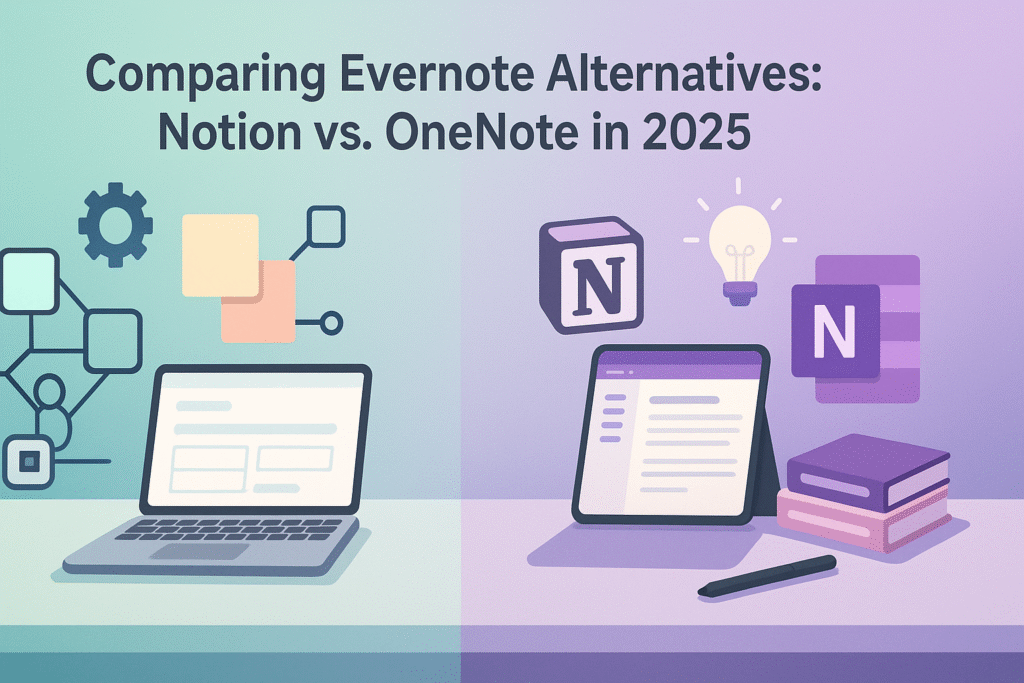
Comparing Evernote Alternatives: Notion vs. OneNote in 2025

Comparing Evernote Alternatives: Notion vs. OneNote in 2025 In the world of digital note-taking, finding the right tool that fits your needs is essential for productivity. As Evernote continues to face stiff competition, users are increasingly turning to alternatives like Notion and OneNote. But which one should you choose in 2025? 🤔 This blog post dives deep into the features, usability, and overall experience of both platforms to help you make an informed decision. Introduction Evernote was once the undisputed king of note-taking apps. However, with the evolution of technology and changing user needs, new players have emerged, offering innovative features that challenge Evernote’s dominance. Among these, Notion and OneNote stand out as powerful contenders. As we step into 2025, let’s explore how these two platforms measure up against each other. Notion: The All-in-One Workspace Notion has rapidly gained popularity with its highly customizable and versatile interface. It’s more than just a note-taking app; it’s an all-in-one workspace that combines notes, databases, task management, and collaboration tools. Here are some key features that make Notion a compelling choice: Customization and Flexibility One of Notion’s standout features is its flexibility. Users can create pages and databases that can be tailored to fit any workflow. Whether you’re managing a personal project or collaborating with a team, Notion allows you to design your workspace with templates and blocks that suit your needs. Integration and Collaboration In 2025, seamless integration with other tools is crucial for productivity. Notion excels in this area by offering integrations with popular apps like Slack, Google Drive, and Trello. Its collaborative features enable teams to work together in real-time, making it a great choice for businesses and creative teams. User Experience and Accessibility Notion’s clean and intuitive interface is a hit among users. It’s available on multiple platforms, including Windows, macOS, iOS, and Android, ensuring that your notes are always accessible, no matter where you are. 💻📱 OneNote: Microsoft’s Robust Note-Taking Solution OneNote, part of the Microsoft Office suite, has long been a favorite for those who prefer a more traditional approach to note-taking. Its integration with other Microsoft products makes it a powerful tool for those already entrenched in the Microsoft ecosystem. Let’s explore OneNote’s key attributes: Integration with Microsoft Ecosystem OneNote seamlessly integrates with other Microsoft Office products like Word, Excel, and Outlook, making it an excellent choice for users already familiar with these tools. This integration facilitates a smooth workflow, especially for corporate users. Organizational Features OneNote’s notebook structure mimics physical notebooks, which can be comforting for users transitioning from paper to digital. Each notebook can be divided into sections and pages, providing a familiar organizational system that is easy to navigate. Handwriting and Drawing Capabilities OneNote excels in supporting handwritten notes and drawings, particularly on devices like the Microsoft Surface. The app’s ability to convert handwriting to text is a boon for those who prefer jotting down notes by hand. 🖊️ Comparing Costs in 2025 When considering which platform to choose, cost is often a key factor. As of 2025, here’s a quick comparison: Notion offers a free tier with basic features, while its personal pro plan costs around $5 per month. For teams, the cost is approximately $10 per user per month. OneNote is included with a Microsoft 365 subscription, which starts at around $6.99 per month for personal use. For businesses, the cost can vary based on the plan and number of users. Conclusion Choosing between Notion and OneNote ultimately depends on your specific needs and preferences. If you value a customizable workspace with integrated collaboration tools, Notion may be the way to go. However, if you are deeply embedded in the Microsoft ecosystem and prefer traditional note-taking methods, OneNote is a solid choice. Both platforms offer unique strengths that cater to different user bases, ensuring that you’ll find a solution that enhances your productivity in 2025. 🚀 FAQs Q: Can Notion replace Evernote entirely? A: Yes, Notion can replace Evernote for many users, especially those looking for more customization and collaboration features. Q: Is OneNote better for teams compared to Notion? A: It depends on your team’s needs. If your team heavily uses Microsoft products, OneNote might be more efficient. However, Notion offers robust collaboration tools that are also ideal for team settings. Q: Are there any offline capabilities in Notion and OneNote? A: Yes, both Notion and OneNote offer offline capabilities, though Notion’s offline features can be limited compared to OneNote’s comprehensive offline access. Q: Which app is more suitable for students in 2025? A: Both are great for students. Notion offers more flexibility for organizing coursework and projects, while OneNote provides excellent note-taking features, especially for handwritten notes. Whether you’re a student, a professional, or someone just looking to stay organized, both Notion and OneNote offer powerful features that can cater to your needs. Choose wisely based on your workflow and enjoy a more productive 2025! 😊 Check Out More On My Page

Apps, Cloud, Guides, How To, Resources, Reviews, SaaS, Software, Tutorials, Websites

The Best Note-Taking Apps to Enhance Productivity in 2025

The Best Note-Taking Apps to Enhance Productivity in 2025 In the fast-paced world of 2025, staying organized and productive is more crucial than ever. Whether you’re a student, a professional, or a creative individual, finding the right note-taking app can revolutionize the way you work. With so many options available, it’s essential to choose an app that suits your unique needs. In this blog post, we’ll explore the best note-taking apps that are set to enhance productivity this year. Let’s dive in! 📱✍️ Introduction Note-taking has evolved far beyond pen and paper. Today’s apps offer a range of features that can transform scattered ideas into organized plans. Whether you need to jot down quick thoughts, collaborate with a team, or manage extensive research projects, there’s an app designed to meet your requirements. In this article, we explore the top note-taking apps of 2025, each offering unique features to boost your productivity. 1. Evernote: The Classic Powerhouse Evernote has been a staple in the note-taking world for years, and it continues to be a favorite in 2025. Its versatile functionality allows users to capture notes in various formats, including text, images, audio, and PDFs. Evernote’s powerful search feature helps you find information quickly, even within images and handwritten notes. With seamless integration across devices, Evernote ensures your notes are always at your fingertips, making it perfect for both personal and professional use. 📝🔍 2. Notion: The All-in-One Workspace Notion has redefined productivity by combining note-taking with task management and collaboration tools. Its customizable interface allows users to build databases, manage projects, and create rich-text documents all in one place. The app’s ability to integrate with other tools makes it a powerhouse for team collaboration and personal organization. Whether you’re mapping out a project timeline or crafting a personal journal, Notion adapts to your workflow, making it a top choice for 2025. 🧩💡 3. OneNote: The Microsoft Giant OneNote remains a strong contender in the note-taking arena, especially for those integrated into the Microsoft ecosystem. Its user-friendly interface and robust features make it ideal for students and professionals alike. OneNote supports multimedia notes, allowing users to incorporate text, images, and audio files effortlessly. The app’s collaboration features enable real-time sharing and editing, making it a go-to for team projects. Plus, with its seamless integration with other Microsoft Office tools, OneNote enhances productivity across devices. 📚🖊️ 4. Bear: A Writer’s Delight For those who love simplicity and elegance, Bear is the perfect note-taking app. Tailored for writers and creatives, Bear offers a distraction-free environment with a sleek interface. Its markdown support makes formatting a breeze, and its tagging system helps keep notes organized. Bear is ideal for those who want a minimalist yet powerful tool to capture ideas, write essays, or draft novels. While it’s currently available only on Apple devices, its focus on aesthetics and functionality makes it a favorite for creatives in 2025. 🐻✒️ 5. Obsidian: The Knowledge Management Tool Obsidian is a game-changer for those who need to manage complex information webs. Using a unique linking system, Obsidian allows users to connect notes, creating a personal knowledge base. This feature is particularly useful for researchers and academics who need to track relationships between concepts. Obsidian’s local storage ensures your data is private and secure, making it a reliable choice for knowledge management. If you’re delving into deep research projects, Obsidian is the app to watch in 2025. 🔗📂 Conclusion Choosing the right note-taking app can significantly enhance your productivity in 2025. Whether you need the versatility of Evernote, the all-in-one capabilities of Notion, the integration of OneNote, the simplicity of Bear, or the knowledge management of Obsidian, there’s an app tailored to your needs. Each of these apps offers unique features that cater to different workflows, ensuring you stay organized and efficient in your personal and professional life. Explore these options and find the one that aligns best with your productivity goals. 🚀✨ Table of Contents 1. Introduction 2. Evernote: The Classic Powerhouse 3. Notion: The All-in-One Workspace 4. OneNote: The Microsoft Giant 5. Bear: A Writer’s Delight 6. Obsidian: The Knowledge Management Tool 7. Conclusion FAQs Q: Are these apps free to use? A: Most of these apps offer free versions with basic features. However, premium versions with additional features are available for a subscription fee. Q: Can I use these apps offline? A: Yes, most of these apps offer offline access to your notes, with updates syncing when you’re back online. Q: Which app is best for collaboration? A: Notion and OneNote are particularly strong for collaboration, offering real-time editing and sharing features. Q: Are there security features available in these apps? A: Yes, apps like Evernote and Obsidian offer strong security measures, including encryption and local storage options, to keep your data safe. Check Out More On My Page

Apps, Cloud, Guides, How To, Resources, Reviews, SaaS, Software, Tutorials, Websites

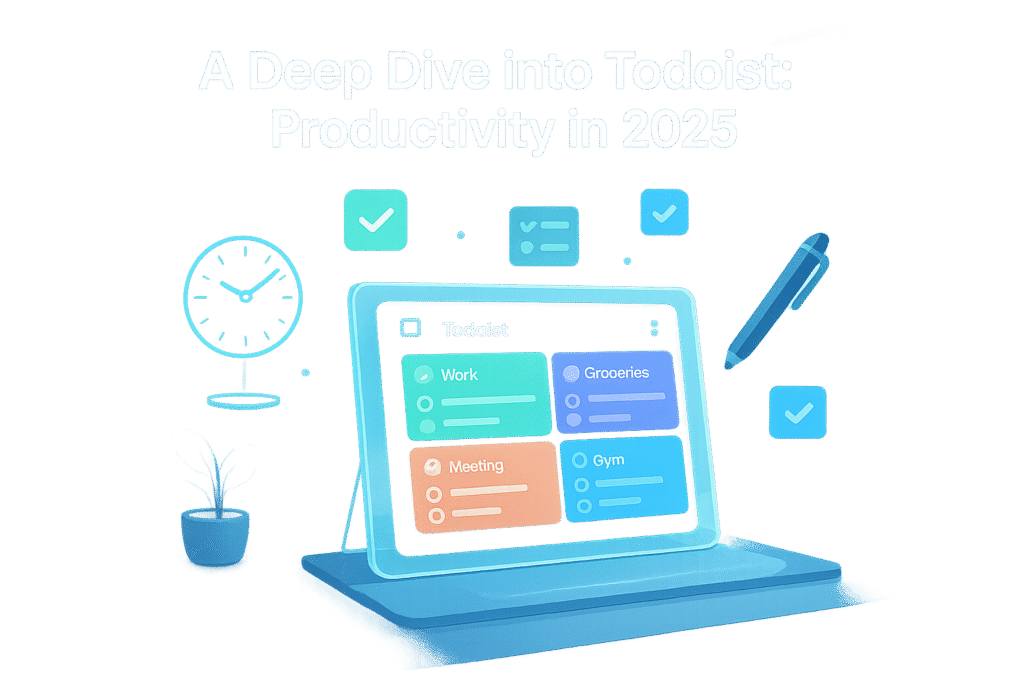
A Deep Dive into Todoist: Productivity in 2025

A Deep Dive into Todoist: Productivity in 2025 In the fast-paced world of 2025, productivity tools have become indispensable for managing our hectic schedules. Among the myriad options available, Todoist stands out as a versatile and robust app that has evolved to meet the demands of modern life. In this blog post, we will explore how Todoist has adapted to the needs of 2025, enhancing productivity and simplifying task management. 🚀 Table of Contents 1. Introduction to Todoist in 2025 2. Key Features that Enhance Productivity 3. Integration with Other Tools 4. User Experience and Interface 5. Security and Privacy Measures 6. Conclusion 7. FAQs Introduction to Todoist in 2025 Todoist, a pioneer in the productivity app landscape, has consistently adapted to the changing needs of its users. In 2025, it offers a comprehensive solution for personal and professional task management. From individual users to large teams, Todoist caters to everyone with its intuitive design and powerful features. Let’s dive into what makes Todoist the go-to choice for productivity enthusiasts today. 🌟 Key Features that Enhance Productivity Todoist has introduced several innovative features in 2025 that are worth highlighting. These enhancements not only streamline workflow but also ensure that users can focus on what truly matters. AI-Powered Task Suggestions One of the standout features in Todoist is its AI-powered task suggestions. By analyzing your habits and patterns, Todoist can intelligently recommend tasks that you might want to prioritize. This feature helps you stay on top of your schedule without feeling overwhelmed. 🧠 Advanced Collaboration Tools In today’s interconnected world, collaboration is key. Todoist 2025 offers advanced collaboration tools that allow teams to work seamlessly, regardless of their physical location. Shared projects, real-time updates, and integrated communication tools ensure everyone is on the same page. 🤝 Customizable Templates Another exciting feature is the customizable templates. Whether you’re planning a project, managing a marketing campaign, or organizing a personal event, Todoist provides templates that can be tailored to your specific needs. This saves time and ensures consistency across tasks. 📝 Integration with Other Tools Todoist’s ability to integrate with other tools is a game-changer for productivity. In 2025, it seamlessly connects with popular apps like Slack, Google Calendar, and Microsoft Teams. This integration ensures that all your tasks and communications are consolidated in one place, reducing the clutter and enhancing efficiency. 🔗 User Experience and Interface Todoist’s user experience in 2025 is all about simplicity and efficiency. The interface is clean and intuitive, allowing users to navigate effortlessly. With dark mode, customizable themes, and accessibility options, Todoist ensures that all users have a comfortable and personalized experience. 🎨 Security and Privacy Measures In an era where data privacy is paramount, Todoist prioritizes security. With end-to-end encryption and robust privacy policies, users can trust that their data is protected. Regular updates and compliance with global data protection regulations further enhance the app’s credibility. 🔒 Conclusion In conclusion, Todoist in 2025 remains a leader in the productivity app market. Its continuous innovation and commitment to user satisfaction make it an essential tool for anyone looking to optimize their workflow. Whether you’re a busy professional or a student juggling multiple responsibilities, Todoist has something to offer. Give it a try and see how it can transform your productivity journey. 🌈 FAQs Q: Is Todoist free to use? A: Yes, Todoist offers a free version with essential features. For more advanced features, you can opt for the premium or business plans. Q: Can Todoist be used offline? A: Absolutely! Todoist allows offline access, ensuring you can manage your tasks even without an internet connection. Q: How secure is my data on Todoist? A: Todoist uses industry-standard encryption to protect your data, and they have strict privacy policies to ensure your information is safe. Q: Can Todoist integrate with my existing tools? A: Yes, Todoist integrates with many popular apps, including Google Calendar, Slack, and Microsoft Teams, to streamline your workflow. With these insights, you’re well-equipped to harness the power of Todoist in 2025 and beyond. Happy task managing! 📅 Check Out More On My Page

Apps, Cloud, Guides, How To, Resources, Reviews, SaaS, Software, Tutorials, Websites

Mastering Google Tasks on Mobile: A Tutorial for 2025

Mastering Google Tasks on Mobile: A Tutorial for 2025 In the fast-paced digital era, staying organized is no longer a luxury but a necessity. Enter Google Tasks, a simple yet powerful tool that helps you keep track of your to-dos seamlessly across devices. As we step into 2025, mastering Google Tasks on mobile has never been more crucial. Whether you’re a seasoned pro or a newbie just getting started, this comprehensive guide will walk you through the ins and outs of using Google Tasks on your mobile device. Table of Contents 1. Introduction to Google Tasks 2. Setting Up Google Tasks on Mobile 3. Navigating the Google Tasks Interface 4. Creating and Organizing Tasks 5. Integrating Google Tasks with Other Apps 6. Advanced Tips for Power Users 7. Conclusion 8. FAQs Introduction to Google Tasks Google Tasks is a versatile task management app that integrates seamlessly with other Google services like Gmail and Google Calendar. Despite being often overshadowed by more robust project management tools, Google Tasks excels in its simplicity and ease of use. It’s perfect for individuals who need a straightforward solution to keep their personal and professional lives organized. With the rise of remote work and digital nomadism, understanding how to leverage this tool on your mobile can boost your productivity significantly. 📱✨ Setting Up Google Tasks on Mobile Getting started with Google Tasks on your mobile device is a breeze. Here’s how you can set it up: 1. **Download the App:** Head to the Google Play Store or Apple App Store and download the Google Tasks app. It’s free! 🎉 2. **Sign In:** Open the app and sign in with your Google account. If you use Gmail or Google Calendar, you’re already halfway there. 3. **Sync with Google Services:** Once signed in, Google Tasks will automatically sync with your Gmail and Google Calendar, allowing you to manage tasks across platforms effortlessly. Navigating the Google Tasks Interface The Google Tasks mobile interface is designed to be intuitive. Here’s a quick guide to navigate it: **Home Screen:** Upon opening the app, you’ll land on the home screen where all your tasks are visible. **Add Task Button:** At the bottom right, there’s a ‘+’ button to add new tasks. Tap it, and you’re on your way! **Task Lists:** Swipe left or right to switch between different task lists. You can create separate lists for work, personal tasks, shopping, etc. **Menu Icon:** Tap on the three horizontal lines on the top left to access settings and switch accounts if needed. Creating and Organizing Tasks Creating tasks in Google Tasks is as easy as pie: **Add a Task:** Tap the ‘+’ button, type in your task, and press enter. Voila! Your task is saved. **Set Due Dates:** Tap on a task to open it, then tap the calendar icon to set a due date. You’ll receive reminders, ensuring nothing slips through the cracks. **Add Details:** For more complex tasks, you can add subtasks or notes by tapping on the task and selecting ‘Details.’ **Reorder Tasks:** Hold and drag tasks up or down to prioritize them according to your needs. This helps keep your to-do list tidy and focused. Integrating Google Tasks with Other Apps One of Google Tasks’ strengths is its ability to integrate with other apps: **Gmail Integration:** Turn emails into tasks with a simple drag-and-drop feature on desktop, which will then appear on your mobile app. **Google Calendar:** View your tasks alongside your calendar events. This integration ensures you’re always aware of what’s on your plate. **Third-Party Apps:** Use tools like Zapier to connect Google Tasks with other productivity apps, expanding its functionality. Advanced Tips for Power Users For those looking to take their Google Tasks usage to the next level, here are some advanced tips: **Use Keyboard Shortcuts:** If you switch between desktop and mobile, learn keyboard shortcuts for faster task management on your computer. **Voice Commands:** On Android, use Google Assistant to add tasks via voice commands. Simply say, “Hey Google, add a task to my list,” and you’re set! **Color Coding:** Although Google Tasks lacks built-in color coding, you can use emoji or text symbols in task titles for visual differentiation. Conclusion As we navigate through 2025, mastering Google Tasks on mobile can make a world of difference in managing your daily life efficiently. From setting up the app to integrating it with other Google services, this guide has covered everything you need to know. Embrace these tips and transform your productivity game! 🚀 FAQs Q1: Can I use Google Tasks offline? A: Yes, you can access and manage your tasks offline. Once you’re back online, your changes will sync automatically. Q2: Is Google Tasks available on iOS devices? A: Absolutely! Google Tasks is available for both Android and iOS devices. Q3: How secure is my data on Google Tasks? A: Google Tasks uses the same security infrastructure as other Google services, ensuring your data is protected. Q4: Can I share my task lists with others? A: Currently, Google Tasks does not support direct list sharing, but you can share tasks via Google Keep or Google Calendar. Check Out More On My Page

Apps, Cloud, Guides, How To, Resources, Reviews, SaaS, Software, Tutorials, Websites

Getting Started with Any.do: A Comprehensive Guide for 2025

Getting Started with Any.do: A Comprehensive Guide for 2025 In today’s fast-paced world, staying organized is more crucial than ever. Whether you’re juggling work deadlines, family commitments, or personal goals, having a reliable task management tool can make all the difference. Enter Any.do, a versatile app designed to streamline your life and boost productivity. In this comprehensive guide, we’ll explore how to get started with Any.do in 2025, covering everything from setting up your account to optimizing your daily routine. Let’s dive in! 🚀 Table of Contents 1. Introduction to Any.do 2. Setting Up Your Any.do Account 3. Navigating the Any.do Interface 4. Creating and Managing Tasks 5. Integrating Any.do with Other Tools 6. Tips for Maximizing Productivity 7. Conclusion 8. FAQs Introduction to Any.do Any.do has long been a popular choice for those seeking a simple yet powerful task management solution. With its user-friendly interface and robust features, it caters to everyone from busy professionals to students and homemakers. But what sets Any.do apart in 2025? The app has evolved, incorporating cutting-edge AI capabilities, seamless integrations, and enhanced customization options, making it more efficient than ever. Setting Up Your Any.do Account Getting started with Any.do is a breeze. First, download the app from the App Store or Google Play, or access it via your web browser. Once installed, you can sign up using your email, Google, or Apple account. The setup process is intuitive, guiding you through basic settings and preferences to tailor the app to your needs. After signing up, take a moment to explore the settings menu. Here, you can adjust notifications, set your preferred theme, and sync your calendar. Personalizing these settings ensures you get the most out of Any.do from the get-go. Navigating the Any.do Interface The Any.do interface is designed with simplicity in mind, making navigation a breeze. The main dashboard is your command center, displaying daily tasks, upcoming events, and reminders. On the bottom of the screen, you’ll find tabs for Tasks, Calendar, and Focus Mode. Tasks: This is where you can view, add, and organize your tasks. Use categories or tags to keep everything neat and easy to find. Calendar: Sync your calendar to see all your events in one place. The app supports Google, Outlook, and Apple calendars, among others. Focus Mode: A new feature in 2025, Focus Mode helps you concentrate by minimizing distractions and allowing you to tackle tasks one by one. Creating and Managing Tasks Creating tasks in Any.do is as simple as tapping the plus icon. You can set due dates, add notes, and even attach files. For recurring tasks, use the repeat option to automate reminders. Managing tasks is equally straightforward. Drag and drop tasks to reorder them, swipe to complete, or long-press for more options. The app’s AI can suggest task prioritization based on deadlines and importance, a handy feature for busy schedules. Integrating Any.do with Other Tools One of Any.do’s strengths is its ability to integrate with other tools, enhancing its functionality. Connect with services like Slack, Trello, and Zoom to streamline your workflow. You can also use voice commands with assistants like Alexa or Google Assistant to add tasks hands-free. 🔗 In 2025, Any.do’s integration capabilities have expanded, offering seamless connectivity with smart home devices. Imagine your morning routine streamlined: lights dim as you start your tasks, and your morning briefings are read aloud. The possibilities are endless! Tips for Maximizing Productivity To get the most out of Any.do, consider these productivity tips: 1. Prioritize Your Tasks: Use the Eisenhower Box method within the app to categorize tasks by urgency and importance. 2. Set Realistic Goals: Break larger tasks into smaller, manageable steps to avoid feeling overwhelmed. 3. Utilize Focus Mode: Block distractions during peak productivity hours to maintain focus. 4. Regular Reviews: Spend a few minutes each week reviewing and adjusting your task list to stay on track. Conclusion Any.do is more than just a task manager; it’s a personal assistant that helps you navigate the complexities of modern life. By leveraging its intuitive design and powerful features, you can transform your productivity and achieve your goals with ease. Whether you’re a seasoned user or new to task management apps, Any.do’s 2025 updates offer something for everyone. 🌟 FAQs Q: Is Any.do free to use? A: Yes, Any.do offers a free version with basic features. There is also a premium subscription available, providing additional features like collaboration tools and enhanced integrations. Q: Can I use Any.do offline? A: Absolutely! Any.do allows you to create and manage tasks offline, syncing them when you’re back online. Q: Does Any.do support multiple languages? A: Yes, Any.do supports a wide range of languages, making it accessible to users worldwide. There you have it—your comprehensive guide to getting started with Any.do in 2025. Happy organizing! 🎉 Check Out More On My Page

Scroll to Top