Apps

Apps, Cloud, Guides, How To, Resources, Reviews, SaaS, Software, Tutorials, Websites

The Best Note-Taking Apps for Increased Productivity in 2025

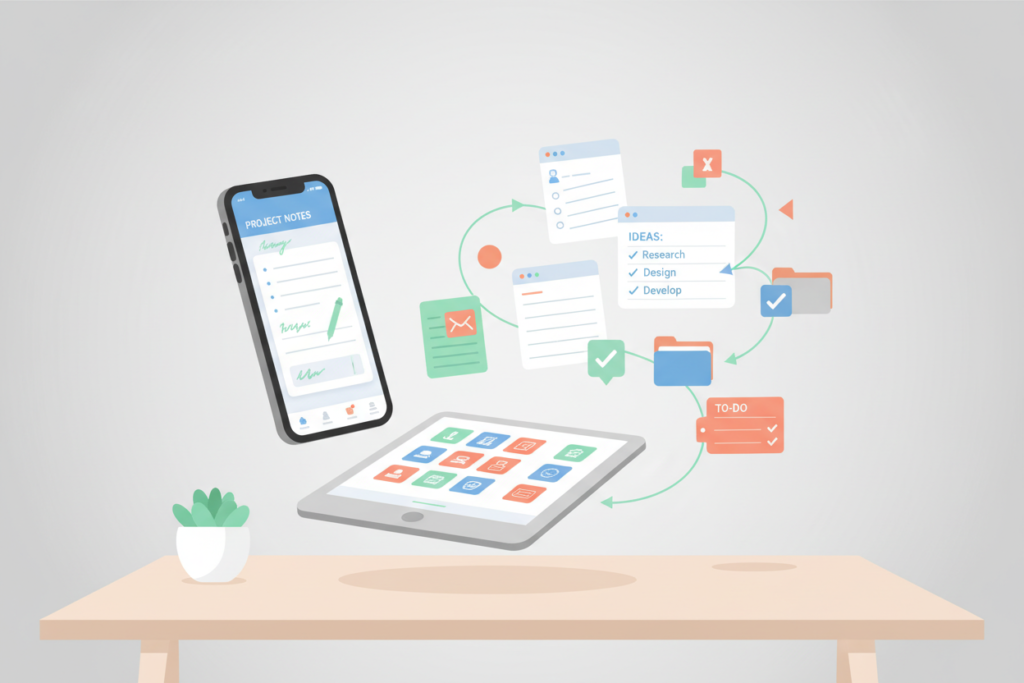
The Best Note-Taking Apps for Increased Productivity in 2025 πŸ“ Table of Contents 1. Introduction: Why Digital Note-Taking Matters More Than Ever 2. Top Note-Taking Apps for Maximum Productivity 3. Essential Features to Look for in Note-Taking Apps 4. How to Choose the Right App for Your Workflow 5. Tips for Maximizing Productivity with Digital Notes 6. Conclusion 7. Frequently Asked Questions Introduction: Why Digital Note-Taking Matters More Than Ever ✨ Let’s be honest – we’re living in an information overload era. Between endless Zoom meetings, rapid-fire Slack messages, and the constant stream of ideas that pop into our heads while we’re grabbing our morning coffee, keeping track of everything has become a real challenge. I’ve been there, frantically searching through sticky notes plastered all over my monitor, trying to find that brilliant idea I jotted down three days ago. That’s where digital note-taking apps come to the rescue. These productivity powerhouses have evolved far beyond simple text editors, transforming into sophisticated knowledge management systems that can genuinely revolutionize how you work, study, and organize your thoughts. In 2025, the best note-taking apps aren’t just about capturing information – they’re about creating connections, automating workflows, and turning your scattered thoughts into actionable insights. Whether you’re a busy professional juggling multiple projects, a student drowning in research, or someone who simply wants to get their life more organized, the right note-taking app can be your secret weapon for enhanced productivity. Top Note-Taking Apps for Maximum Productivity in 2025 πŸš€ Notion: The All-in-One Productivity Powerhouse Notion continues to dominate the productivity space, and for good reason. It’s like having a Swiss Army knife for your digital life. What sets Notion apart isn’t just its note-taking capabilities – it’s the way it seamlessly blends databases, project management, and collaborative workspaces into one cohesive platform. I’ve watched teams completely transform their workflows using Notion’s block-based system. You can create everything from simple meeting notes to complex project trackers, all within the same ecosystem. The AI-powered features introduced in recent updates make content creation and organization even more intuitive, helping you generate ideas and structure your thoughts more effectively. The real magic happens when you start connecting different pages and databases. Suddenly, your meeting notes are linked to project timelines, and your research materials are automatically categorized and searchable. It’s productivity on steroids. Obsidian: Building Your Second Brain If you’re someone who thinks in connections and relationships between ideas, Obsidian might just change your life. This app takes the concept of linked thinking and turns it into a visual, interactive experience. Think of it as creating your own personal Wikipedia, where every note can connect to every other note. What I love about Obsidian is how it grows with you. Start with simple notes, and before you know it, you’ve built an interconnected web of knowledge that reveals patterns and insights you never noticed before. The graph view feature is particularly mind-blowing – seeing your thoughts mapped out visually can spark entirely new connections and ideas. The learning curve might seem steep initially, but the community-driven plugins and extensive customization options mean you can tailor Obsidian to work exactly how your brain works. It’s perfect for researchers, writers, and anyone who deals with complex, interconnected information. Apple Notes: Simplicity Meets Power Don’t underestimate Apple Notes just because it comes pre-installed on your devices. The app has quietly evolved into a surprisingly robust note-taking solution that excels in its simplicity and seamless integration across the Apple ecosystem. The handwriting recognition is phenomenal – I can scribble notes during meetings with my Apple Pencil, and they become instantly searchable. The collaboration features work flawlessly, making it easy to share shopping lists with family members or brainstorm project ideas with colleagues. Plus, the fact that everything syncs instantly across your iPhone, iPad, and Mac means your notes are always accessible when inspiration strikes. For users deeply embedded in the Apple ecosystem, Notes offers that “it just works” experience that’s hard to replicate with third-party apps. The recent additions of tags, smart folders, and enhanced formatting options have made it a legitimate contender for serious note-taking needs. Roam Research: Revolutionary Networked Thought Roam Research pioneered the concept of bidirectional linking, and it remains the gold standard for researchers and knowledge workers who need to track complex relationships between ideas. Every time you mention a concept, person, or project in your notes, Roam automatically creates connections that you can explore later. The daily notes feature encourages a stream-of-consciousness approach to capturing thoughts, while the block reference system lets you build upon ideas across different contexts. It’s particularly powerful for academic research, where you need to track sources, build arguments, and see how different concepts relate to each other. While the interface might feel intimidating at first, users who stick with Roam often describe it as transformative for how they think and process information. It’s not just a note-taking app – it’s a thinking tool. Microsoft OneNote: The Digital Notebook Champion OneNote deserves serious consideration, especially if you’re already invested in the Microsoft ecosystem. Its free-form canvas approach feels natural and intuitive – you can place text, images, drawings, and audio recordings anywhere on the page, just like you would in a physical notebook. The organizational structure of notebooks, sections, and pages provides a familiar hierarchy that many users find comforting. The search functionality is incredibly robust, even indexing text within images and handwritten notes. For teams using Microsoft 365, the collaboration features are seamless and powerful. What really impresses me about OneNote is its flexibility. Whether you’re taking structured meeting notes, brainstorming with mind maps, or collecting research materials, the app adapts to your working style rather than forcing you into a specific format. Essential Features to Look for in Note-Taking Apps πŸ” Cross-Platform Synchronization In today’s multi-device world, your notes need to follow you everywhere. The best note-taking apps offer seamless synchronization across smartphones, tablets, and computers. There’s nothing more frustrating than having a brilliant idea on your

Apps, Cloud, Guides, How To, Resources, Reviews, SaaS, Software, Tutorials, Websites

Todoist: A Comprehensive Review of the Productivity App for 2025

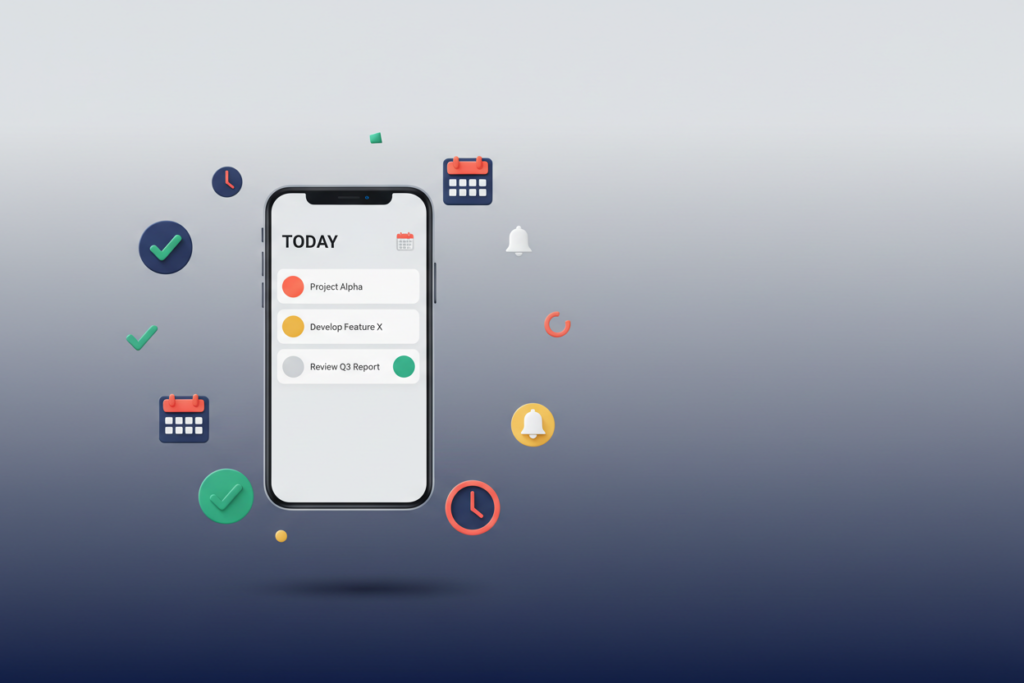
Todoist: A Comprehensive Review of the Productivity App for 2025 πŸ“ In today’s fast-paced world, staying organized and productive isn’t just a luxuryβ€”it’s a necessity. With countless tasks competing for our attention, finding the right productivity app can make or break your daily workflow. Enter Todoist, a task management platform that’s been quietly revolutionizing how millions of people organize their lives since 2007. But with so many productivity apps flooding the market in 2025, does Todoist still deserve a spot on your smartphone? Let’s dive deep into this comprehensive review. Whether you’re a busy professional juggling multiple projects, a student trying to balance coursework and social life, or someone simply looking to bring more order to your daily routine, this review will help you determine if Todoist is the productivity partner you’ve been searching for. We’ll explore everything from its core features and pricing to real-world performance and how it stacks up against the competition. Table of Contents β€’ What Is Todoist and Why It Matters β€’ Key Features That Set Todoist Apart β€’ Pricing Plans: Finding Value in 2025 β€’ User Experience and Interface Design β€’ Integration Capabilities and Ecosystem β€’ Performance Across Different Platforms β€’ Pros and Cons: The Complete Picture β€’ How Todoist Compares to Competitors β€’ Who Should (and Shouldn’t) Use Todoist β€’ Final Verdict and Recommendations What Is Todoist and Why It Matters in 2025 🎯 Todoist isn’t just another to-do list appβ€”it’s a comprehensive task management ecosystem designed to help you capture, organize, and complete everything on your plate. Founded by Amir SalihefendiΔ‡, this productivity powerhouse has evolved from a simple task tracker into a sophisticated platform that serves over 30 million users worldwide. What makes Todoist particularly relevant in 2025 is its ability to adapt to our increasingly complex digital lives. As remote work continues to dominate, hybrid schedules become the norm, and the line between personal and professional tasks blurs, having a unified system that can handle it all becomes crucial. Todoist positions itself as that central command center for your productivity. The app’s philosophy centers around the Getting Things Done (GTD) methodology, emphasizing the importance of capturing all your tasks in a trusted system so your mind can focus on execution rather than remembering. This approach resonates strongly with users who feel overwhelmed by the constant stream of responsibilities in modern life. Key Features That Set Todoist Apart ⭐ Todoist’s feature set has matured significantly over the years, and in 2025, it offers a robust collection of tools that cater to both simple and complex productivity needs. Let’s explore the standout features that make this app worth considering. Natural Language Processing: One of Todoist’s most beloved features is its ability to understand natural language when creating tasks. Type “Call mom tomorrow at 3pm” and the app automatically sets the due date and time. This seemingly simple feature saves countless taps and makes task entry feel effortless. Project Organization and Hierarchy: The app excels at organizing tasks into projects and sub-projects, creating a clear hierarchy that mirrors how we naturally think about our work. Whether you’re planning a wedding, managing a product launch, or organizing your home renovation, the nested structure keeps everything logical and accessible. Labels and Filters: Todoist’s labeling system allows for sophisticated task categorization. You can create custom labels like @phone, @computer, or @errands, then use filters to view tasks based on context, priority, or any combination of criteria. This flexibility is particularly valuable for users who work across multiple contexts throughout their day. Karma System: The gamification element through Todoist’s Karma system provides motivation for consistent task completion. While some might find it gimmicky, many users report that seeing their productivity trends and earning karma points helps maintain momentum during challenging periods. Templates and Recurring Tasks: For repetitive workflows, Todoist offers both project templates and sophisticated recurring task options. The recurring task feature handles complex schedules like “every second Tuesday” or “every 3 months starting next week,” which many competing apps struggle with. Pricing Plans: Finding Value in 2025 πŸ’° Todoist operates on a freemium model with three distinct tiers, each designed to serve different user needs and budgets. Understanding these options is crucial for making an informed decision about whether the app provides good value for your specific situation. Free Plan: The free tier includes up to 5 personal projects, basic task management, and mobile apps. While limited, it’s genuinely useful for individuals with simple needs or those wanting to test the waters before committing. Pro Plan ($4/month): The Pro plan unlocks 300 projects, labels, filters, reminders, and file uploads. For most serious users, this represents the sweet spot between functionality and cost. The ability to add files to tasks and set location-based reminders alone justifies the upgrade for many users. Business Plan ($6/month per user): Designed for teams, this tier adds admin features, team billing, and enhanced collaboration tools. While pricier, it’s competitive with other business-focused productivity platforms. Compared to competitors like Asana, Notion, or Microsoft To Do, Todoist’s pricing sits in the middle range. The value proposition becomes clearer when you consider the app’s reliability, cross-platform consistency, and the depth of features available even in the Pro tier. User Experience and Interface Design 🎨 First impressions matter, and Todoist makes a strong one with its clean, intuitive interface. The design philosophy clearly prioritizes clarity over flashiness, resulting in an app that feels professional without being sterile. The main interface centers around the “Today” view, which presents your scheduled tasks in a clean, scannable format. The color coding system (red for overdue, orange for today, green for upcoming) provides immediate visual feedback about your workload status. Navigation feels natural, with logical groupings and consistent iconography throughout. One area where Todoist particularly shines is in its quick add functionality. The plus button is always accessible, and the natural language processing means you can capture thoughts rapidly without breaking your flow. This friction-free task entry is crucial for maintaining the habit of actually using the app. The

Apps, Cloud, Guides, How To, Resources, Reviews, SaaS, Software, Tutorials, Websites

Master Google Tasks Mobile App: A Step-by-Step Guide for 2025

Master Google Tasks Mobile App: A Step-by-Step Guide for 2025 πŸ“± In our fast-paced digital world, staying organized has become more crucial than ever. Whether you’re juggling work deadlines, family commitments, or personal goals, having a reliable task management system can make the difference between chaos and clarity. Enter Google Tasks – a surprisingly powerful yet elegantly simple mobile app that’s been quietly revolutionizing how millions of people manage their daily responsibilities. As we step into 2025, Google Tasks has evolved into a sophisticated productivity powerhouse while maintaining its signature simplicity. If you’ve been struggling with complex task management apps that feel more like rocket science than helpful tools, you’re in for a treat. This comprehensive guide will transform you from a Google Tasks novice into a productivity ninja, helping you harness every feature to streamline your life. Table of Contents β€’ Getting Started with Google Tasks Mobile App β€’ Setting Up Your First Task Lists β€’ Advanced Task Management Features β€’ Mastering Due Dates and Reminders β€’ Integrating Google Tasks with Other Google Services β€’ Pro Tips for Maximum Productivity β€’ Troubleshooting Common Issues β€’ Frequently Asked Questions Getting Started with Google Tasks Mobile App πŸš€ Before diving into the advanced features, let’s ensure you have Google Tasks properly set up on your mobile device. The beauty of Google Tasks lies in its seamless integration with your existing Google ecosystem, making the initial setup surprisingly straightforward. First things first – downloading the app. Head to your device’s app store (Google Play Store for Android or Apple App Store for iOS) and search for “Google Tasks.” The app is completely free and weighs in at just a few megabytes, making it perfect for devices with limited storage space. Once installed, you’ll need to sign in with your Google account. This is where the magic begins – all your tasks will automatically sync across every device where you’re signed into Google. Whether you’re on your phone, tablet, or computer, your task lists will be waiting for you. The interface greets you with a clean, minimalist design that Google is famous for. Don’t let the simplicity fool you – beneath this uncluttered surface lies a robust task management system that can handle everything from simple grocery lists to complex project workflows. Setting Up Your First Task Lists πŸ“ Creating your first task list is as simple as tapping the “+” button, but the real art lies in organizing your lists strategically. Think of task lists as different buckets for various aspects of your life. You might create separate lists for “Work Projects,” “Personal Goals,” “Home Maintenance,” and “Shopping.” When naming your lists, be specific but concise. Instead of a generic “Work” list, consider “Q1 Marketing Campaign” or “Client Projects.” This specificity will save you precious seconds when quickly adding tasks throughout your busy day. To create a new list, tap the hamburger menu (three horizontal lines) in the top-left corner, then select “Create new list.” Give it a meaningful name and start populating it with tasks. You can easily switch between lists by tapping the list name at the top of the screen. Pro tip: Start with just 3-4 lists initially. It’s tempting to create a dozen different categories, but this often leads to decision paralysis when adding new tasks. You can always create more lists as your system evolves. Advanced Task Management Features ⚑ Now that you have your basic structure in place, let’s explore the features that set Google Tasks apart from simple note-taking apps. The subtask functionality is particularly powerful – you can break down complex projects into manageable chunks by adding subtasks to any main task. To create a subtask, simply tap on an existing task and then tap “Add subtask.” This hierarchical structure is perfect for project management. For instance, a main task like “Plan Birthday Party” could have subtasks like “Send invitations,” “Order cake,” and “Decorate venue.” The task details section is another hidden gem. Tap on any task to access additional options where you can add detailed notes, set due dates, and even add multiple subtasks. This is where you can store important information like phone numbers, addresses, or specific instructions related to the task. Moving tasks between lists is incredibly easy – just tap and hold a task, then drag it to a different list. This flexibility allows you to reorganize your tasks as priorities shift throughout your week. Mastering Due Dates and Reminders ⏰ One of Google Tasks’ most valuable features is its intelligent handling of due dates and reminders. Unlike many task apps that bombard you with notifications, Google Tasks takes a more thoughtful approach to keeping you on track. Setting a due date is straightforward – tap on a task, select “Add date/time,” and choose when you need to complete it. But here’s where Google Tasks shines: it integrates seamlessly with Google Calendar, automatically creating calendar entries for your tasks with due dates. The reminder system is context-aware and respectful of your schedule. Instead of pinging you constantly, Google Tasks surfaces relevant reminders at appropriate times. Tasks due today appear prominently in your task list, while overdue items are clearly marked but not aggressively intrusive. For recurring tasks, you’ll need to manually recreate them after completion, as Google Tasks doesn’t currently support automatic recurring tasks. However, this limitation forces you to consciously decide whether each recurring task is still relevant – a surprisingly beneficial feature for maintaining a clean, current task list. Integrating Google Tasks with Other Google Services πŸ”— The real power of Google Tasks emerges when you leverage its deep integration with other Google services. This ecosystem approach transforms a simple task app into a comprehensive productivity suite. Gmail integration is particularly impressive. You can convert any email into a task with just a few taps, ensuring important messages don’t get buried in your inbox. When viewing an email in the Gmail app, tap the three dots menu and select “Add to Tasks.” The task will include a

Apps, Cloud, Guides, How To, Resources, Reviews, SaaS, Software, Tutorials, Websites

An Instructional Guide to Using Any.do for Effective Task Management in 2025

An Instructional Guide to Using Any.do for Effective Task Management in 2025 πŸ“‹ Table of Contents 1. Introduction to Any.do and Modern Task Management 2. Getting Started with Any.do: Setting Up Your Digital Workspace 3. Core Features That Make Any.do Stand Out in 2025 4. Advanced Task Organization Strategies 5. Collaboration and Team Management Features 6. Integration and Automation Capabilities 7. Tips for Maximizing Productivity with Any.do 8. Common Mistakes to Avoid 9. Frequently Asked Questions 10. Conclusion Introduction: Why Any.do Remains a Top Choice for Task Management in 2025 πŸš€ In our increasingly digital world, staying organized has become more challenging than ever. With remote work becoming the norm and our daily responsibilities multiplying, finding the right task management tool isn’t just helpfulβ€”it’s essential. Enter Any.do, a platform that has evolved significantly since its inception and continues to be a powerhouse for productivity enthusiasts in 2025. I’ve been using various task management apps for over a decade, and I can honestly say that Any.do has struck the perfect balance between simplicity and functionality. Whether you’re a busy professional juggling multiple projects, a student managing coursework, or someone simply trying to bring order to your personal life, this guide will walk you through everything you need to know about leveraging Any.do effectively. What makes Any.do particularly compelling in 2025 is its seamless integration with modern workflows, enhanced AI capabilities, and intuitive design that doesn’t overwhelm users with unnecessary complexity. Let’s dive into how you can harness its full potential. Getting Started with Any.do: Setting Up Your Digital Workspace ⚑ Starting with Any.do is refreshingly straightforward, but there are some key steps that will set you up for long-term success. When you first open the app, resist the urge to immediately start adding tasks. Instead, take a few minutes to configure your workspace properly. First, customize your categories. Any.do comes with default lists like “Personal” and “Work,” but I recommend creating categories that reflect your actual life structure. For instance, I use “Client Projects,” “Health & Wellness,” “Home Management,” and “Learning Goals.” This initial setup might seem trivial, but it’s the foundation of your entire organizational system. Next, configure your notification preferences carefully. The beauty of Any.do lies in its gentle nudging system, but you don’t want to be overwhelmed. I suggest starting with minimal notifications and gradually adding more as you develop your routine. The app’s smart reminder system learns from your behavior patterns, becoming more helpful over time. Don’t forget to sync your calendar during setup. Any.do’s calendar integration is one of its strongest features, allowing you to see tasks and appointments in one unified view. This integration becomes particularly powerful when you start using the app’s time-blocking features. Core Features That Make Any.do Stand Out in 2025 🌟 Any.do has continuously evolved, and its 2025 iteration includes several features that distinguish it from competitors. The AI-powered task suggestions have become remarkably sophisticated, learning from your habits to suggest optimal timing for different types of activities. The voice input feature has also seen significant improvements. You can now speak naturally, saying something like “Remind me to call Mom tomorrow after lunch,” and Any.do will automatically parse this into a properly scheduled task with the correct time and context. This natural language processing makes task entry almost effortless. One feature I particularly appreciate is the Focus Mode. When activated, it temporarily hides all but your most critical tasks, helping you maintain concentration during deep work sessions. The app analyzes your productivity patterns and can even suggest optimal times for enabling Focus Mode. The location-based reminders have also become more intelligent. Instead of simple GPS triggers, Any.do now considers factors like traffic patterns and your typical schedule to provide more contextually appropriate notifications. Advanced Task Organization Strategies πŸ“Š Effective task management goes beyond simply creating lists. Any.do offers several advanced organizational features that can transform how you approach your daily responsibilities. The priority system in Any.do uses a four-level approach: High, Medium, Low, and None. However, the key to using this effectively isn’t to mark everything as high priority. Instead, I recommend using the “High” designation sparinglyβ€”only for tasks that truly cannot be delayed. This restraint makes your priority system meaningful and actionable. Tags are another powerful organizational tool that many users underutilize. You can create tags for contexts (@phone, @computer, @errands), energy levels (@high-energy, @low-energy), or time requirements (@quick, @deep-work). This tagging system allows you to filter tasks based on your current situation and energy level. The subtask feature is perfect for breaking down complex projects. When you create a large task like “Plan vacation,” you can add subtasks for “Research destinations,” “Book flights,” “Reserve accommodation,” and so on. This breakdown makes overwhelming projects feel manageable and provides a clear roadmap for completion. Collaboration and Team Management Features πŸ‘₯ Any.do’s collaboration features have matured significantly, making it an excellent choice for team projects and family organization. The shared lists functionality allows multiple people to contribute to and monitor the same set of tasks. When sharing a list, you can assign different permission levels to team members. Some can only view tasks, while others can add, edit, or delete items. This granular control is particularly useful in professional settings where you might want to share project progress with stakeholders without giving them editing access. The comment system within tasks facilitates communication without cluttering your main task view. Team members can ask questions, provide updates, or share relevant files directly within the task context. This keeps all project-related communication organized and easily accessible. For families, the shared grocery list feature has become incredibly popular. Multiple family members can add items throughout the week, and whoever goes shopping has access to the complete, real-time list. It’s a simple feature that eliminates a common source of household friction. Integration and Automation Capabilities πŸ”— The true power of Any.do in 2025 lies in its extensive integration ecosystem. The app connects seamlessly with popular tools like Google Calendar, Outlook, Slack, and Zoom, creating a unified

Apps, Cloud, Guides, How To, Resources, Reviews, SaaS, Software, Tutorials, Websites

Staying Organized with the Best To-Do List Apps Available in 2025

Staying Organized with the Best To-Do List Apps Available in 2025 πŸ“± Let’s be honest – we’ve all been there. Sticky notes scattered across your desk, random reminders scribbled on napkins, and that nagging feeling that you’re forgetting something important. In our increasingly busy world, staying organized isn’t just a nice-to-have; it’s absolutely essential for maintaining sanity and productivity. Thankfully, 2025 has brought us some incredible to-do list apps that can transform your chaotic schedule into a well-oiled machine. Whether you’re a busy professional juggling multiple projects, a student trying to balance coursework and social life, or a parent managing family schedules, the right to-do list app can be your digital lifesaver. In this comprehensive guide, we’ll explore the best to-do list apps available in 2025, helping you find the perfect organizational companion for your unique needs. Table of Contents β€’ Why Digital To-Do Lists Beat Traditional Methods β€’ Top Features to Look for in To-Do List Apps β€’ Best To-Do List Apps for 2025 β€’ Choosing the Right App for Your Lifestyle β€’ Tips for Maximizing Your To-Do List App β€’ Common Mistakes to Avoid β€’ Frequently Asked Questions Why Digital To-Do Lists Beat Traditional Methods πŸš€ I used to be a die-hard pen-and-paper person. There’s something satisfying about physically crossing items off a handwritten list, right? But after missing one too many important deadlines because I left my notebook at home, I made the switch to digital – and I’ve never looked back. Digital to-do list apps offer several advantages over traditional methods. First, they’re always with you. Your smartphone is probably within arm’s reach right now, which means your tasks are too. Second, they offer powerful features like reminders, due dates, and synchronization across devices. Imagine starting a task list on your laptop at work and seamlessly continuing it on your phone during your commute home. Moreover, digital apps provide better organization through categories, tags, and search functions. You can quickly find that important task you added three weeks ago without flipping through pages of notes. Many apps also offer collaboration features, making them perfect for team projects or family planning. Top Features to Look for in To-Do List Apps ⭐ Not all to-do list apps are created equal. When evaluating options, consider these essential features that can make or break your organizational system: Cross-Platform Synchronization: Your app should work seamlessly across all your devices. Whether you’re on your phone, tablet, or computer, your tasks should be instantly accessible and up-to-date. Intuitive User Interface: If an app is too complicated to use, you simply won’t use it. Look for clean, intuitive designs that make adding and managing tasks effortless. Smart Reminders and Notifications: The best apps offer location-based reminders, recurring tasks, and customizable notification settings. Some even use AI to suggest optimal times for completing tasks based on your habits. Collaboration Capabilities: Whether you’re working with colleagues or coordinating with family members, sharing tasks and projects should be straightforward. Offline Functionality: Life doesn’t stop when your internet connection does. Choose apps that allow you to view and edit tasks offline, syncing changes when you reconnect. Best To-Do List Apps for 2025 πŸ† Todoist: The Powerhouse for Power Users Todoist continues to dominate the productivity space in 2025, and for good reason. This app strikes the perfect balance between powerful features and user-friendly design. What sets Todoist apart is its natural language processing – you can type “Call mom tomorrow at 3pm” and it automatically sets the due date and time. The app’s project organization system is incredibly flexible, allowing you to create hierarchical structures that mirror your actual workflow. The karma system gamifies productivity by tracking your task completion streaks, which surprisingly motivates you to stay consistent. Premium features include labels, filters, and detailed productivity tracking that appeals to data-driven users. Things 3: Apple’s Elegant Solution If you’re deeply embedded in the Apple ecosystem, Things 3 remains unmatched in 2025. This app embodies Apple’s design philosophy with its clean, minimalist interface that somehow manages to be both beautiful and functional. The app’s “Today” view intelligently surfaces tasks that need attention without overwhelming you. Things 3 excels at project planning with its unique “Areas” concept, which helps you organize tasks by life domains like work, personal, and family. The quick entry feature is lightning-fast, and the app’s natural language processing has improved significantly, making task creation effortless. Microsoft To Do: The Surprising Contender Don’t sleep on Microsoft To Do – it has evolved tremendously and offers excellent value, especially for Office 365 users. The integration with Outlook tasks is seamless, and the shared lists feature works brilliantly for family and team coordination. What I particularly appreciate about Microsoft To Do is its “My Day” feature, which encourages you to plan your day intentionally rather than just reacting to an endless task list. The app also includes a “Suggestions” feature that uses AI to recommend tasks you might want to focus on today. TickTick: The Feature-Rich Alternative TickTick has positioned itself as the Swiss Army knife of to-do apps. It includes features you might not expect, like a built-in Pomodoro timer, calendar view, and even habit tracking. The app’s flexibility is both its strength and potential weakness – it can do almost everything, but some users might find it overwhelming. The calendar integration is particularly well-executed, allowing you to see your tasks alongside your appointments. TickTick also offers excellent collaboration features and supports multiple reminder types, including voice reminders. Any.do: Simplicity Meets Functionality Sometimes, less is more. Any.do proves this point with its beautifully simple interface that doesn’t sacrifice functionality. The app’s “Moment” feature encourages daily planning by walking you through your upcoming tasks each morning. Any.do shines in its integration with other services like Google Calendar, WhatsApp, and even Amazon Alexa. The voice input feature is surprisingly accurate, and the app’s grocery list template is perfect for household management. Choosing the Right App for Your Lifestyle 🎯 Selecting the perfect to-do list app isn’t just about features

Apps, Cloud, Guides, How To, Resources, Reviews, SaaS, Software, Tutorials, Websites

Free Task Management Tools to Enhance Your Workflow in 2025

Free Task Management Tools to Enhance Your Workflow in 2025 πŸš€ Let’s be honest – we’ve all been there. You start your Monday morning with the best intentions, armed with a mental list of tasks that seems totally manageable. By Wednesday, you’re drowning in sticky notes, forgotten deadlines are haunting you, and that important project? Well, it’s somewhere in the chaos of your overflowing inbox. Sound familiar? πŸ˜… The good news is that 2025 has brought us an incredible array of free task management tools that can transform your workflow from chaotic to crystal clear. Whether you’re a freelancer juggling multiple clients, a student balancing coursework and part-time jobs, or a team leader trying to keep everyone on track, the right tool can be a total game-changer. In this comprehensive guide, we’ll explore the best free task management solutions available right now, helping you find the perfect fit for your unique workflow needs. No more missed deadlines, no more overwhelming to-do lists – just smooth, efficient productivity that actually works. Table of Contents πŸ“‹ β€’ Why Task Management Tools Matter More Than Ever β€’ Top Free Task Management Tools for 2025 β€’ Choosing the Right Tool for Your Workflow β€’ Tips for Maximizing Your Task Management Success β€’ Common Mistakes to Avoid β€’ Frequently Asked Questions Why Task Management Tools Matter More Than Ever 🎯 The modern workplace has evolved dramatically, and with it, our need for better organization systems. Remote work, hybrid schedules, and the constant ping of notifications have made traditional planning methods feel outdated. A simple notepad just doesn’t cut it anymore when you’re collaborating across time zones or managing complex projects with multiple moving parts. Research shows that the average knowledge worker switches between apps over 1,100 times per day. That’s exhausting! A good task management tool acts as your central command center, reducing context switching and helping you maintain focus on what truly matters. Plus, there’s something incredibly satisfying about checking off completed tasks. It’s not just about organization – it’s about building momentum and celebrating small wins that lead to bigger successes. Top Free Task Management Tools for 2025 ⭐ Todoist: The Perfect Balance of Simple and Powerful Todoist has been my personal favorite for years, and their 2025 updates have made it even better. The free version offers natural language processing, so you can type “Call mom tomorrow at 3pm” and it automatically sets the date and time. Genius, right? What makes Todoist special is its karma system – you earn points for completing tasks, which might sound silly but is surprisingly motivating. The interface is clean, intuitive, and works seamlessly across all devices. You can organize tasks by projects, set priorities, and even collaborate with up to 5 team members on the free plan. The only downside? Some advanced features like labels and filters are locked behind the premium version. But honestly, most users will find the free tier more than sufficient for their needs. Asana: Team Collaboration Made Easy If you’re working with a team, Asana’s free plan is incredibly generous. You can have up to 15 team members, unlimited tasks, and access to basic dashboard and search features. The platform excels at project visualization – you can view your work as lists, boards (Kanban-style), timeline, or calendar views. What I love about Asana is how it grows with you. Start with simple task lists, then gradually adopt more sophisticated project management features as your team expands. The mobile app is particularly well-designed, making it easy to update tasks and check progress on the go. The learning curve can be steep initially, especially if you’re coming from simpler tools. But once you get the hang of it, Asana becomes incredibly powerful for managing complex workflows. Trello: Visual Organization at Its Best Some people are visual learners, and Trello gets that. Built around the Kanban board concept, Trello lets you organize tasks as cards that move through different stages (like “To Do,” “In Progress,” and “Done”). It’s incredibly intuitive – if you’ve ever used a physical bulletin board with sticky notes, you’ll feel right at home. The free version includes unlimited personal boards, cards, and lists, plus up to 10 team boards. You can add due dates, checklists, attachments, and even automate repetitive tasks with Butler, Trello’s built-in automation tool. Trello works best for projects with clear stages and workflows. It might feel limiting if you need complex reporting or advanced project management features, but for straightforward task tracking, it’s hard to beat. Microsoft To Do: Simple Yet Effective Don’t sleep on Microsoft To Do! This often-overlooked tool has quietly become one of the most reliable task managers available. If you’re already in the Microsoft ecosystem (using Outlook, Teams, or Office 365), the integration is seamless. The “My Day” feature is particularly clever – each morning, you can review your tasks and decide what deserves your attention today. It helps prevent that overwhelming feeling when your task list grows too long. You can also share lists with family or colleagues, making it great for both personal and professional use. The interface is clean and distraction-free, though some might find it too basic compared to more feature-rich alternatives. But sometimes, simple is exactly what you need. ClickUp: The Swiss Army Knife of Productivity ClickUp is ambitious – they want to replace all your other productivity tools with one comprehensive platform. The free plan is surprisingly generous, offering unlimited tasks, 100MB storage, and access to most core features for unlimited users. You can switch between different views (list, board, calendar, Gantt), create custom fields, set up automations, and even use built-in time tracking. It’s like getting a premium tool for free, which is pretty amazing. The downside? ClickUp can feel overwhelming. There are so many features and customization options that it might slow you down initially. It’s definitely worth the investment if you need a powerful, all-in-one solution, but simpler tools might be better for basic task management. Notion: Beyond Task Management Technically,

Apps, Cloud, Guides, How To, Resources, Reviews, SaaS, Software, Tutorials, Websites

ClickUp: Exploring Its Features for Project Management Success in 2025

ClickUp: Exploring Its Features for Project Management Success in 2025 πŸš€ Table of Contents β€’ Introduction: Why ClickUp Stands Out in 2025 β€’ Core ClickUp Features That Drive Project Success β€’ Advanced Project Management Capabilities β€’ Team Collaboration and Communication Tools β€’ Customization Options for Different Industries β€’ Integration Ecosystem and Automation β€’ Pricing and Value Proposition β€’ Getting Started with ClickUp in 2025 β€’ Conclusion β€’ Frequently Asked Questions Introduction: Why ClickUp Stands Out in 2025 πŸ“ˆ As we navigate through 2025, the project management landscape has become more competitive than ever. Teams are juggling remote work challenges, complex workflows, and the constant pressure to deliver results faster. Enter ClickUp – a comprehensive project management platform that’s been making waves in the productivity space. I’ve been using ClickUp for the past three years, and I can honestly say it’s transformed how my team approaches project management. What started as a simple task management tool has evolved into an all-in-one workspace that replaces multiple apps. But here’s the thing – with so many features packed into one platform, it can feel overwhelming at first. That’s exactly why I’m writing this deep dive into ClickUp’s features for 2025. Whether you’re a project manager looking to streamline your workflows, a team leader seeking better collaboration tools, or a business owner wanting to boost productivity, this guide will help you understand what makes ClickUp tick and how it can drive your project management success. Core ClickUp Features That Drive Project Success 🎯 Let’s start with the foundation. ClickUp’s core features form the backbone of effective project management, and they’ve been significantly enhanced for 2025. The task management system is where ClickUp truly shines. Unlike traditional to-do lists, ClickUp tasks are incredibly flexible. You can create simple tasks for quick wins or complex, multi-layered projects with subtasks, dependencies, and custom fields. What I love most is the ability to view the same project data in multiple ways – whether you prefer Kanban boards, Gantt charts, or simple list views, ClickUp adapts to your working style. Time tracking has become more sophisticated this year. The built-in timer isn’t just about logging hours; it provides insights into productivity patterns and helps identify bottlenecks. I’ve found this particularly useful for client billing and understanding how long different types of tasks actually take versus our estimates. Goal setting and tracking deserve special mention. ClickUp’s Goals feature connects high-level objectives with day-to-day tasks, creating a clear line of sight from strategy to execution. You can set numerical targets, true/false goals, or monetary objectives, and watch as your team’s progress automatically updates based on completed tasks. Advanced Project Management Capabilities πŸ“Š Where ClickUp really differentiates itself is in its advanced project management features. The platform has introduced several game-changing capabilities that address complex project needs. Dependencies and critical path management have been refined significantly. You can now create intricate project timelines where tasks automatically adjust when dependencies change. This isn’t just helpful – it’s essential for large projects where one delayed task can cascade into major timeline issues. Resource management tools help you avoid the dreaded team burnout. ClickUp’s workload view shows you exactly who’s overloaded and who has capacity, making resource allocation decisions much more data-driven. I’ve used this feature to redistribute work before team members even realized they were approaching their limits. The reporting and analytics suite provides insights that go beyond basic task completion. You can track team velocity, analyze project profitability, and identify trends that inform future planning. Custom dashboards allow you to create executive-level summaries or detailed operational reports, depending on your audience. Portfolio management capabilities enable you to oversee multiple projects simultaneously. This bird’s-eye view is crucial for project managers handling several initiatives or executives who need to understand organizational capacity and priorities. Team Collaboration and Communication Tools πŸ’¬ Effective project management isn’t just about tasks and timelines – it’s about people working together seamlessly. ClickUp’s collaboration features have evolved to support the hybrid work environment that’s become the norm in 2025. The comment and mention system keeps conversations contextual. Instead of hunting through email threads or Slack messages, all project-related discussions happen right where the work is being done. You can assign comments as action items, ensuring nothing falls through the cracks. Real-time collaborative editing in ClickUp Docs has become incredibly smooth. Multiple team members can work on project documentation simultaneously, with changes appearing instantly. The integration between Docs and tasks means your project documentation stays connected to actual work items. Proofing tools for creative projects have been enhanced significantly. Designers and content creators can upload files directly to tasks, and stakeholders can leave feedback with precise annotations. This eliminates the confusion of “make the logo bigger” comments without context. The Chat feature provides instant messaging within the context of specific projects or tasks. While it might seem redundant if you’re already using Slack or Teams, having project-specific conversations in ClickUp reduces context switching and keeps communication organized. Customization Options for Different Industries πŸ”§ One size doesn’t fit all in project management, and ClickUp recognizes this with extensive customization options. The platform adapts to various industries and working styles rather than forcing you to adapt to it. Custom fields allow you to capture industry-specific information. Whether you’re tracking client budgets in an agency setting, managing inventory levels in retail, or monitoring compliance requirements in healthcare, you can create fields that matter to your business. Templates have become more sophisticated and industry-specific. ClickUp now offers pre-built workflows for software development, marketing campaigns, event planning, and dozens of other use cases. These aren’t just empty structures – they include best practices and proven methodologies. Custom statuses go beyond “To Do,” “In Progress,” and “Done.” You can create workflows that reflect your actual processes, whether that includes review stages, approval steps, or complex handoffs between departments. The hierarchy system (Workspaces, Spaces, Folders, Lists, Tasks, Subtasks) provides incredible flexibility in organizing work. Different teams can structure their work in ways that make sense to them while

Apps, Cloud, Guides, How To, Resources, Reviews, SaaS, Software, Tutorials, Websites

Asana vs. Trello: An In-Depth Comparison for Project Managers in 2025

Asana vs. Trello: An In-Depth Comparison for Project Managers in 2025 πŸš€ Table of Contents β€’ Introduction: The Project Management Tool Dilemma β€’ Overview of Asana and Trello β€’ User Interface and Ease of Use β€’ Project Management Features Comparison β€’ Team Collaboration Capabilities β€’ Pricing and Value for Money β€’ Integration and Automation Options β€’ Mobile Experience and Accessibility β€’ Security and Enterprise Features β€’ Which Tool is Right for Your Team? β€’ Conclusion: Making the Final Decision β€’ Frequently Asked Questions Introduction: The Project Management Tool Dilemma As we navigate through 2025, the landscape of project management tools continues to evolve at breakneck speed. If you’re a project manager standing at the crossroads, trying to decide between Asana and Trello, you’re not alone. I’ve been in your shoes, staring at my computer screen at 2 AM, wondering which platform would finally bring order to the beautiful chaos that is project management. Both Asana and Trello have carved out significant niches in the project management world, but they approach productivity from distinctly different angles. While Trello champions the visual simplicity of Kanban boards, Asana offers a more comprehensive suite of project management features. The question isn’t which tool is better – it’s which tool is better for you and your team’s specific needs. In this comprehensive comparison, we’ll dive deep into every aspect that matters for project managers in 2025, from user experience to advanced features, helping you make an informed decision that could transform how your team works together. Overview of Asana and Trello Let’s start with the basics. Trello, acquired by Atlassian in 2017, built its reputation on the elegantly simple Kanban board system. Think of it as digital sticky notes that you can move around – it’s project management stripped down to its most intuitive form. The platform excels at visual project tracking and has become synonymous with simplicity in the project management space. Asana, on the other hand, positions itself as a more comprehensive work management platform. Founded by former Facebook co-founder Dustin Moskovitz, Asana offers multiple project views, advanced reporting features, and sophisticated team management capabilities. It’s like the Swiss Army knife of project management tools – packed with features for teams that need more than just basic task tracking. The fundamental difference lies in their philosophy: Trello believes in keeping things simple and visual, while Asana embraces complexity to offer more powerful project management capabilities. This distinction shapes every aspect of how these platforms function and who they serve best. User Interface and Ease of Use 🎨 When it comes to first impressions, Trello wins hands down. The moment you open Trello, you immediately understand how it works. The card-based system mimics the physical Kanban boards that many teams already use, making the transition seamless. There’s something satisfying about dragging a card from “In Progress” to “Done” – it feels natural and rewarding. Asana’s interface, while more sophisticated, requires a steeper learning curve. The platform offers multiple views – list view, board view, timeline view, and calendar view – which can initially feel overwhelming. However, once you invest the time to learn these different perspectives, they become incredibly powerful tools for managing complex projects. From a design standpoint, both platforms have evolved significantly. Trello maintains its clean, minimalist aesthetic that reduces cognitive load, while Asana has refined its interface to be more intuitive while preserving its feature-rich environment. The choice here often comes down to whether your team values immediate usability (Trello) or is willing to invest in learning a more powerful system (Asana). Project Management Features Comparison This is where the rubber meets the road. Trello’s strength lies in its simplicity, but this can also be its limitation. The basic Trello setup includes boards, lists, and cards – perfect for straightforward project tracking. You can add due dates, attachments, checklists, and team members to cards, which covers the essentials for many teams. However, when projects become more complex, Trello starts to show its limitations. While Power-Ups can extend functionality, you’re essentially building on top of a simple foundation, which can feel like putting a sports car engine in a bicycle frame. Asana shines in complex project scenarios. The platform offers robust task dependencies, custom fields, project templates, proofing capabilities, and advanced search functionality. The timeline view (essentially a Gantt chart) allows for sophisticated project planning that would be impossible in Trello’s basic setup. For project managers handling multiple interconnected projects, Asana’s portfolio feature provides a bird’s-eye view that’s invaluable for resource allocation and deadline management. Trello simply doesn’t have an equivalent feature in its core offering. Team Collaboration Capabilities πŸ‘₯ Both platforms understand that modern project management is fundamentally about collaboration, but they approach it differently. Trello’s collaboration feels more informal and organic. Team members can comment on cards, mention colleagues, and receive notifications – it’s like having a casual conversation about work. The activity feed in Trello provides a chronological view of all actions, making it easy to stay updated on project progress. However, for larger teams or more formal collaboration requirements, this approach can feel somewhat limited. Asana takes collaboration more seriously with features like proofing (for creative teams), advanced commenting systems, and project status updates. The platform allows for more structured communication with features like project briefs and status reports that keep stakeholders informed without cluttering the workspace. One area where Asana particularly excels is in cross-team collaboration. The ability to create projects that span multiple teams and departments, combined with advanced permission settings, makes it more suitable for enterprise-level collaboration scenarios. Pricing and Value for Money πŸ’° Let’s talk numbers, because budget considerations are real for most teams. Trello’s pricing strategy is aggressive and appealing. The free tier is genuinely useful for small teams, offering unlimited personal boards, cards, and lists with a 10MB file attachment limit. Trello’s paid plans start at $5 per user per month for the Standard plan, which includes unlimited Power-Ups, larger file attachments, and calendar view. The Premium plan at $10 per

Apps, Cloud, Guides, How To, Resources, Reviews, SaaS, Software, Tutorials, Websites

Exploring Top Free Project Management Tools for Enhanced Efficiency in 2025

Exploring Top Free Project Management Tools for Enhanced Efficiency in 2025 πŸš€ Let’s be honest – managing projects can feel like juggling flaming torches while riding a unicycle. I’ve been there, frantically switching between endless email threads, sticky notes scattered across my desk, and that one spreadsheet that somehow became the single source of truth for everything. If you’re nodding along, you’re definitely not alone in this struggle. The good news? We’re living in 2025, and the landscape of project management tools has evolved dramatically. What’s even better is that you don’t need to break the bank to get your hands on powerful project management software. Today, I’m diving deep into the world of free project management tools that can transform your workflow from chaotic to streamlined. Table of Contents πŸ“‹ β€’ Why Free Project Management Tools Matter More Than Ever β€’ Essential Features to Look for in Project Management Software β€’ Top Free Project Management Tools for 2025 β€’ Choosing the Right Tool for Your Team β€’ Implementation Tips for Maximum Success β€’ Common Pitfalls to Avoid β€’ The Future of Project Management β€’ Frequently Asked Questions Why Free Project Management Tools Matter More Than Ever πŸ’‘ The shift toward remote and hybrid work has made project management tools absolutely essential. What used to be handled through quick hallway conversations now requires structured digital communication. Small businesses, startups, and even large enterprises are discovering that free tools often provide everything they need without the hefty price tag. I remember working with a startup that was spending nearly $500 monthly on a premium project management solution when they had just eight team members. After switching to a robust free alternative, they redirected that budget toward product development – and their productivity actually improved. Sometimes, simpler really is better. Free doesn’t mean inferior anymore. Many of today’s free project management tools offer features that were once exclusive to enterprise-level solutions. The key is understanding what you actually need versus what sounds impressive in a sales pitch. Essential Features to Look for in Project Management Software βš™οΈ Before we dive into specific tools, let’s establish what makes a project management platform truly effective. Through years of testing different solutions, I’ve identified several non-negotiable features that separate great tools from mediocre ones. First and foremost, intuitive task management is crucial. Your team should be able to create, assign, and track tasks without needing a PhD in software navigation. The best tools make this process feel natural and effortless. Collaboration features rank equally high on my priority list. Real-time commenting, file sharing, and notification systems keep everyone in the loop without overwhelming their inbox. I’ve seen projects derail simply because team members missed critical updates buried in email chains. Visual project tracking through Gantt charts, Kanban boards, or timeline views helps teams understand project progress at a glance. Different people process information differently, so having multiple visualization options is incredibly valuable. Integration capabilities matter more than you might think. Your project management tool should play nicely with the other software your team already uses – whether that’s Slack, Google Workspace, Microsoft Teams, or specialized industry tools. Top Free Project Management Tools for 2025 πŸ† Asana: The Versatile Powerhouse Asana continues to dominate the free project management space, and for good reason. Their free tier supports teams up to 15 members with unlimited tasks, projects, and basic dashboard functionality. What I love most about Asana is its flexibility – you can switch between list view, board view, and timeline view depending on your project’s needs. The platform excels at breaking down complex projects into manageable subtasks. I’ve used Asana for everything from content marketing campaigns to software development sprints, and it adapts beautifully to different workflows. The mobile app is particularly well-designed, making it easy to update tasks and check progress on the go. One standout feature is Asana’s proofing functionality, which allows team members to provide feedback directly on creative assets. This eliminates the confusion of trying to describe changes through text comments. Trello: Simplicity at Its Best If you’re a visual learner who thinks in terms of moving things from “To Do” to “Done,” Trello might be your perfect match. Built around the Kanban board concept, Trello makes project management feel like organizing a digital bulletin board. The free version offers unlimited personal boards, cards, and lists for up to 10 team boards. While this might seem limiting for larger teams, many organizations use Trello effectively by creating focused boards for specific projects or departments. Trello’s strength lies in its simplicity and customization options. Power-ups allow you to add calendar views, time tracking, and integration with other tools. I’ve seen marketing teams use Trello to manage content calendars with remarkable efficiency, color-coding cards by content type and using due dates to maintain publishing schedules. ClickUp: The Feature-Rich Alternative ClickUp positions itself as the “one app to replace them all,” and their free tier is impressively comprehensive. You get unlimited tasks and members, 100MB of storage, and access to most core features including Gantt charts, time tracking, and custom fields. What sets ClickUp apart is its extensive customization options. You can create custom statuses, fields, and workflows that match your team’s specific processes. The learning curve is steeper than Trello or Asana, but the payoff is a highly tailored project management experience. The platform includes built-in docs, whiteboards, and chat functionality, reducing the need for additional tools. However, this comprehensiveness can feel overwhelming for teams seeking simplicity. Monday.com: Visual Project Tracking Monday.com’s free tier supports up to 2 seats with unlimited boards and 500MB storage. While the user limit is restrictive, the platform shines for small teams or individual project managers who need robust tracking capabilities. The visual approach to project management is Monday.com’s signature strength. Color-coded status columns, progress bars, and timeline views make it easy to spot bottlenecks and track project health. The automation features, even in the free tier, can save hours of manual work by automatically updating statuses and

Apps, Cloud, Guides, How To, Resources, Reviews, SaaS, Software, Tutorials, Websites

The Best Project Management Software of 2025: A Comprehensive Guide

The Best Project Management Software of 2025: A Comprehensive Guide πŸš€ Table of Contents 1. Introduction to Project Management Software in 2025 2. Top 10 Project Management Tools for 2025 3. Key Features to Look for in Modern PM Software 4. Industry-Specific Project Management Solutions 5. Pricing Considerations and Budget Planning 6. Implementation Best Practices 7. Future Trends in Project Management Technology 8. Frequently Asked Questions 9. Conclusion Introduction to Project Management Software in 2025 If you’ve ever felt like you’re juggling flaming torches while riding a unicycle, you’re probably managing projects without the right tools. πŸŽͺ Welcome to 2025, where project management software has evolved from simple task lists to sophisticated AI-powered platforms that practically read your mind! The landscape of project management tools has transformed dramatically over the past few years. What started as basic Gantt charts and to-do lists has blossomed into comprehensive ecosystems that integrate everything from team collaboration to advanced analytics. With remote work becoming the norm and teams scattered across different time zones, choosing the right project management software isn’t just helpfulβ€”it’s absolutely crucial for business success. In this comprehensive guide, we’ll explore the cream of the crop when it comes to project management software in 2025. Whether you’re a startup founder wearing seventeen different hats or a project manager at a Fortune 500 company, we’ve got you covered with insights, comparisons, and real-world recommendations that’ll help you make the best choice for your team. Top 10 Project Management Tools for 2025 1. Monday.com – The Visual Powerhouse πŸ“Š Monday.com continues to dominate the visual project management space with its colorful, intuitive interface. What sets it apart in 2025 is its enhanced AI capabilities that can predict project bottlenecks before they happen. The platform’s strength lies in its flexibilityβ€”you can customize workflows to match virtually any business process. Best for: Creative teams, marketing agencies, and businesses that love visual project tracking. The drag-and-drop functionality makes it incredibly user-friendly for teams transitioning from traditional project management methods. 2. Asana – The All-Rounder Champion πŸ† Asana has refined its offering to become the Swiss Army knife of project management tools. Their 2025 updates include advanced goal tracking, improved timeline views, and seamless integration with over 200 third-party applications. What I love about Asana is how it scalesβ€”it works just as well for a five-person startup as it does for enterprise teams. Best for: Growing teams that need a tool that can evolve with them. The free tier is genuinely useful, making it perfect for budget-conscious startups. 3. ClickUp – The Feature-Rich Contender πŸ’ͺ ClickUp lives up to its motto of being “one app to replace them all.” In 2025, they’ve streamlined their interface without sacrificing functionality. The platform offers everything from time tracking to document collaboration, making it a true all-in-one solution. However, the learning curve can be steep due to its extensive feature set. Best for: Teams that want everything in one place and don’t mind investing time in learning a comprehensive tool. 4. Notion – The Knowledge Management Hybrid πŸ“š Notion has evolved beyond a note-taking app to become a serious project management contender. Its database functionality combined with project tracking capabilities makes it unique in the market. The 2025 version includes improved collaboration features and better mobile performance. Best for: Teams that value documentation and knowledge management alongside project tracking. Perfect for content creators and research-heavy projects. 5. Jira – The Developer’s Best Friend πŸ‘¨β€πŸ’» Atlassian’s Jira remains the gold standard for software development project management. The 2025 updates focus on improved user experience and better integration with modern DevOps tools. While it’s primarily designed for technical teams, its agile project management capabilities are unmatched. Best for: Software development teams, IT departments, and any organization following agile methodologies. 6. Smartsheet – The Enterprise Specialist 🏒 Smartsheet bridges the gap between spreadsheets and full-fledged project management software. Its 2025 iteration includes enhanced automation features and improved reporting capabilities. The platform excels at handling complex, multi-phase projects with numerous stakeholders. Best for: Large enterprises, construction companies, and organizations with complex project requirements. 7. Trello – The Simplicity Champion 🎯 Trello’s Kanban-based approach remains refreshingly simple in an increasingly complex software landscape. The 2025 version includes AI-powered task suggestions and improved automation through Butler. Sometimes, simple is exactly what you need. Best for: Small teams, personal project management, and organizations that prefer simplicity over feature complexity. 8. Microsoft Project – The Traditional Powerhouse πŸ“ˆ Microsoft Project has modernized significantly, offering cloud-based solutions alongside its traditional desktop application. The integration with Microsoft 365 ecosystem makes it a natural choice for organizations already invested in Microsoft tools. Best for: Traditional project management environments, construction, engineering, and organizations heavily using Microsoft products. 9. Basecamp – The Communication-Focused Tool πŸ’¬ Basecamp maintains its philosophy of simplicity while adding modern features like Hill Charts for progress visualization. It excels at keeping teams aligned and communication clear, though it lacks some advanced project management features found in other tools. Best for: Remote teams, client-facing projects, and organizations that prioritize clear communication over complex project tracking. 10. Linear – The Modern Developer Tool ⚑ Linear has gained significant traction among development teams for its speed and clean interface. Built specifically for modern software development workflows, it offers excellent GitHub integration and fast performance that developers love. Best for: Fast-moving development teams, startups, and organizations that prioritize speed and simplicity in their development workflow. Key Features to Look for in Modern PM Software AI-Powered Insights and Automation πŸ€– The best project management software of 2025 leverages artificial intelligence to provide predictive analytics, automate routine tasks, and offer intelligent suggestions. Look for tools that can identify potential delays, suggest optimal resource allocation, and automate status updates. Real-Time Collaboration Capabilities With distributed teams becoming the norm, real-time collaboration features are non-negotiable. This includes live editing, instant notifications, video integration, and seamless file sharing. The best tools make it feel like your remote team is working in the same room. Customizable Workflows and Views Every team

Scroll to Top