Author name: Nabeel Razzaq

Apps, Cloud, Guides, How To, Resources, Reviews, SaaS, Software, Tutorials, Websites

Why LibreOffice is the Best Open Source Office Suite in 2025

Why LibreOffice is the Best Open Source Office Suite in 2025 πŸ“Š Table of Contents πŸ” Introduction: The Open Source Revolution πŸ’ͺ Powerful Features That Rival Premium Suites πŸ’° Cost-Effectiveness That Makes Sense 🌍 Cross-Platform Compatibility Excellence πŸ”’ Privacy and Security Advantages 🎨 Customization and Flexibility πŸ‘₯ Strong Community Support πŸ“ˆ Recent Updates and Improvements in 2025 πŸ†š LibreOffice vs. Competitors πŸ’‘ Conclusion ❓ Frequently Asked Questions Introduction: The Open Source Revolution πŸš€ In today’s digital landscape, choosing the right office suite can make or break your productivity. While many users automatically gravitate toward expensive proprietary solutions, there’s a powerful alternative that’s been quietly revolutionizing the way we work: LibreOffice. As we navigate through 2025, this open-source powerhouse has evolved into something truly remarkable – a comprehensive office suite that not only matches but often exceeds the capabilities of its paid competitors. I’ve been using LibreOffice for over five years now, and I can honestly say it’s transformed how I approach document creation, spreadsheet analysis, and presentation design. What started as a curiosity about free alternatives has become a genuine appreciation for what open-source software can achieve when backed by a passionate community of developers and users. Powerful Features That Rival Premium Suites πŸ’ͺ Let’s be honest – features are what matter most when you’re trying to get work done. LibreOffice doesn’t just offer basic functionality; it delivers a comprehensive suite of tools that can handle everything from simple letters to complex financial models. The Writer component has become incredibly sophisticated, offering advanced formatting options, collaborative editing capabilities, and even built-in citation management that rivals dedicated academic software. I recently used it to co-author a 200-page technical manual, and the track changes feature worked flawlessly throughout the entire process. Calc, LibreOffice’s spreadsheet application, has impressed me time and again with its ability to handle large datasets. The pivot table functionality is intuitive, and the charting capabilities have improved dramatically over the past year. What really sets it apart is the macro support – you can automate complex tasks using either LibreOffice Basic or Python scripting. Impress, the presentation software, might surprise you with its professional templates and smooth transition effects. The master slide functionality makes it easy to maintain consistent branding across large presentation decks, something I appreciate when preparing client materials. Cost-Effectiveness That Makes Sense πŸ’° Here’s where LibreOffice truly shines – it’s completely free. Not “free for 30 days” or “free with limited features,” but genuinely free forever. For small businesses, freelancers, students, and even large organizations looking to reduce software licensing costs, this represents enormous savings. Consider this: a typical office suite license can cost anywhere from $100 to $400 per user annually. For a small business with ten employees, that’s potentially $4,000 every year just for basic office software. LibreOffice eliminates this expense entirely while providing comparable functionality. But the cost benefits extend beyond the initial price tag. There are no forced upgrades, no subscription renewals to remember, and no licensing compliance headaches. You can install LibreOffice on as many computers as you need without worrying about violating terms of service. Cross-Platform Compatibility Excellence 🌍 In our increasingly diverse computing environment, cross-platform compatibility isn’t just nice to have – it’s essential. LibreOffice runs natively on Windows, macOS, and Linux, maintaining consistent functionality across all platforms. I regularly switch between my Windows desktop, MacBook, and Linux laptop, and LibreOffice provides a seamless experience across all three. Documents look the same, features work identically, and keyboard shortcuts are consistent. This level of platform independence is something even expensive proprietary suites struggle to achieve. The mobile story has also improved significantly in 2025. While LibreOffice doesn’t have dedicated mobile apps, the online version works beautifully on tablets and smartphones, allowing you to view and edit documents on the go. Privacy and Security Advantages πŸ”’ In an era where data privacy concerns dominate headlines, LibreOffice offers something increasingly rare: complete control over your documents. Unlike cloud-based office suites that store your files on remote servers, LibreOffice keeps your data exactly where you want it – on your own devices. There’s no telemetry collecting information about how you use the software, no advertising algorithms analyzing your documents, and no risk of your sensitive business information being accessed by third parties. For organizations handling confidential information, this level of privacy protection is invaluable. The open-source nature of LibreOffice also means that security vulnerabilities are quickly identified and patched by the global community of developers. Unlike proprietary software where you’re dependent on a single company’s security team, LibreOffice benefits from thousands of eyes reviewing the code. Customization and Flexibility 🎨 One aspect of LibreOffice that continues to impress me is its incredible customizability. You can modify virtually every aspect of the interface, from toolbar layouts to keyboard shortcuts. This flexibility allows you to create a workspace that matches your specific workflow needs. The extension ecosystem has grown substantially, offering add-ons for everything from advanced grammar checking to specialized scientific notation. I particularly love the ability to create custom templates and styles that can be shared across teams, ensuring consistent document formatting organization-wide. For power users, the macro capabilities are exceptional. You can automate repetitive tasks, create custom functions, and even build sophisticated document processing workflows. The scripting support includes not just LibreOffice Basic, but also Python, JavaScript, and BeanShell. Strong Community Support πŸ‘₯ Perhaps one of LibreOffice’s greatest strengths is its vibrant, helpful community. The forums are filled with knowledgeable users and developers who are genuinely eager to help solve problems. I’ve posted questions there myself and received detailed, helpful responses within hours. The documentation has improved tremendously over the years, with comprehensive guides, video tutorials, and step-by-step walkthroughs available in multiple languages. The community also produces regular webinars and training sessions that help users maximize their productivity. This community-driven support model often provides better assistance than traditional corporate support channels. Instead of being routed through multiple support tiers, you’re often getting help directly from the people who built the features you’re


Apps, Cloud, Guides, How To, Resources, Reviews, SaaS, Software, Tutorials, Websites

The Best Password Managers for Keeping Your Information Safe in 2025

The Best Password Managers for Keeping Your Information Safe in 2025 πŸ” Table of Contents β€’ Why You Need a Password Manager in 2025 β€’ Top Password Managers for Ultimate Security β€’ Essential Features to Look For β€’ How to Choose the Right Password Manager β€’ Setting Up Your Password Manager β€’ Common Password Manager Myths Debunked β€’ Frequently Asked Questions Let’s be honest – if you’re still using “password123” or your pet’s name for multiple accounts, you’re playing with fire in today’s digital landscape. πŸ”₯ With cyber attacks becoming more sophisticated and data breaches making headlines almost weekly, protecting your online identity has never been more critical. I’ve been in the cybersecurity field for over a decade, and I can’t stress enough how password managers have evolved from a “nice-to-have” tool to an absolute necessity. Whether you’re a tech-savvy professional or someone who just wants to browse the internet safely, finding the right password manager can be the difference between sleeping soundly and dealing with identity theft. In this comprehensive guide, we’ll explore the best password managers available in 2025, breaking down their features, pricing, and what makes each one unique. By the end of this post, you’ll have all the information you need to make an informed decision about protecting your digital life. Why You Need a Password Manager in 2025 πŸ›‘οΈ The statistics are staggering – the average person has over 100 online accounts, yet most people use only a handful of passwords across all these platforms. This approach is like using the same key for your house, car, office, and safety deposit box. When one gets compromised, everything becomes vulnerable. Password managers solve this problem by generating and storing unique, complex passwords for every account you have. They encrypt your data using military-grade encryption, making it virtually impossible for hackers to access your information even if they somehow breach the password manager’s servers. Beyond security, password managers offer incredible convenience. Imagine never having to remember another password or go through the frustrating “forgot password” process again. Most modern password managers can automatically fill in your login credentials, making your online experience both safer and smoother. Top Password Managers for Ultimate Security πŸ† 1Password: The Premium Choice for Families and Businesses 1Password has consistently ranked as one of the most user-friendly and secure password managers available. What sets it apart is its intuitive design and robust family sharing features. The service uses a unique “Secret Key” in addition to your master password, providing an extra layer of security that even 1Password can’t access. The standout feature is its Watchtower system, which monitors your passwords for breaches and weak credentials. I particularly appreciate how it integrates seamlessly across all devices – from your smartphone to your desktop browser. The pricing starts at $2.99 per month for individuals and $4.99 for families, making it a reasonable investment for premium security. Bitwarden: Open-Source Security That Won’t Break the Bank If you’re looking for enterprise-level security without the enterprise price tag, Bitwarden is your answer. As an open-source solution, its code is publicly audited, which means security experts worldwide can verify its safety. This transparency is something I find incredibly reassuring. The free tier is genuinely useful, offering unlimited password storage for a single user across all devices. The premium version, at just $10 per year, adds features like encrypted file storage and advanced two-factor authentication options. For small businesses, the pricing remains incredibly competitive compared to other enterprise solutions. Dashlane: User Experience Meets Advanced Features Dashlane strikes an excellent balance between powerful features and ease of use. Its dark web monitoring service actively scans for your personal information on illegal marketplaces, alerting you if your data appears anywhere it shouldn’t. The built-in VPN service is an added bonus that provides extra privacy protection while browsing. The password health score feature gives you a clear picture of your overall security posture, making it easy to identify and update weak passwords. While it’s pricier than some alternatives at $4.99 per month, the comprehensive feature set justifies the cost for users who want an all-in-one security solution. LastPass: The Veteran with Proven Track Record Despite facing some security challenges in recent years, LastPass remains a solid choice, especially after implementing significant security improvements. The service offers excellent browser integration and has one of the most comprehensive free tiers available, supporting unlimited passwords across unlimited devices. The emergency access feature is particularly valuable – it allows trusted contacts to access your vault in case of emergency, which provides peace of mind for families. The premium version at $3 per month adds advanced multifactor authentication and priority customer support. Keeper Security: Military-Grade Protection Keeper Security takes a no-nonsense approach to password management, focusing heavily on security and compliance. It’s particularly popular among businesses due to its robust admin controls and detailed reporting features. The zero-knowledge security model ensures that even Keeper can’t access your data. What I find impressive about Keeper is its BreachWatch feature, which monitors the dark web for compromised credentials and provides immediate alerts. The pricing starts at $2.91 per month for personal use, with comprehensive business plans available for larger organizations. Essential Features to Look For πŸ” When evaluating password managers, certain features are non-negotiable in 2025. First and foremost, look for AES-256 encryption – this is the same standard used by banks and government agencies. Zero-knowledge architecture is equally important, ensuring that the company cannot access your data even if they wanted to. Cross-platform compatibility is crucial in our multi-device world. Your password manager should work seamlessly across Windows, Mac, iOS, Android, and all major browsers. Auto-fill and auto-save capabilities should work reliably without compromising security. Two-factor authentication support is essential, but look for managers that support multiple 2FA methods, including authenticator apps, hardware keys, and biometric authentication. Password generation should offer customizable options for length, complexity, and character types to meet different website requirements. Secure sharing capabilities allow you to safely share passwords with family members or colleagues

Apps, Cloud, Guides, How To, Resources, Reviews, SaaS, Software, Tutorials, Websites

The Best Password Managers for Keeping Your Information Safe in 2025

The Best Password Managers for Keeping Your Information Safe in 2025 πŸ” Let’s be honest – we’re all guilty of using “password123” or our pet’s name for multiple accounts. I get it, remembering dozens of complex passwords feels impossible. But here’s the thing: in 2025, cyber threats are more sophisticated than ever, and your simple passwords are basically rolling out the red carpet for hackers. That’s where password managers come to the rescue. Think of them as your digital bodyguard, creating and storing ultra-secure passwords so you don’t have to. After testing numerous options and diving deep into security features, I’ve compiled this comprehensive guide to help you choose the perfect password manager for your needs. Table of Contents β€’ Why You Absolutely Need a Password Manager in 2025 β€’ Top Password Manager Reviews and Recommendations β€’ Essential Features to Look For β€’ How to Choose the Right Password Manager β€’ Setting Up Your Password Manager: A Step-by-Step Guide β€’ Common Concerns and Myths Debunked β€’ Frequently Asked Questions Why You Absolutely Need a Password Manager in 2025 πŸ›‘οΈ The cybersecurity landscape has evolved dramatically. Data breaches happen almost daily, with billions of credentials compromised annually. Using weak or repeated passwords is like leaving your house key under the doormat – convenient for you, but equally convenient for the wrong people. Password managers solve this problem by generating unique, complex passwords for every account. They encrypt your data using military-grade security, meaning even if someone accessed your password vault, they’d see nothing but gibberish. Plus, you only need to remember one master password – the key to your digital kingdom. Top Password Manager Reviews and Recommendations πŸ† 1Password: The Premium Choice for Families and Teams 1Password has earned its reputation as the gold standard of password managers. What sets it apart is its intuitive design and robust family sharing features. The Watchtower feature continuously monitors your passwords for breaches and weak spots, while the travel mode temporarily removes sensitive data when crossing borders. The pricing starts at $2.99 per month for individuals, with family plans at $4.99 monthly. While it’s pricier than some alternatives, the peace of mind and seamless experience justify the cost for many users. Bitwarden: Open-Source Excellence on a Budget Bitwarden proves that excellent security doesn’t require a hefty price tag. This open-source solution offers a genuinely useful free tier, supporting unlimited passwords across unlimited devices – something most competitors charge for. The premium version costs just $10 annually and includes advanced two-factor authentication, encrypted file storage, and priority support. For budget-conscious users who don’t want to compromise on security, Bitwarden is hard to beat. LastPass: User-Friendly with Recent Improvements Despite facing security challenges in recent years, LastPass has made significant improvements to rebuild trust. The interface remains one of the most user-friendly, making it ideal for less tech-savvy users transitioning from manual password management. However, the free version now limits you to one device type (mobile or desktop), pushing most users toward the $3 monthly premium plan. While functional, there are better value propositions available. Dashlane: Feature-Rich with VPN Integration Dashlane goes beyond password management, including a built-in VPN, dark web monitoring, and identity theft protection. The password health score provides clear insights into your security posture, while the auto-fill feature works seamlessly across browsers and apps. At $4.99 monthly for premium features, Dashlane positions itself as a comprehensive security suite rather than just a password manager. Keeper Security: Enterprise-Grade Protection Keeper Security focuses heavily on advanced security features, including encrypted messaging, secure file storage, and detailed access controls. The zero-knowledge architecture ensures even Keeper can’t access your data. While excellent for security-conscious users and businesses, the interface can feel overwhelming for casual users. Pricing starts at $2.92 monthly for personal use. Essential Features to Look For in 2025 πŸ” Zero-Knowledge Architecture This fundamental security principle ensures the password manager company cannot access your encrypted data, even if they wanted to. Your master password is the only key, making you the sole guardian of your information. Cross-Platform Synchronization Your password manager should work seamlessly across all devices – smartphones, tablets, laptops, and desktops. Look for native apps on iOS, Android, Windows, macOS, and Linux, plus browser extensions for all major browsers. Advanced Two-Factor Authentication Beyond basic SMS codes, premium password managers support hardware keys, biometric authentication, and authenticator apps. This additional security layer is crucial for protecting your master password. Security Monitoring and Alerts The best password managers actively monitor for data breaches, weak passwords, and reused credentials. They should alert you immediately when action is needed and guide you through updating compromised accounts. Secure Sharing Capabilities Whether sharing Netflix credentials with family or work accounts with colleagues, secure sharing features let you grant access without revealing actual passwords. Look for granular permissions and audit trails. How to Choose the Right Password Manager for Your Needs 🎯 Selecting the perfect password manager depends on your specific situation. Consider these factors: **Budget considerations**: Free options like Bitwarden offer excellent basic functionality, while premium services provide advanced features and priority support. Evaluate whether features like VPN integration or family sharing justify the additional cost. **Technical expertise**: If you’re comfortable with technology, open-source solutions like Bitwarden offer transparency and customization. Less technical users might prefer the polished interfaces of 1Password or Dashlane. **Family vs. individual use**: Family plans often provide better value when sharing with multiple people. Look for easy sharing features and individual vault management. **Business requirements**: Enterprise users need advanced admin controls, compliance reporting, and integration with existing security infrastructure. Setting Up Your Password Manager: A Step-by-Step Guide πŸ“± Getting started with a password manager might seem daunting, but the process is straightforward: **Step 1**: Create your master password. Make it long, unique, and memorable – consider using a passphrase like “Coffee!Sunrise@Beach2025” rather than random characters. **Step 2**: Install the browser extension and mobile app. This ensures your passwords are available wherever you need them. **Step 3**: Import existing passwords. Most password managers can import from

Apps, Cloud, Guides, How To, Resources, Reviews, SaaS, Software, Tutorials, Websites

Choosing the Right PDF Editor: PDFGear vs. Adobe Acrobat in 2025

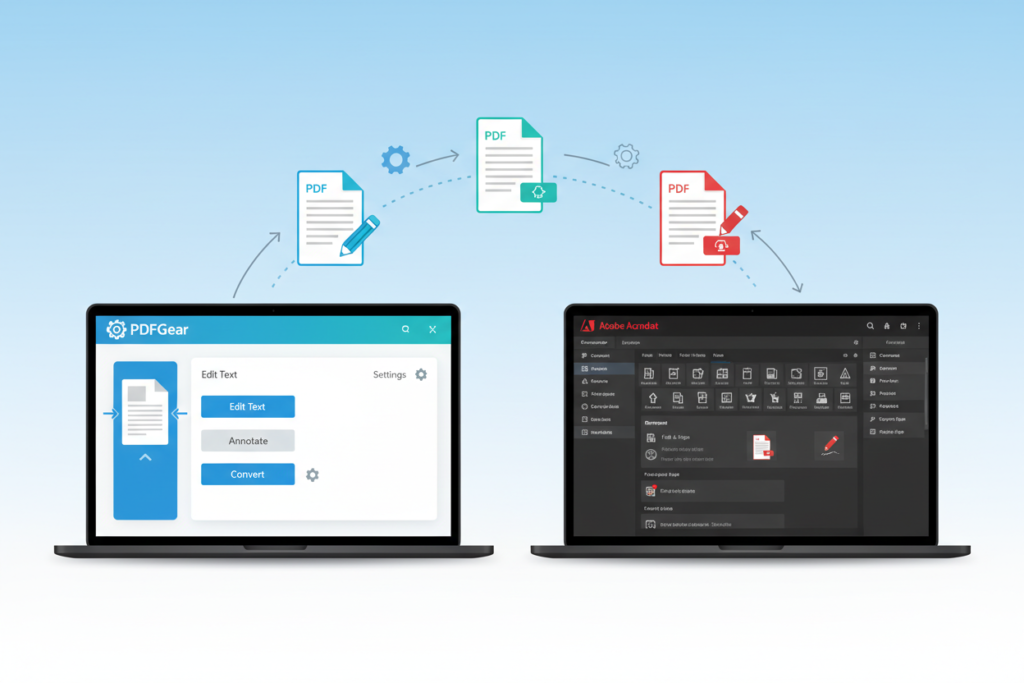
Choosing the Right PDF Editor: PDFGear vs. Adobe Acrobat in 2025 πŸ“„ Table of Contents β€’ Introduction: The PDF Editor Dilemma β€’ PDFGear Overview: The Rising Star β€’ Adobe Acrobat: The Industry Standard β€’ Feature Comparison: Where They Shine β€’ Pricing Analysis: Value for Your Money β€’ User Experience and Interface Design β€’ Performance and Speed Comparison β€’ Security Features: Protecting Your Documents β€’ Which Tool Is Right for You? β€’ Conclusion: Making the Final Decision β€’ Frequently Asked Questions Introduction: The PDF Editor Dilemma πŸ€” In today’s digital workspace, choosing the right PDF editor can make or break your productivity. Whether you’re a small business owner annotating contracts, a student highlighting research papers, or a corporate professional managing complex documents, the tool you select impacts your daily workflow significantly. The PDF editing landscape has evolved dramatically in 2025, with newcomers like PDFGear challenging established giants like Adobe Acrobat. This comprehensive comparison will help you navigate through the features, pricing, and performance of these two popular options, ensuring you make an informed decision that aligns with your specific needs and budget. I’ve spent countless hours testing both platforms across various scenarios – from simple text edits to complex form creation – and I’m excited to share my findings with you. Let’s dive into what makes each tool unique and which one might be your perfect match. PDFGear Overview: The Rising Star ⭐ PDFGear has emerged as a compelling alternative in the PDF editing space, positioning itself as a user-friendly, feature-rich solution that doesn’t break the bank. What immediately struck me about PDFGear is its clean, intuitive interface that makes even complex tasks feel manageable. The software offers a comprehensive suite of PDF tools, including editing, conversion, annotation, and form creation capabilities. What sets PDFGear apart is its commitment to providing professional-grade features without the overwhelming complexity that often accompanies enterprise software. One aspect I particularly appreciate is PDFGear’s focus on modern workflows. The platform integrates seamlessly with cloud storage services and offers excellent collaboration features that reflect how we actually work in 2025. The developers clearly understand that PDF editing isn’t just about individual document manipulation – it’s about fitting into broader digital ecosystems. Adobe Acrobat: The Industry Standard πŸ‘‘ Adobe Acrobat has been the gold standard for PDF editing for decades, and there’s good reason for its enduring popularity. The software offers an incredibly comprehensive feature set that can handle virtually any PDF-related task you might encounter. What makes Acrobat particularly powerful is its deep integration with the broader Adobe ecosystem. If you’re already using Creative Cloud applications, the workflow synergy is undeniable. The advanced features for document security, digital signatures, and enterprise-level collaboration are genuinely impressive. However, with great power comes great complexity. Adobe Acrobat can feel overwhelming for users who simply need to edit text or add annotations. The learning curve is steep, and the interface, while functional, hasn’t evolved as gracefully as some might hope for modern users. Feature Comparison: Where They Shine ✨ When it comes to core PDF editing features, both tools cover the essentials admirably, but they each have distinct strengths that cater to different user types and workflows. PDFGear excels in simplicity without sacrificing functionality. Text editing feels natural and responsive, with intelligent text recognition that maintains formatting better than many competitors. The annotation tools are well-designed and intuitive, making it easy to add comments, highlights, and drawings. Form creation is surprisingly robust for a tool in this price range, with drag-and-drop elements that make building interactive PDFs straightforward. Adobe Acrobat shines in advanced scenarios. Its OCR capabilities are industry-leading, handling even challenging scanned documents with impressive accuracy. The preflight and compliance checking features are essential for professional publishing workflows. Advanced security options, including redaction tools and certificate-based signatures, make it the go-to choice for sensitive document handling. For conversion capabilities, both tools handle the common formats well, but Acrobat’s conversion engine is more sophisticated, particularly when dealing with complex layouts or unusual file types. PDFGear’s converter is perfectly adequate for most users but might struggle with highly specialized conversion needs. Pricing Analysis: Value for Your Money πŸ’° The pricing difference between these tools is substantial and often becomes the deciding factor for many users. Let me break down the value proposition for each option. PDFGear offers exceptional value with its freemium model. The free version includes most essential features that casual users need, while the premium tier provides advanced capabilities at a fraction of Adobe’s cost. The annual subscription typically runs around $35-50, making it accessible for individuals and small businesses operating on tight budgets. Adobe Acrobat Standard costs approximately $180 annually, while Acrobat Pro reaches $240 per year. For businesses already invested in the Adobe ecosystem, these prices might be justified by the integration benefits and advanced features. However, for users who don’t need the full power of Acrobat, it represents significant overkill. The value equation becomes more complex when considering total cost of ownership. Adobe’s pricing includes regular updates, extensive customer support, and access to additional Creative Cloud benefits. PDFGear’s lower price point means you’re getting excellent core functionality but with more limited support options and fewer auxiliary features. User Experience and Interface Design 🎨 The user experience represents one of the most significant differentiators between these platforms, and it’s where personal preference plays a crucial role in your decision-making process. PDFGear’s interface feels modern and approachable. The ribbon-style toolbar is logically organized, and finding features rarely requires deep menu diving. The visual design is clean and uncluttered, which helps maintain focus on your actual document work. I found myself becoming productive with PDFGear much faster than with more complex alternatives. Adobe Acrobat’s interface reflects its power but also its complexity. The tool panels and extensive menu systems provide incredible functionality, but they can feel overwhelming for straightforward tasks. However, for power users who need quick access to advanced features, Acrobat’s interface efficiency becomes apparent once you’ve mastered its logic. Both applications have made strides in mobile responsiveness,

Apps, Cloud, Guides, How To, Resources, Reviews, SaaS, Software, Tutorials, Websites

Editing PDFs for Free: Discover the Best Apps in 2025

Editing PDFs for Free: Discover the Best Apps in 2025 πŸ“„ Table of Contents β€’ Introduction: The PDF Editing Revolution β€’ Why Free PDF Editors Matter in 2025 β€’ Top Free PDF Editing Apps You Need to Know β€’ Web-Based PDF Editors: Edit Anywhere, Anytime β€’ Mobile PDF Editing: Power in Your Pocket β€’ Desktop Champions: Full-Featured Free Solutions β€’ Security Considerations When Editing PDFs Online β€’ Tips for Choosing the Right PDF Editor β€’ Conclusion: Your PDF Editing Journey Starts Here β€’ Frequently Asked Questions Introduction: The PDF Editing Revolution πŸš€ Remember when editing a PDF felt like trying to change a stone tablet? Those days are long gone! In 2025, we’re living in a golden age of PDF editing tools that won’t cost you a penny. Whether you’re a student cramming for finals, a small business owner managing contracts, or just someone who needs to fill out that pesky form your doctor sent, free PDF editors have become incredibly sophisticated. I’ve spent countless hours testing dozens of PDF editing applications, and honestly, some of these free tools rival expensive software that costs hundreds of dollars. The landscape has changed dramatically, and today I’m excited to share the cream of the crop with you. Why Free PDF Editors Matter in 2025 πŸ’‘ Let’s be real – not everyone has the budget for Adobe Acrobat Pro, which can cost over $20 per month. But here’s the thing: you might not even need it! The free PDF editing ecosystem has exploded with innovation, driven by cloud computing advances and increased competition. These tools have become essential for remote work, digital document management, and paperless workflows. Plus, with artificial intelligence integration becoming more common, even free editors now offer smart features like automatic form field detection and text recognition that would have seemed magical just a few years ago. Top Free PDF Editing Apps You Need to Know ⭐ Web-Based PDF Editors: Edit Anywhere, Anytime 🌐 PDFgear Online has become my go-to recommendation for quick edits. This browser-based editor loads faster than my morning coffee brews, and it handles most common tasks beautifully. You can add text, insert images, highlight passages, and even merge multiple PDFs without downloading anything. The interface feels intuitive – even my tech-phobic uncle could figure it out in minutes. SmallPDF deserves serious recognition for its clean, user-friendly design. While they limit free users to two tasks per day, the quality is exceptional. Their compression tool alone has saved me countless megabytes when sharing large documents via email. The drag-and-drop functionality works flawlessly, and I love how it automatically suggests optimizations. ILovePDF brings a comprehensive toolkit to your browser. What sets it apart is the sheer variety of tools available – from splitting and merging to adding watermarks and digital signatures. The processing speed impressed me, especially when working with larger files that usually make other online tools crawl. Mobile PDF Editing: Power in Your Pocket πŸ“± Adobe Acrobat Reader might seem like an obvious choice, but hear me out. The free mobile version packs more punch than many people realize. You can fill forms, add comments, and even scan documents using your phone’s camera. The synchronization across devices works seamlessly – I often start editing on my phone during my commute and finish on my laptop at home. Xodo PDF Reader & Editor has quietly become a mobile powerhouse. The annotation tools are surprisingly robust, and the collaborative features shine when you’re working on documents with teammates. I particularly appreciate how it handles large PDFs without the lag that plagues other mobile apps. Foxit PDF Reader Mobile offers a desktop-like experience on your smartphone. The text editing capabilities are more advanced than most mobile alternatives, and the cloud integration means your documents follow you everywhere. The free version includes features that other apps charge for, making it an excellent value proposition. Desktop Champions: Full-Featured Free Solutions πŸ’» LibreOffice Draw might not be the prettiest option, but it’s incredibly powerful. As part of the LibreOffice suite, it can handle complex PDF editing tasks that stump other free alternatives. I’ve used it to completely restructure multi-page documents, and while there’s a learning curve, the capabilities are impressive once you get comfortable. PDFsam Basic excels at document management tasks. If you frequently need to split, merge, or rotate PDFs, this tool will become your best friend. The interface is straightforward, and it handles batch operations efficiently. I once processed 50 invoices in under five minutes – try doing that manually! PDF-XChange Editor offers a generous free version that includes many premium features. The annotation tools are professional-grade, and the OCR capabilities work surprisingly well. While some advanced features require a license, the free version covers 90% of what most users need. Security Considerations When Editing PDFs Online πŸ”’ Here’s something that keeps me up at night – and should concern you too. When you upload sensitive documents to online PDF editors, you’re essentially trusting a third party with your information. Most reputable services claim to delete files after processing, but how can you be sure? For confidential documents, I always recommend desktop solutions or services that explicitly guarantee local processing. Read the privacy policies carefully, and when in doubt, stick to offline tools. Some online editors now offer client-side processing, where editing happens in your browser without uploading files to their servers – this is the sweet spot between convenience and security. Always check if the service uses HTTPS encryption and look for certifications or compliance badges. If you’re handling business documents, consider whether the service meets your industry’s regulatory requirements. Tips for Choosing the Right PDF Editor ✨ The “best” PDF editor depends entirely on your specific needs. Are you primarily filling out forms? Look for tools with excellent form field detection. Need to collaborate with others? Prioritize apps with robust commenting and sharing features. Consider your workflow too. If you’re always on the go, mobile-first solutions make sense. If you process many documents daily, desktop applications with

Apps, Cloud, Guides, How To, Resources, Reviews, SaaS, Software, Tutorials, Websites

The Best Free VPN Apps to Protect Your Privacy in 2025

The Best Free VPN Apps to Protect Your Privacy in 2025 πŸ›‘οΈ Table of Contents β€’ Introduction to Free VPNs in 2025 β€’ Why You Need a VPN for Privacy Protection β€’ Top 5 Free VPN Apps for 2025 β€’ Key Features to Look for in Free VPNs β€’ Limitations of Free VPN Services β€’ How to Choose the Right Free VPN β€’ Security Tips for VPN Users β€’ Frequently Asked Questions β€’ Conclusion In our increasingly connected world, protecting your online privacy has become more crucial than ever. With cyber threats lurking around every digital corner and data breaches making headlines almost weekly, finding reliable ways to safeguard your personal information isn’t just smartβ€”it’s essential. That’s where Virtual Private Networks (VPNs) come into play, acting as your digital bodyguard in the vast wilderness of the internet. While premium VPN services offer comprehensive protection, not everyone can afford monthly subscriptions. The good news? There are several excellent free VPN apps that can provide solid privacy protection without breaking the bank. I’ve spent countless hours testing various free VPN services, and I’m excited to share my findings with you. Let’s dive into the world of free VPNs and discover which ones truly deserve a spot on your device in 2025. πŸš€ Why You Need a VPN for Privacy Protection in 2025 Before we explore the best free options available, let’s talk about why VPNs have become indispensable tools for digital privacy. Think of a VPN as an invisible cloak for your internet activityβ€”it creates a secure tunnel between your device and the websites you visit, encrypting your data along the way. Your Internet Service Provider (ISP) can normally see everything you do online, from the websites you visit to the files you download. Government agencies, hackers, and even advertisers are constantly trying to peek into your digital life. A VPN puts a stop to this invasion by masking your real IP address and location, making it nearly impossible for anyone to track your online activities. In 2025, the digital landscape has become even more complex. Smart home devices, IoT gadgets, and increased remote work have expanded our digital footprint exponentially. Public Wi-Fi networks in cafes, airports, and hotels remain prime hunting grounds for cybercriminals. Without proper protection, your sensitive informationβ€”banking details, personal photos, work documentsβ€”could fall into the wrong hands faster than you can say “data breach.” 😰 Top 5 Free VPN Apps for 2025 1. ProtonVPN Free – The Privacy Champion ProtonVPN Free stands out as my top recommendation for free VPN services in 2025. Developed by the same team behind ProtonMail, this Swiss-based VPN provider takes privacy seriously. What sets ProtonVPN apart is its no-logs policy and unlimited bandwidthβ€”yes, you read that right, completely unlimited data usage! The free version gives you access to servers in three countries: the United States, Netherlands, and Japan. While this might seem limited compared to premium services, the connection speeds are surprisingly robust. I’ve personally used ProtonVPN Free for streaming and general browsing, and the performance consistently impressed me. The app interface is clean, intuitive, and doesn’t bombard you with annoying ads every few minutes. 🌟 2. Windscribe Free – The Generous Data Provider Windscribe Free offers an impressive 10GB of monthly data, which is more than enough for casual browsing, checking emails, and light streaming. Based in Canada, Windscribe provides access to servers in over 10 countries in their free tier, including popular locations like the UK, Germany, and Canada. What I love about Windscribe is its built-in ad blocker and malware protection. The app feels modern and responsive, and the company regularly updates its software to address security vulnerabilities. The 10GB limit might feel restrictive for heavy users, but for most people’s daily internet needs, it’s quite generous. Plus, you can earn additional data by tweeting about the service or referring friends. 3. TunnelBear Free – The User-Friendly Option TunnelBear wins the award for the most adorable VPN interfaceβ€”seriously, the bear-themed design never fails to bring a smile to my face! But beyond its charming appearance, TunnelBear Free offers solid security features and servers in over 20 countries. The monthly data limit is 500MB, which admittedly isn’t much, but it’s perfect for occasional secure browsing or protecting sensitive transactions. The app is incredibly easy to use, making it ideal for VPN newcomers who might feel overwhelmed by technical jargon. TunnelBear’s transparency is refreshingβ€”they publish annual security audits and maintain a clear privacy policy. While the data limit is restrictive, the service quality is top-notch. 🐻 4. Hide.me Free – The Speed Demon Hide.me Free provides 10GB of monthly data and access to servers in five countries. What makes this VPN special is its impressive connection speeds and strong encryption protocols. During my testing, Hide.me consistently delivered fast, stable connections that didn’t significantly impact my internet speed. The Malaysia-based company offers excellent customer support and maintains a strict no-logs policy. The free version supports one simultaneous connection, which is standard for most free VPN services. The app interface is straightforward and professional, without unnecessary bells and whistles that might confuse new users. 5. Hotspot Shield Free – The Veteran Choice Hotspot Shield has been around for years, and their free version remains a solid choice for basic privacy protection. While the free tier is ad-supported and limits you to US servers only, it offers unlimited bandwidthβ€”a rarity in the free VPN world. The connection speeds are decent for general browsing, though you might notice some slowdown during peak hours. Hotspot Shield’s Catapult Hydra protocol is designed to optimize performance, and in my experience, it does deliver consistent results. Just be prepared for occasional ads, which help fund the free service. πŸ“± Key Features to Look for in Free VPNs When evaluating free VPN services, certain features separate the wheat from the chaff. First and foremost, look for a clear no-logs policy. This means the VPN provider doesn’t store records of your online activities, ensuring your privacy even if authorities come knocking.

Apps, Cloud, Guides, How To, Resources, Reviews, SaaS, Software, Tutorials, Websites

Visual Studio Code: A Tutorial for Mastering Its Use in 2025

Visual Studio Code: A Tutorial for Mastering Its Use in 2025 πŸš€ Table of Contents β€’ Introduction to Visual Studio Code in 2025 β€’ Getting Started: Installation and Initial Setup β€’ Essential VS Code Features Every Developer Should Know β€’ Advanced Customization and Extensions β€’ Productivity Hacks and Time-Saving Shortcuts β€’ Debugging Like a Pro in Visual Studio Code β€’ Version Control Integration with Git β€’ Remote Development and Cloud Integration β€’ Performance Optimization Tips β€’ Future-Proofing Your VS Code Setup β€’ Frequently Asked Questions If you’re a developer in 2025, chances are you’ve heard about Visual Studio Code – or maybe you’re already using it but feel like you’re barely scratching the surface. Trust me, I’ve been there! When I first started using VS Code a few years back, I thought it was just another text editor. Boy, was I wrong. πŸ˜… Visual Studio Code has evolved into something truly spectacular. It’s not just Microsoft’s free, open-source code editor anymore – it’s become the Swiss Army knife of development tools. Whether you’re writing Python scripts, building React applications, or diving into machine learning projects, VS Code has probably got your back. In this comprehensive tutorial, I’ll walk you through everything you need to know to master Visual Studio Code in 2025. We’ll cover the basics, dive into advanced features, and explore some productivity hacks that’ll make your coding sessions feel like magic. Ready to transform your development workflow? Let’s dive in! ✨ Getting Started: Installation and Initial Setup Before we jump into the exciting stuff, let’s make sure you have VS Code properly set up. The installation process has become even more streamlined in 2025, with Microsoft introducing smart installation profiles that automatically configure your environment based on your development preferences. Head over to the official Visual Studio Code website and download the latest version for your operating system. The 2025 release includes native support for ARM processors and improved performance across all platforms. During installation, you’ll notice the new “Developer Profile” option – this is a game-changer that sets up your environment based on your primary programming languages. Once installed, take a moment to explore the welcome screen. It’s been redesigned to provide personalized recommendations based on your GitHub activity and local project files. Pretty neat, right? The setup wizard will guide you through connecting your GitHub account, syncing settings across devices, and selecting your preferred theme. Pro tip: Enable Settings Sync from day one. This feature has been significantly improved and now includes extension settings, keyboard shortcuts, and even your workspace layouts. It’s a lifesaver when you’re working across multiple machines! πŸ’Ύ Essential VS Code Features Every Developer Should Know Now that you’re all set up, let’s explore the core features that make VS Code so powerful. The Command Palette (Ctrl+Shift+P or Cmd+Shift+P) is your gateway to everything in VS Code. Think of it as the search engine for your editor – you can access any command, setting, or feature just by typing. The Explorer panel on the left gives you a bird’s eye view of your project structure. What’s new in 2025 is the intelligent file grouping feature that automatically organizes related files and suggests project structures based on your framework choice. It’s like having a personal assistant for your codebase organization! IntelliSense has received major upgrades this year, with AI-powered code completion that learns from your coding patterns. It’s not just about syntax anymore – VS Code now understands context, suggests entire code blocks, and can even predict what you’re trying to implement based on your comments. Sometimes it feels like it’s reading my mind! 🧠 The integrated terminal deserves special mention. You can now run multiple terminal sessions with different environments simultaneously, and the new smart terminal feature automatically detects your project type and suggests relevant commands. No more switching between your editor and external terminal windows! Advanced Customization and Extensions Here’s where VS Code truly shines – its extensibility. The Extensions Marketplace has grown exponentially, and finding the right extensions can dramatically improve your productivity. But here’s the thing: more isn’t always better. I’ve learned this the hard way after installing dozens of extensions and watching my editor slow to a crawl. Start with the essentials: Prettier for code formatting, ESLint for JavaScript linting, and GitLens for enhanced Git integration. The 2025 extension recommendations engine is incredibly smart – it analyzes your codebase and suggests relevant extensions without overwhelming you with options. Themes and icons might seem superficial, but they genuinely impact your coding experience. The new adaptive theming system adjusts colors based on your ambient lighting and time of day. It’s subtle but makes long coding sessions much more comfortable on your eyes. πŸ‘€ Custom snippets are another powerful feature that many developers overlook. You can create reusable code templates for common patterns in your projects. I’ve saved countless hours by setting up snippets for React components, API endpoints, and test structures. The snippet editor has been redesigned with a visual interface that makes creating complex snippets much more intuitive. Productivity Hacks and Time-Saving Shortcuts Let’s talk about the shortcuts and techniques that separate VS Code beginners from power users. Multi-cursor editing (Alt+Click) is probably the most mind-blowing feature when you first discover it. You can edit multiple lines simultaneously, which is perfect for refactoring variable names or making repetitive changes. The Quick Open feature (Ctrl+P or Cmd+P) lets you jump to any file in your project instantly. But here’s a lesser-known trick: you can use symbols like @ to search for functions, # for symbols across files, and : to go to specific line numbers. It’s like having superpowers for navigation! ⚑ Workspace management has been revolutionized in 2025. You can now save entire workspace configurations, including open files, terminal sessions, and extension states. I have different workspaces for different projects, and switching between them feels seamless. The new Focus Mode eliminates distractions by hiding unnecessary UI elements and highlighting only the code you’re working on. It’s perfect for those

Apps, Cloud, Guides, How To, Resources, Reviews, SaaS, Software, Tutorials, Websites

Top Code Editor Apps Every Developer Should Know About in 2025

Top Code Editor Apps Every Developer Should Know About in 2025 πŸ’» Table of Contents 1. Introduction: The Evolution of Code Editors 2. Visual Studio Code: The Reigning Champion 3. JetBrains IntelliJ IDEA: Power User’s Paradise 4. Sublime Text: Speed and Elegance Combined 5. Vim/Neovim: For the Keyboard Warriors 6. Atom: GitHub’s Open-Source Offering 7. WebStorm: JavaScript Developer’s Best Friend 8. Android Studio: Mobile Development Powerhouse 9. Xcode: Apple’s Ecosystem Essential 10. Emerging Alternatives Worth Watching 11. How to Choose the Right Code Editor 12. Frequently Asked Questions Introduction: The Evolution of Code Editors in 2025 πŸš€ As we navigate through 2025, the landscape of code editors continues to evolve at breakneck speed. Gone are the days when developers were limited to basic text editors or clunky IDEs that took forever to boot up. Today’s code editors are sophisticated, lightning-fast, and packed with features that would have seemed like magic just a decade ago. Whether you’re a seasoned developer who’s been coding since the early 2000s or a fresh bootcamp graduate taking your first steps into the programming world, choosing the right code editor can make or break your development experience. I’ve personally tried dozens of editors over my career, and let me tell you – the right tool can transform your coding from a chore into pure joy. In this comprehensive guide, we’ll explore the top code editor apps that every developer should have on their radar in 2025. From the feature-rich powerhouses to the minimalist speed demons, there’s something here for every coding style and preference. Visual Studio Code: The Reigning Champion πŸ‘‘ Let’s be honest – Visual Studio Code has dominated the developer landscape for years, and 2025 is no different. Microsoft’s free, open-source editor has become the Swiss Army knife of coding tools, and for good reason. What makes VS Code so special? First, it’s the extensions ecosystem. With over 50,000 extensions available, you can customize VS Code to work with virtually any programming language or framework. Need Python debugging? There’s an extension. Want integrated Docker support? Covered. Real-time collaboration with your team? Yep, that too. The integrated terminal is another game-changer. I can’t count how many times I’ve appreciated being able to run git commands, install packages, or execute scripts without leaving my editor. It’s these small conveniences that add up to massive productivity gains. VS Code’s IntelliSense feature has also gotten incredibly sophisticated. The auto-completion suggestions are so accurate that sometimes it feels like the editor is reading my mind. Combined with built-in Git integration and debugging capabilities, it’s no wonder that Stack Overflow’s developer surveys consistently rank VS Code as the most popular editor. JetBrains IntelliJ IDEA: Power User’s Paradise ⚑ If VS Code is the people’s champion, then IntelliJ IDEA is the professional athlete’s choice. JetBrains has crafted an IDE that’s particularly beloved by Java developers, though it supports a wide range of languages. What sets IntelliJ apart is its deep code analysis capabilities. The IDE doesn’t just highlight syntax errors – it actively suggests improvements, detects potential bugs, and offers intelligent refactoring options. I’ve seen developers save hours of debugging time thanks to IntelliJ’s proactive error detection. The built-in tools are comprehensive: version control integration that goes beyond basic Git support, database tools, HTTP client for API testing, and even a built-in terminal. It’s like having an entire development environment in one package. Yes, it comes with a price tag (though there’s a free Community Edition), but many developers find the productivity gains justify the cost. The learning curve can be steep, but once you master IntelliJ’s shortcuts and features, you’ll wonder how you ever coded without it. Sublime Text: Speed and Elegance Combined πŸƒβ€β™‚οΈ Sometimes, you just need an editor that gets out of your way and lets you code. That’s where Sublime Text shines. This editor has built a loyal following among developers who prioritize speed and simplicity above all else. Sublime Text launches in milliseconds, even on older hardware. When you’re jumping between files or making quick edits, this responsiveness makes a noticeable difference. The multiple cursors feature is particularly brilliant – once you get used to editing multiple lines simultaneously, going back to single-cursor editing feels painfully slow. The “Goto Anything” feature is another standout. Press Ctrl+P (or Cmd+P on Mac) and you can instantly jump to any file, symbol, or line in your project. It’s fuzzy search at its finest, and it keeps you in the flow state that’s so crucial for productive coding. While Sublime Text isn’t free, its unlimited trial period and one-time purchase model (no subscriptions!) make it an attractive option for developers who want a premium experience without ongoing costs. Vim/Neovim: For the Keyboard Warriors ⌨️ Vim might seem like a relic from the past, but it’s experiencing a renaissance in 2025. Modern distributions like Neovim have brought this classic editor into the 21st century while maintaining the lightning-fast, keyboard-centric workflow that made Vim legendary. The learning curve is notoriously steep – I still remember my first week with Vim, constantly getting stuck in insert mode and frantically googling how to quit. But once the muscle memory kicks in, Vim becomes an extension of your thoughts. You’ll find yourself trying to use Vim shortcuts in other applications because they become so natural. Neovim, in particular, has modernized the Vim experience with better plugin support, built-in LSP (Language Server Protocol) support, and a more approachable configuration system. The plugin ecosystem has exploded, with tools like Telescope for fuzzy finding and nvim-tree for file exploration bringing modern conveniences to the classic Vim workflow. If you’re willing to invest the time to learn it, Vim can make you incredibly productive. Plus, since it’s available on virtually every system, you’ll never be without your preferred editor. Atom: GitHub’s Open-Source Offering 🌐 While GitHub officially sunset Atom in 2022, the open-source community has kept it alive through community forks and continued development. For developers who love the idea of a “hackable text editor for the 21st

Apps, Cloud, Guides, How To, Resources, Reviews, SaaS, Software, Tutorials, Websites

Choosing Between GIMP and Photoshop for Image Editing in 2025

Choosing Between GIMP and Photoshop for Image Editing in 2025: A Complete Guide Table of Contents β€’ Introduction: The Great Image Editor Debate β€’ Understanding GIMP: The Open-Source Champion β€’ Adobe Photoshop: The Industry Standard β€’ Feature Comparison: What Each Tool Offers β€’ Cost Analysis: Budget vs. Investment β€’ Performance and System Requirements β€’ User Experience and Learning Curve β€’ Professional Workflow Integration β€’ Community Support and Resources β€’ Making the Right Choice for Your Needs β€’ Frequently Asked Questions Introduction: The Great Image Editor Debate 🎨 Picture this: you’re staring at your computer screen, ready to dive into your next creative project, but you’re stuck on a fundamental question that’s plagued digital artists and photographers for years. Should you go with GIMP, the beloved free alternative that’s been steadily improving, or invest in Adobe Photoshop, the industry heavyweight that’s dominated professional workflows for decades? In 2025, this decision has become more nuanced than ever before. Both GIMP and Photoshop have evolved significantly, each carving out distinct advantages that cater to different user needs. Whether you’re a budget-conscious student, a freelance photographer, or a seasoned creative professional, understanding the strengths and limitations of each platform is crucial for making an informed choice. Let’s dive deep into this comparison and help you determine which image editing powerhouse deserves a place in your creative toolkit. Understanding GIMP: The Open-Source Champion πŸš€ GIMP (GNU Image Manipulation Program) has come a long way since its humble beginnings in the 1990s. What started as a university project has transformed into a robust, feature-rich image editor that challenges many commercial alternatives. The beauty of GIMP lies not just in its zero price tag, but in its philosophy of democratizing professional-grade image editing tools. The 2025 version of GIMP represents years of community-driven development, incorporating user feedback and modern design principles. The interface has become more intuitive, the performance more stable, and the feature set more comprehensive. It’s no longer just “the free alternative” – it’s become a legitimate contender in its own right. One aspect that truly sets GIMP apart is its transparency. Being open-source means you can peek under the hood, modify the code if you’re technically inclined, or simply benefit from the collective wisdom of thousands of developers worldwide who contribute to its improvement. Adobe Photoshop: The Industry Standard πŸ‘‘ Adobe Photoshop needs little introduction. For over three decades, it has been synonymous with professional image editing, setting industry standards and defining workflows that millions of creatives rely on daily. The 2025 iteration continues this legacy while embracing cutting-edge technologies like AI-powered tools and cloud integration. What makes Photoshop particularly compelling is its ecosystem integration. When you choose Photoshop, you’re not just getting an image editor – you’re gaining access to the entire Adobe Creative Suite, seamless file sharing through Creative Cloud, and compatibility with virtually every professional workflow imaginable. Photoshop’s strength also lies in its consistency and reliability. When you’re working on a client project with tight deadlines, knowing that your tools will perform predictably can be invaluable. The software’s extensive documentation, professional support, and industry-wide adoption create a safety net that many professionals find indispensable. Feature Comparison: What Each Tool Offers ⚑ When it comes to core functionality, both GIMP and Photoshop offer impressive arsenals of tools. GIMP provides all the essential features you’d expect: layers, masks, filters, color correction, and advanced selection tools. Its scripting capabilities through Script-Fu and Python plugins allow for powerful automation and customization. Photoshop, however, edges ahead in specialized areas. Its Content-Aware Fill technology, advanced healing tools, and AI-powered features like Neural Filters provide capabilities that GIMP struggles to match. The integration of Adobe’s Sensei AI across various tools creates intelligent automation that can significantly speed up complex editing tasks. Where GIMP shines is in its flexibility and customization options. The ability to modify the interface, create custom tools, and adapt the software to specific workflows gives power users unprecedented control. This flexibility comes at the cost of some polish, but for users who value customization over convenience, GIMP delivers. Both applications support similar file formats, though Photoshop has broader support for proprietary formats and better integration with other professional tools. GIMP’s native XCF format is powerful but not widely supported outside the GIMP ecosystem. Cost Analysis: Budget vs. Investment πŸ’° The cost difference between GIMP and Photoshop is stark and often the deciding factor for many users. GIMP is completely free – no subscriptions, no licensing fees, no hidden costs. You can download it today and use every feature without spending a penny. Photoshop, on the other hand, requires a Creative Cloud subscription starting at around $20.99 per month for the Photography plan or $54.99 for the complete Creative Suite. While this might seem expensive, it’s important to consider the total value proposition. For students and hobbyists, GIMP’s free price point is unbeatable. However, professionals often find that Photoshop’s subscription cost is easily justified by increased productivity, client compatibility, and the comprehensive ecosystem it provides. The time saved through efficient workflows and reliable performance can quickly offset the monthly subscription cost. It’s also worth considering the hidden costs of each option. GIMP might be free, but investing time in learning its quirks or dealing with compatibility issues could have an opportunity cost. Conversely, Photoshop’s subscription includes regular updates, cloud storage, and professional support that add significant value. Performance and System Requirements πŸ–₯️ Performance has traditionally been an area where the comparison between GIMP and Photoshop revealed interesting trade-offs. GIMP, being lighter and more modular, often runs well on older hardware and systems with limited resources. This makes it an excellent choice for users working on budget computers or those who need to maintain compatibility across diverse hardware setups. Photoshop, while more resource-intensive, leverages this additional overhead to deliver superior performance in complex operations. Its optimized rendering engine, GPU acceleration, and efficient memory management make it notably faster when working with large files or performing computationally intensive tasks. In 2025, both applications have made significant strides

Apps, Cloud, Guides, How To, Resources, Reviews, SaaS, Software, Tutorials, Websites

Exploring Evernote Alternatives: Notion vs. OneNote in 2025

Exploring Evernote Alternatives: Notion vs. OneNote in 2025 πŸ“ Table of Contents 1. Introduction: Why Look Beyond Evernote? 2. Notion: The All-in-One Workspace Revolution 3. OneNote: Microsoft’s Digital Notebook Powerhouse 4. Head-to-Head Comparison: Features That Matter 5. Pricing Analysis: Getting the Best Value 6. User Experience and Learning Curve 7. Integration Capabilities and Ecosystem 8. Making the Right Choice for Your Needs 9. Conclusion 10. Frequently Asked Questions Introduction: Why Look Beyond Evernote? πŸ€” Remember when Evernote was the undisputed king of digital note-taking? Those days feel like a distant memory now. As we navigate through 2025, the note-taking landscape has transformed dramatically, and frankly, Evernote hasn’t kept pace with user expectations or technological advances. I’ve been on this journey myself – starting as a devoted Evernote user who gradually became frustrated with its limitations, sluggish performance, and pricing structure that seemed to offer less value each year. Sound familiar? You’re not alone in feeling this way. Today, we’re diving deep into two of the most compelling Evernote alternatives that have captured the attention of productivity enthusiasts worldwide: Notion and Microsoft OneNote. Both platforms offer unique approaches to digital organization, but which one deserves your time and attention in 2025? Notion: The All-in-One Workspace Revolution πŸš€ Notion burst onto the scene with a bold promise: to replace multiple productivity tools with one unified workspace. And honestly? They’ve come pretty close to delivering on that ambitious goal. What sets Notion apart isn’t just its note-taking capabilities – it’s the platform’s incredible flexibility. Think of it as digital LEGO blocks for productivity. You can build databases, create project management systems, design wikis, and yes, take traditional notes, all within the same environment. The beauty of Notion lies in its block-based structure. Every piece of content is a block that you can move, modify, or transform. Want to turn a simple note into a database? No problem. Need to embed a calendar alongside your meeting notes? Done in seconds. However, this flexibility comes with a learning curve that might intimidate newcomers. I’ll be honest – my first week with Notion was overwhelming. The sheer number of possibilities can feel paralyzing when you just want to jot down a quick thought. OneNote: Microsoft’s Digital Notebook Powerhouse πŸ“š Microsoft OneNote takes a refreshingly different approach. Instead of reinventing how we think about digital organization, it mimics the familiar structure of physical notebooks, complete with sections and pages. What I love about OneNote is its intuitive nature. You can literally click anywhere on a page and start typing – no templates, no complex setups, just pure, unadulterated note-taking freedom. It’s like having an infinite canvas where your thoughts can flow naturally. The platform excels at handling mixed media content. Drawing with a stylus feels incredibly natural, and the ability to seamlessly blend handwritten notes with typed text and images creates a truly organic experience. For students and professionals who think visually, OneNote is often a revelation. OneNote’s search functionality deserves special mention. It can actually search text within images and handwritten notes – a feature that still impresses me every time I use it. Try finding that handwritten phone number from three months ago, and OneNote will locate it faster than you can remember where you wrote it. Head-to-Head Comparison: Features That Matter βš–οΈ Organization and Structure Notion’s database-driven approach allows for incredibly sophisticated organization systems. You can create relational databases, add properties to pages, and build complex filtering systems. It’s like having a personal database administrator for your thoughts. OneNote keeps things simpler with its notebook-section-page hierarchy. While less flexible than Notion’s approach, this structure feels immediately familiar and requires zero learning curve. Collaboration Features Both platforms handle collaboration well, but in different ways. Notion excels at structured collaboration – think project wikis, shared databases, and organized team spaces. The commenting system is robust, and real-time editing works seamlessly. OneNote’s collaboration feels more organic and immediate. Multiple people can edit the same page simultaneously, and you can literally see their cursors moving in real-time. It’s perfect for brainstorming sessions or collaborative note-taking during meetings. Mobile Experience This is where the differences become stark. OneNote’s mobile apps are polished and feature-complete, offering an experience that’s nearly identical to the desktop version. The touch interface is intuitive, and syncing happens seamlessly across devices. Notion’s mobile experience, while improved significantly over the years, still feels like a compromise. Complex databases and intricate layouts don’t translate well to smaller screens, and the app can feel sluggish on older devices. Pricing Analysis: Getting the Best Value πŸ’° Let’s talk money – because in 2025, subscription fatigue is real, and every dollar counts. OneNote wins the pricing battle decisively by being completely free for personal use. Yes, you read that right – free. Microsoft includes OneNote with every Microsoft account, and there are no artificial limitations or premium features locked behind paywalls. Notion operates on a freemium model that’s generous but has limits. The free plan allows unlimited personal use but restricts team features and limits file uploads. The paid plans start at $8 per user per month for the Plus plan, which unlocks unlimited file uploads and guest access. For individuals, OneNote’s free offering is unbeatable. For teams requiring advanced collaboration features, Notion’s pricing becomes more justified, especially considering the breadth of functionality it provides. User Experience and Learning Curve πŸ“ˆ I’ve introduced both platforms to colleagues and friends over the years, and the reactions are consistently predictable. OneNote users typically experience immediate satisfaction. The interface is clean, familiar, and gets out of your way. You can be productive within minutes of opening the app for the first time. It’s the digital equivalent of picking up a pen and paper – natural and intuitive. Notion users often go through what I call the “Notion journey” – initial confusion, followed by gradual understanding, then sudden enlightenment, and finally, evangelical enthusiasm. The learning curve is steep, but the payoff can be transformative for those willing to invest the time. The key

Scroll to Top