How to Enhance Your Google Drive Experience with These File Sharing Tips 📁
Google Drive has become an indispensable tool for millions of users worldwide, revolutionizing how we store, access, and share files. As we navigate through 2026, the platform continues to evolve, offering new features and improved functionality that can significantly enhance your productivity. Whether you’re a business professional collaborating with team members, a student working on group projects, or simply someone who wants to organize their digital life better, mastering Google Drive’s file sharing capabilities is crucial for maximizing efficiency.
In this comprehensive guide, we’ll explore advanced file sharing techniques, hidden features you might not know about, and practical tips that will transform how you use Google Drive. From optimizing collaboration workflows to implementing smart security measures, these strategies will help you get the most out of your Google Drive experience in 2026.
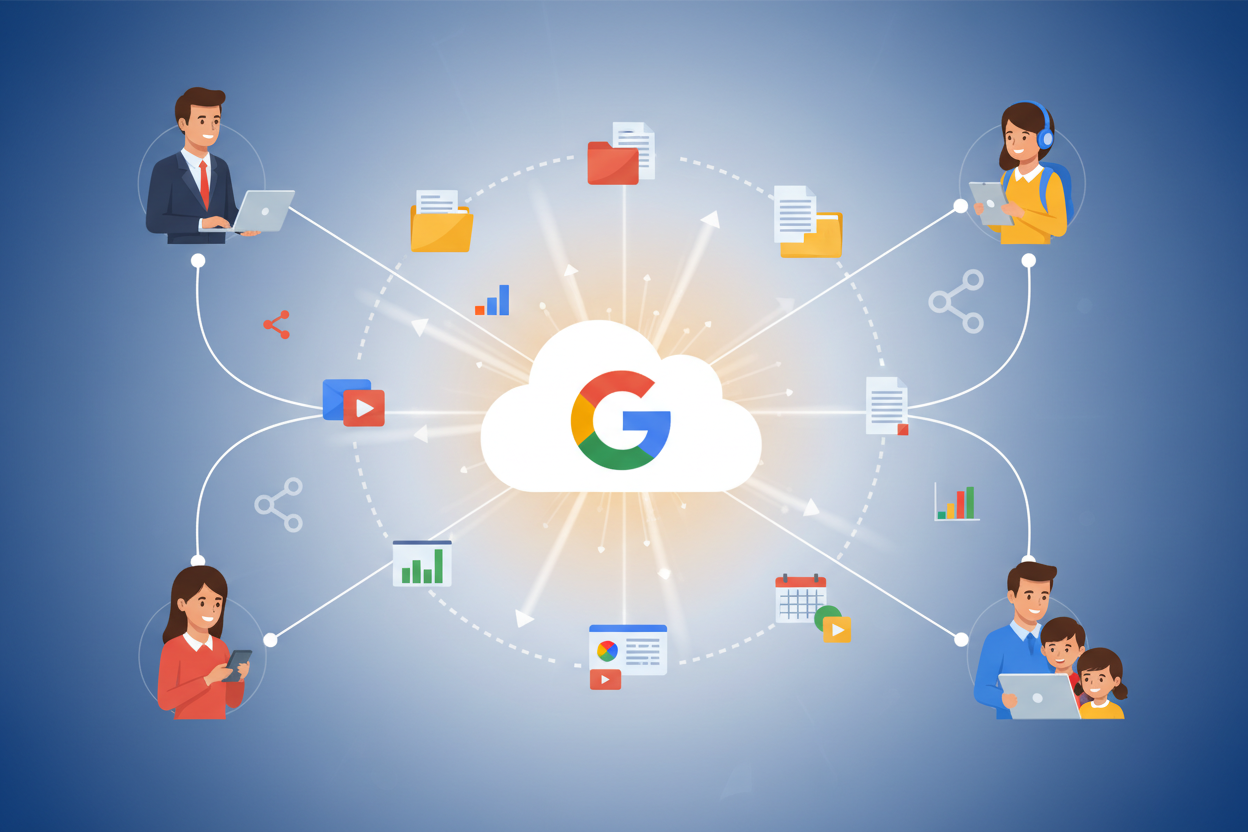
Table of Contents 📋
• Understanding Google Drive’s Latest Sharing Features
• Advanced Permission Settings for Better Control
• Streamlining Collaboration with Smart Sharing Techniques
• Organizing Files for Optimal Sharing Efficiency
• Security Best Practices for Safe File Sharing
• Mobile Optimization Tips for On-the-Go Sharing
• Troubleshooting Common Sharing Issues
• Future-Proofing Your Google Drive Strategy
Understanding Google Drive’s Latest Sharing Features in 2026 🚀
Google Drive has introduced several game-changing features in 2026 that make file sharing more intuitive and powerful than ever before. The enhanced AI-powered suggestions now intelligently recommend who to share files with based on your collaboration patterns and email interactions. This smart feature saves precious time by automatically suggesting relevant team members when you’re about to share a document.
The new “Contextual Sharing” feature analyzes the content of your documents and suggests appropriate sharing settings. For instance, if you’re working on a confidential financial report, Drive will automatically recommend restricted sharing options and suggest adding expiration dates to shared links.
Another significant improvement is the “Collaborative Workspace” feature, which creates dedicated spaces for specific projects. These workspaces automatically organize related files, making it easier for team members to find and access relevant documents without cluttering their main Drive interface.
Advanced Permission Settings for Better Control 🔐
Mastering Google Drive’s permission system is essential for maintaining control over your shared content. The platform now offers granular permission controls that go beyond the basic “view,” “comment,” and “edit” options. You can now set time-based permissions that automatically revoke access after a specified period, perfect for temporary collaborations or sensitive projects.
The “Conditional Access” feature allows you to restrict file access based on specific criteria such as location, device type, or time of day. This is particularly useful for organizations that need to maintain strict security protocols while still enabling flexible collaboration.
For enhanced security, consider using the “Watermark” feature for sensitive documents. This adds a visible watermark with the viewer’s email address, deterring unauthorized sharing and providing an audit trail for document access.
Streamlining Collaboration with Smart Sharing Techniques 🤝
Effective collaboration requires more than just sharing files; it demands strategic thinking about how information flows within your team. One powerful technique is creating “Template Libraries” – shared folders containing standardized document templates that team members can copy and customize for their projects. This ensures consistency across your organization while saving time on document creation.
The “Version Control Mastery” approach involves establishing clear naming conventions and using Google Drive’s built-in version history features effectively. Create a system where team members can easily identify the most current version of documents and understand the evolution of collaborative work.
Implement “Notification Optimization” by customizing sharing notifications for different types of collaborations. For urgent projects, use immediate notifications, while for reference materials, opt for daily or weekly digest notifications to avoid overwhelming team members.
Organizing Files for Optimal Sharing Efficiency 📂
A well-organized Google Drive structure is the foundation of efficient file sharing. Create a hierarchical folder system that mirrors your workflow and makes it easy for collaborators to navigate. Use descriptive folder names that clearly indicate the content and purpose, such as “2026_Marketing_Campaigns” or “Client_Projects_Active.”
Leverage Google Drive’s color-coding system to create visual cues for different types of content or priority levels. Assign specific colors to different departments, project phases, or confidentiality levels to help team members quickly identify relevant files.
The “Smart Shortcuts” strategy involves creating shortcuts to frequently accessed files in multiple relevant folders. This eliminates the need to duplicate files while ensuring they’re easily discoverable from different organizational perspectives.
Security Best Practices for Safe File Sharing 🛡️
Security should never be an afterthought when sharing files through Google Drive. Implement a “Zero Trust” approach by regularly auditing shared files and removing access for users who no longer need it. Use Google Drive’s “Access Checker” tool monthly to review and clean up sharing permissions.
Enable two-factor authentication for all accounts that have access to sensitive shared files. This adds an extra layer of security that significantly reduces the risk of unauthorized access, even if login credentials are compromised.
Consider using “Link Expiration” strategically for temporary sharing needs. Set automatic expiration dates for shared links, especially when sharing with external parties or for time-sensitive projects. This ensures that access is automatically revoked when it’s no longer needed.
Mobile Optimization Tips for On-the-Go Sharing 📱
In our increasingly mobile world, optimizing your Google Drive experience for smartphones and tablets is crucial. The Google Drive mobile app has received significant updates in 2026, including improved offline functionality and enhanced sharing capabilities.
Set up “Offline Sync” for critical files that you frequently need to access or share while traveling. This ensures you can continue working and sharing documents even without a reliable internet connection. The app will automatically sync changes once you’re back online.
Use “Voice Commands” for quick file sharing on mobile devices. Google Drive’s integration with Google Assistant allows you to share files hands-free, which is particularly useful when you’re multitasking or in situations where typing isn’t convenient.
Troubleshooting Common Sharing Issues 🔧
Even with the best preparation, sharing issues can arise. The most common problem users face is permission conflicts, especially in complex organizational structures. When someone can’t access a shared file, first check if their email address is correct and whether they’re using the right Google account.
Storage quota issues can also prevent smooth sharing experiences. Regularly monitor your Google Drive storage usage and consider upgrading your plan if you’re approaching the limit. Large files that can’t be shared due to storage constraints can be addressed by using Google Drive’s “File Stream” feature, which stores files in the cloud without taking up local storage space.
If collaborators report slow loading times for shared documents, consider breaking large files into smaller, more manageable pieces or using Google’s built-in optimization tools to reduce file sizes without compromising quality.
Future-Proofing Your Google Drive Strategy 🔮
As we look toward the future of cloud collaboration, it’s important to stay ahead of emerging trends and technologies. Google continues to integrate AI and machine learning capabilities into Drive, making it smarter and more intuitive with each update.
Prepare for increased integration with other Google Workspace tools by establishing workflows that leverage the entire ecosystem. This includes using Google Meet for real-time collaboration on shared documents and Google Calendar for scheduling collaborative work sessions.
Stay informed about new features and updates by following Google’s official announcements and participating in beta programs when available. Early adoption of new features can give you a competitive advantage and help you identify opportunities to improve your workflows.
Frequently Asked Questions ❓
Q: How many people can I share a Google Drive file with simultaneously?
A: Google Drive allows you to share files with up to 100 people directly. For larger audiences, consider using link sharing with appropriate permission settings.
Q: Can I track who has accessed my shared files?
A: Yes, Google Drive provides activity dashboards that show who has viewed, edited, or commented on your shared files, along with timestamps for these activities.
Q: What’s the difference between sharing a file and sharing a folder?
A: When you share a folder, recipients gain access to all current and future files within that folder. Sharing individual files gives access only to those specific documents.
Q: How do I prevent people from downloading shared files?
A: You can disable download, print, and copy options by changing the sharing settings and selecting “Restrict access” options when sharing files.
Q: Can I set different permission levels for different people on the same file?
A: Absolutely! Google Drive allows you to assign different permission levels (view, comment, edit) to different individuals for the same file.
Conclusion: Maximizing Your Google Drive Potential 🎯
Mastering Google Drive’s file sharing capabilities in 2026 requires a combination of technical knowledge, strategic thinking, and consistent practice. By implementing the tips and techniques outlined in this guide, you’ll be able to create more efficient workflows, enhance collaboration with team members, and maintain better security over your shared content.
Remember that the key to success with Google Drive lies not just in knowing the features, but in understanding how to apply them strategically to your specific needs. Whether you’re managing a small team or coordinating large-scale projects, these file sharing tips will help you work smarter, not harder.
As Google continues to innovate and add new features to Drive, staying curious and experimental will serve you well. Don’t be afraid to try new approaches, and always keep security and organization at the forefront of your sharing strategy. With these foundations in place, you’ll be well-equipped to make the most of Google Drive’s powerful collaboration tools throughout 2026 and beyond.
Start implementing these strategies today, and you’ll quickly notice improvements in your productivity, collaboration effectiveness, and overall Google Drive experience. The investment in learning these advanced techniques will pay dividends in time saved and enhanced teamwork for years to come. 🌟