The Best Free PDF Editing Software to Use 📄✨
Let’s be honest – we’ve all been there. You’ve got a PDF document that needs just a tiny tweak, maybe a signature here or a correction there, and suddenly you’re faced with the age-old question: “How on earth do I edit this thing without breaking the bank?” 🤔
Gone are the days when editing PDFs required expensive software subscriptions or complicated workarounds. In 2026, the landscape of free PDF editing tools has evolved dramatically, offering powerful features that rival premium alternatives. Whether you’re a student trying to fill out forms, a professional needing to annotate documents, or someone who just wants to merge a few files together, there’s a free solution waiting for you.
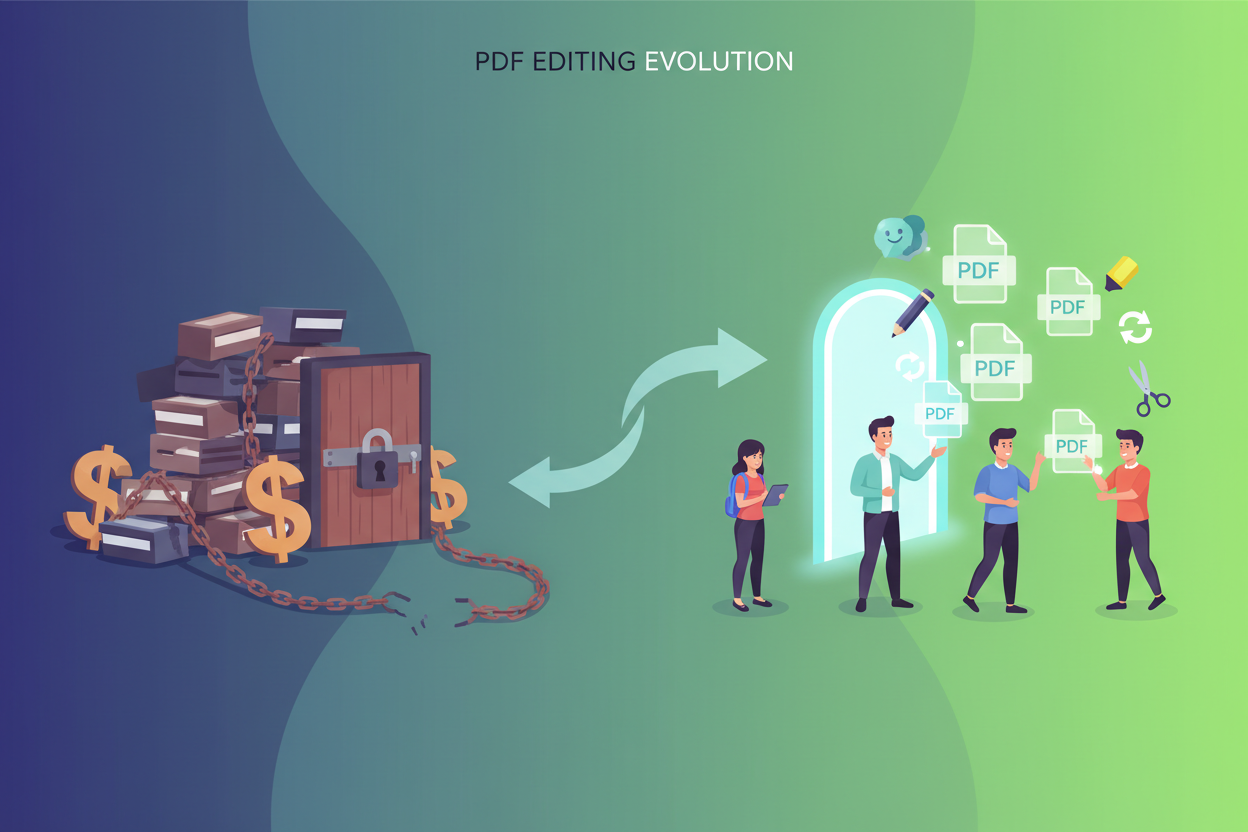
I’ve spent countless hours testing various PDF editors, from the well-known giants to hidden gems that deserve more recognition. Today, I’m sharing my findings to help you navigate this crowded space and find the perfect tool for your needs – without spending a dime! 💰
Table of Contents
• Why Free PDF Editing Software Matters in 2026
• Top Free PDF Editing Software Options
• Browser-Based PDF Editors
• Desktop Applications for Serious Editing
• Mobile-Friendly Solutions
• Key Features to Look For
• Security Considerations
• Making the Right Choice
• Frequently Asked Questions
Why Free PDF Editing Software Matters in 2026 🌟
The digital transformation has made PDF documents more prevalent than ever. From contracts and invoices to academic papers and creative portfolios, PDFs have become the universal language of document sharing. However, the static nature of PDFs often creates challenges when modifications are needed.
Free PDF editing software has become increasingly sophisticated, offering features that were once exclusive to premium tools. This democratization of PDF editing capabilities means that small businesses, students, and individual users can access professional-grade functionality without the financial burden.
Moreover, with remote work becoming the norm, the ability to quickly edit and collaborate on PDF documents has shifted from a nice-to-have feature to an absolute necessity. The tools I’m about to share have stepped up to meet these evolving demands.
Top Free PDF Editing Software Options 🏆
PDFtk Server: The Command-Line Powerhouse
Don’t let the command-line interface intimidate you – PDFtk Server is incredibly powerful for those willing to learn a few simple commands. I’ve found it particularly useful for batch operations like splitting, merging, and rotating multiple PDF files.
What makes PDFtk Server special is its reliability and speed. When you need to process hundreds of documents quickly, this tool delivers consistent results without the overhead of a graphical interface. It’s completely free, open-source, and works across Windows, Mac, and Linux platforms.
The learning curve might seem steep initially, but once you master the basic commands, you’ll wonder how you ever managed without it. Perfect for power users and developers who need to integrate PDF manipulation into their workflows.
LibreOffice Draw: The Hidden Gem 💎
Here’s something many people don’t realize – LibreOffice Draw can open and edit PDF files directly! As part of the free LibreOffice suite, Draw offers surprisingly robust PDF editing capabilities that often go unnoticed.
I’ve used LibreOffice Draw to edit everything from simple text corrections to complex layout modifications. The interface feels familiar to anyone who’s used traditional office software, making it an excellent choice for users who prefer a more conventional editing experience.
The tool excels at handling text-heavy PDFs and offers decent image editing capabilities. While it may struggle with very complex layouts, it’s perfect for most everyday editing tasks and completely free to use.
Browser-Based PDF Editors: Edit Anywhere, Anytime 🌐
SmallPDF: The User-Friendly Champion
SmallPDF has consistently impressed me with its clean, intuitive interface and comprehensive feature set. The free tier offers enough functionality for most casual users, including basic editing, compression, and conversion tools.
What I love most about SmallPDF is how it handles the editing process. You simply upload your PDF, make your changes using the straightforward toolbar, and download the result. The platform processes files quickly and maintains good quality throughout the editing process.
The free version does have some limitations – you’re restricted to two tasks per hour – but for occasional use, it’s more than sufficient. The tool works entirely in your browser, so there’s no software to install or update.
PDF24: The Feature-Rich Alternative
PDF24 deserves recognition for offering an extensive suite of PDF tools completely free of charge. I’ve been particularly impressed with their editing interface, which strikes a nice balance between simplicity and functionality.
The platform offers both online and offline versions, giving users flexibility in how they want to work. The offline version is particularly valuable if you’re dealing with sensitive documents that you’d prefer not to upload to a web service.
PDF24’s annotation tools are surprisingly comprehensive, allowing you to add text, shapes, images, and even digital signatures. The merger and splitter tools work flawlessly, and I’ve never encountered any significant bugs or glitches during my testing.
Desktop Applications for Serious Editing 💻
GIMP: The Creative Professional’s Choice
While primarily known as an image editor, GIMP can import PDF pages as images, allowing for pixel-level editing that’s impossible with traditional PDF editors. This approach is particularly useful when dealing with PDFs that contain complex graphics or when you need to make artistic modifications.
I’ve used GIMP to restore old scanned documents, enhance poor-quality PDFs, and even create entirely new designs based on existing PDF content. The learning curve is steeper than other options, but the creative possibilities are virtually limitless.
The key limitation is that GIMP treats PDF pages as images, so you lose the text-searchable properties of the original document. However, for visual editing tasks, it’s unmatched among free alternatives.
Inkscape: Vector-Based PDF Editing
Inkscape approaches PDF editing from a vector graphics perspective, making it ideal for documents with logos, diagrams, or other scalable graphics. I’ve found it particularly useful for editing technical documents and presentations.
The software can import PDF pages and convert them into editable vector objects. This means you can modify shapes, adjust colors, and even redesign entire layouts while maintaining crisp, scalable quality.
Like GIMP, Inkscape requires some learning investment, but the results can be professional-grade. It’s especially valuable for users who need to maintain brand consistency across documents or make significant design changes to existing PDFs.
Mobile-Friendly Solutions 📱
Adobe Acrobat Reader Mobile: Surprisingly Capable
The mobile version of Adobe Acrobat Reader offers more editing capabilities than many people realize. While it’s primarily designed for viewing, the free version includes basic annotation tools, form filling, and digital signing capabilities.
I’ve found the mobile app particularly useful for quick edits on the go. The touch interface works well for adding comments, highlighting text, and filling out forms. The synchronization with Adobe’s cloud services means your edits are available across all your devices.
The main limitations are in text editing and layout modifications, but for annotation and form-based tasks, it’s remarkably effective for a free mobile solution.
Key Features to Look For 🔍
When choosing free PDF editing software, certain features can make or break your experience. Based on my extensive testing, here are the capabilities I consider essential:
Text editing functionality should be your first consideration. The ability to modify existing text, add new content, and adjust formatting can save hours of work compared to recreating documents from scratch.
Annotation tools are crucial for collaborative work. Look for software that offers highlighting, commenting, drawing tools, and sticky notes. These features transform static PDFs into dynamic, interactive documents.
Form handling capabilities have become increasingly important. Whether you’re filling out government forms or creating interactive documents, robust form support can streamline many workflows.
Merger and splitter functions might seem basic, but they’re among the most frequently used PDF operations. Quality tools should handle these tasks quickly and preserve document formatting and metadata.
Security Considerations 🔒
Security should never be an afterthought when choosing PDF editing software, especially when dealing with sensitive documents. I’ve learned this lesson through experience and now always evaluate the security practices of any tool I recommend.
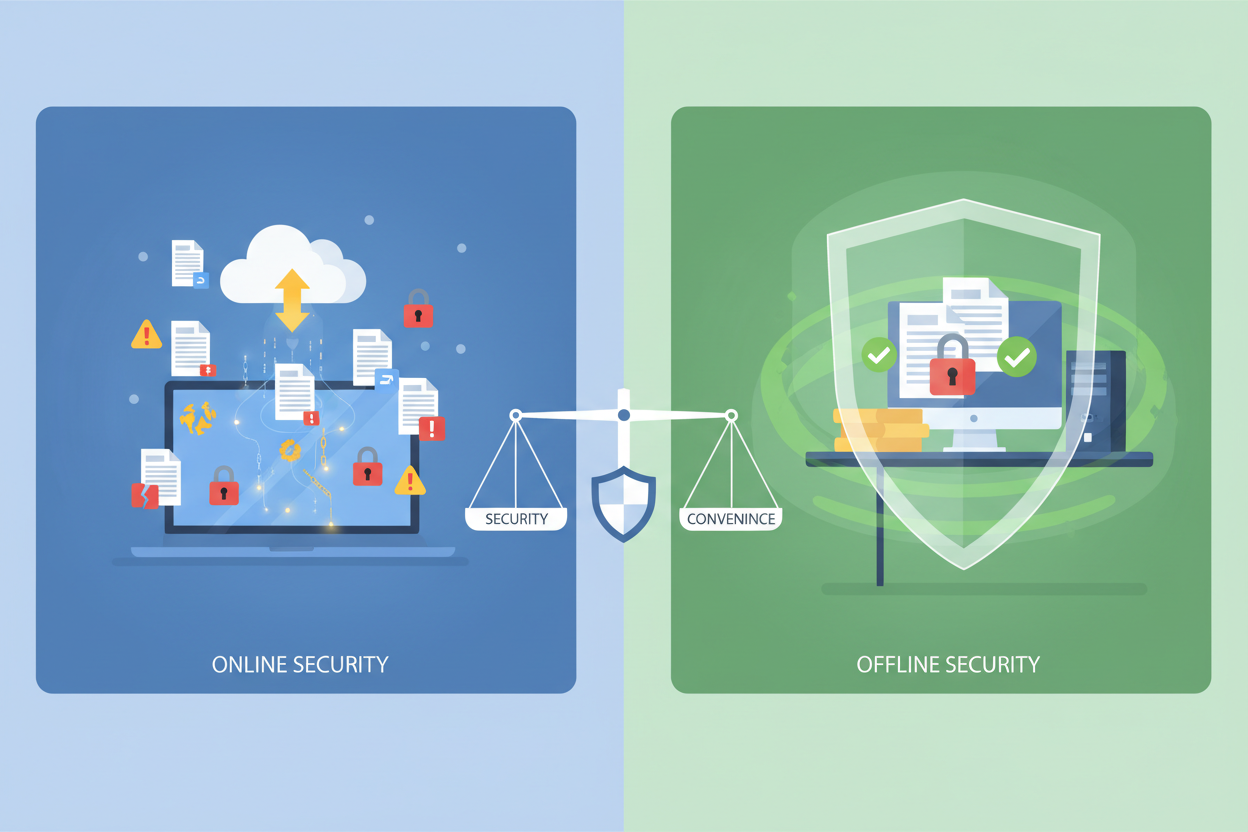
For browser-based editors, understand what happens to your documents after upload. Reputable services delete files from their servers after processing, but it’s worth verifying this in their privacy policies. When dealing with confidential information, offline tools often provide better peace of mind.
Password protection and encryption capabilities vary significantly between free tools. If document security is paramount, you may need to combine free editing tools with separate encryption software or consider the security features offered by different platforms.
Always download software from official sources to avoid malware-infected versions. I’ve encountered fake PDF editors that were actually designed to steal personal information, so vigilance is essential.
Making the Right Choice for Your Needs ✅
Choosing the best free PDF editing software ultimately depends on your specific requirements and technical comfort level. For quick, occasional edits, browser-based solutions like SmallPDF or PDF24 offer the perfect balance of convenience and functionality.
If you’re dealing with sensitive documents or need offline capabilities, desktop applications like LibreOffice Draw or PDFtk Server provide more control over your data and editing environment.
For users with creative or design needs, tools like GIMP and Inkscape offer capabilities that traditional PDF editors simply can’t match, albeit with steeper learning curves.
My personal recommendation is to start with a browser-based solution to understand your needs, then graduate to more specialized tools as your requirements become clearer. Most users find that a combination of tools serves them better than relying on a single solution.
Looking Ahead: The Future of Free PDF Editing 🚀
The free PDF editing landscape continues to evolve rapidly. Artificial intelligence is beginning to appear in some tools, offering features like automatic text recognition and intelligent layout preservation. Cloud integration is becoming more sophisticated, enabling seamless collaboration across teams and devices.
As we move through 2026, I expect to see continued improvements in mobile editing capabilities and better integration with popular productivity platforms. The gap between free and premium tools continues to narrow, benefiting users across all categories.
The key is staying informed about new developments while mastering the tools that work best for your current needs. The PDF editing world is more accessible than ever, and there’s never been a better time to explore what’s possible without spending money on expensive software subscriptions.
Frequently Asked Questions ❓
Can free PDF editors handle password-protected documents?
Most free PDF editors can open password-protected documents if you provide the correct password. However, their ability to remove or modify password protection varies. Tools like PDFtk Server offer command-line options for password manipulation, while browser-based editors typically maintain existing security settings.
Are there any file size limitations with free PDF editing software?
Yes, most browser-based free tools impose file size limits, typically ranging from 25MB to 100MB. Desktop applications like LibreOffice Draw and GIMP generally don’t have such restrictions, making them better choices for large documents or batch processing.
How do free PDF editors compare to Adobe Acrobat Pro?
While Adobe Acrobat Pro offers the most comprehensive feature set, free alternatives can handle 80-90% of common PDF editing tasks. The main gaps are in advanced features like OCR, batch processing, and enterprise-level security features. For most users, free tools provide sufficient functionality.
Can I edit scanned PDFs with free software?
Editing scanned PDFs (image-based) is more challenging than text-based PDFs. Tools like GIMP can edit scanned PDFs as images, but you’ll lose searchable text. Some free tools offer basic OCR capabilities, but results vary significantly depending on the quality of the original scan.
Is it safe to upload sensitive documents to online PDF editors?
While reputable online PDF editors implement security measures and delete files after processing, uploading sensitive documents always carries some risk. For confidential information, consider using offline desktop applications or tools that process files locally in your browser without uploading to servers.
What’s the best free PDF editor for collaborative work?
For collaboration, browser-based tools like SmallPDF or PDF24 work well because they’re accessible from any device. However, the annotation features in Adobe Acrobat Reader (free version) are particularly strong for collaborative workflows, especially when combined with cloud storage services.