Master Google Tasks Mobile App: A Step-by-Step Guide for 2026 📱
In our fast-paced digital world, staying organized has become more crucial than ever. Whether you’re juggling work deadlines, family commitments, or personal goals, having a reliable task management system can make the difference between chaos and clarity. Enter Google Tasks – a surprisingly powerful yet elegantly simple mobile app that’s been quietly revolutionizing how millions of people manage their daily responsibilities.
As we step into 2026, Google Tasks has evolved into a sophisticated productivity powerhouse while maintaining its signature simplicity. If you’ve been struggling with complex task management apps that feel more like rocket science than helpful tools, you’re in for a treat. This comprehensive guide will transform you from a Google Tasks novice into a productivity ninja, helping you harness every feature to streamline your life.

Table of Contents
• Getting Started with Google Tasks Mobile App
• Setting Up Your First Task Lists
• Advanced Task Management Features
• Mastering Due Dates and Reminders
• Integrating Google Tasks with Other Google Services
• Pro Tips for Maximum Productivity
• Troubleshooting Common Issues
• Frequently Asked Questions
Getting Started with Google Tasks Mobile App 🚀
Before diving into the advanced features, let’s ensure you have Google Tasks properly set up on your mobile device. The beauty of Google Tasks lies in its seamless integration with your existing Google ecosystem, making the initial setup surprisingly straightforward.
First things first – downloading the app. Head to your device’s app store (Google Play Store for Android or Apple App Store for iOS) and search for “Google Tasks.” The app is completely free and weighs in at just a few megabytes, making it perfect for devices with limited storage space.
Once installed, you’ll need to sign in with your Google account. This is where the magic begins – all your tasks will automatically sync across every device where you’re signed into Google. Whether you’re on your phone, tablet, or computer, your task lists will be waiting for you.
The interface greets you with a clean, minimalist design that Google is famous for. Don’t let the simplicity fool you – beneath this uncluttered surface lies a robust task management system that can handle everything from simple grocery lists to complex project workflows.
Setting Up Your First Task Lists 📝
Creating your first task list is as simple as tapping the “+” button, but the real art lies in organizing your lists strategically. Think of task lists as different buckets for various aspects of your life. You might create separate lists for “Work Projects,” “Personal Goals,” “Home Maintenance,” and “Shopping.”
When naming your lists, be specific but concise. Instead of a generic “Work” list, consider “Q1 Marketing Campaign” or “Client Projects.” This specificity will save you precious seconds when quickly adding tasks throughout your busy day.
To create a new list, tap the hamburger menu (three horizontal lines) in the top-left corner, then select “Create new list.” Give it a meaningful name and start populating it with tasks. You can easily switch between lists by tapping the list name at the top of the screen.
Pro tip: Start with just 3-4 lists initially. It’s tempting to create a dozen different categories, but this often leads to decision paralysis when adding new tasks. You can always create more lists as your system evolves.
Advanced Task Management Features ⚡
Now that you have your basic structure in place, let’s explore the features that set Google Tasks apart from simple note-taking apps. The subtask functionality is particularly powerful – you can break down complex projects into manageable chunks by adding subtasks to any main task.
To create a subtask, simply tap on an existing task and then tap “Add subtask.” This hierarchical structure is perfect for project management. For instance, a main task like “Plan Birthday Party” could have subtasks like “Send invitations,” “Order cake,” and “Decorate venue.”
The task details section is another hidden gem. Tap on any task to access additional options where you can add detailed notes, set due dates, and even add multiple subtasks. This is where you can store important information like phone numbers, addresses, or specific instructions related to the task.
Moving tasks between lists is incredibly easy – just tap and hold a task, then drag it to a different list. This flexibility allows you to reorganize your tasks as priorities shift throughout your week.
Mastering Due Dates and Reminders ⏰
One of Google Tasks’ most valuable features is its intelligent handling of due dates and reminders. Unlike many task apps that bombard you with notifications, Google Tasks takes a more thoughtful approach to keeping you on track.
Setting a due date is straightforward – tap on a task, select “Add date/time,” and choose when you need to complete it. But here’s where Google Tasks shines: it integrates seamlessly with Google Calendar, automatically creating calendar entries for your tasks with due dates.
The reminder system is context-aware and respectful of your schedule. Instead of pinging you constantly, Google Tasks surfaces relevant reminders at appropriate times. Tasks due today appear prominently in your task list, while overdue items are clearly marked but not aggressively intrusive.
For recurring tasks, you’ll need to manually recreate them after completion, as Google Tasks doesn’t currently support automatic recurring tasks. However, this limitation forces you to consciously decide whether each recurring task is still relevant – a surprisingly beneficial feature for maintaining a clean, current task list.
Integrating Google Tasks with Other Google Services 🔗
The real power of Google Tasks emerges when you leverage its deep integration with other Google services. This ecosystem approach transforms a simple task app into a comprehensive productivity suite.
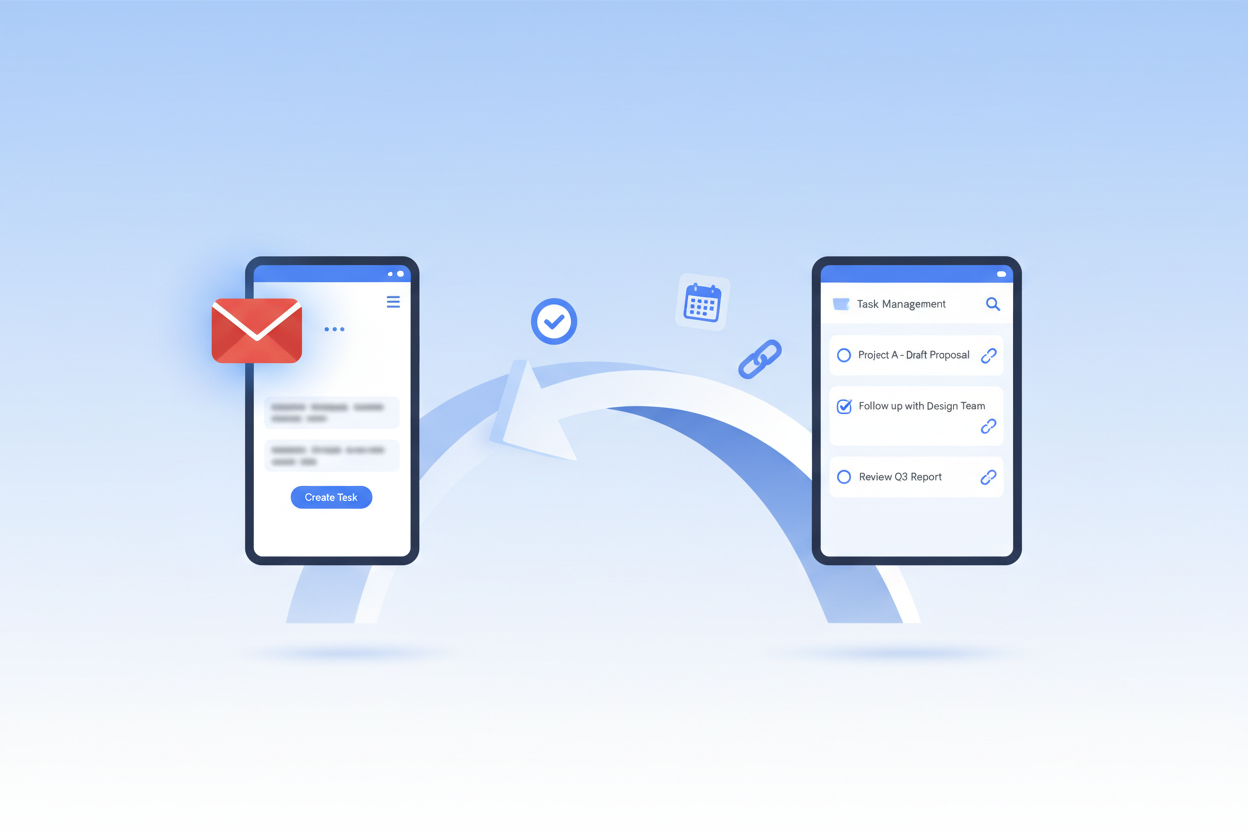
Gmail integration is particularly impressive. You can convert any email into a task with just a few taps, ensuring important messages don’t get buried in your inbox. When viewing an email in the Gmail app, tap the three dots menu and select “Add to Tasks.” The task will include a link back to the original email, creating a seamless workflow between communication and action.
Google Calendar integration works both ways – tasks with due dates appear in your calendar, while you can also create tasks directly from calendar events. This bidirectional sync ensures nothing falls through the cracks between your schedule and your task list.
Google Assistant compatibility adds voice control to your task management. Simply say “Hey Google, add ‘buy groceries’ to my shopping list” and watch as your task appears instantly in the appropriate list. This hands-free functionality is invaluable when you’re driving, cooking, or otherwise occupied.
Pro Tips for Maximum Productivity 💡
After years of using Google Tasks, I’ve discovered several strategies that can dramatically improve your productivity. The first is the “two-minute rule” – if a task takes less than two minutes to complete, do it immediately rather than adding it to your list. This prevents your task lists from becoming cluttered with trivial items.
Use the notes section strategically. Instead of creating multiple subtasks for simple items, use the notes field to store quick reminders or additional context. This keeps your main task list clean while ensuring you don’t lose important details.
Develop a consistent review routine. Spend five minutes each morning reviewing your tasks for the day, and another five minutes each evening planning for tomorrow. This simple habit ensures your task lists remain current and actionable.
Consider using emoji in your task names for quick visual categorization. A 📞 for phone calls, 💻 for computer work, or 🏠 for home tasks can help you quickly identify similar tasks when you have limited time or specific contexts available.
Troubleshooting Common Issues 🔧
Even the most polished apps occasionally hiccup, and Google Tasks is no exception. The most common issue users encounter is sync delays between devices. If your tasks aren’t appearing on all your devices immediately, try manually refreshing the app by pulling down on the task list.
Notification problems are another frequent concern. If you’re not receiving reminders for due tasks, check your device’s notification settings for the Google Tasks app. Ensure notifications are enabled and not being blocked by any battery optimization settings.
If tasks are disappearing unexpectedly, they’ve likely been accidentally marked as complete. Check your completed tasks by tapping the three dots menu and selecting “Completed tasks.” You can easily unmark tasks that were completed by mistake.
For users experiencing slow performance, try clearing the app’s cache (Android) or reinstalling the app (iOS). This resolves most performance-related issues and gives you a fresh start with the app.
Frequently Asked Questions ❓
Can I share my Google Tasks lists with others?
Unfortunately, Google Tasks doesn’t currently support list sharing. If you need collaborative task management, consider using Google Keep or a dedicated team management tool alongside Google Tasks for personal items.
Is there a way to backup my Google Tasks?
Your Google Tasks are automatically backed up to your Google account. You can also export your data through Google Takeout if you want a local backup or are switching to a different service.
Can I use Google Tasks offline?
Yes, Google Tasks works offline, allowing you to add, edit, and complete tasks without an internet connection. Your changes will sync automatically when you reconnect.
How many tasks can I create in Google Tasks?
Google doesn’t publish specific limits, but users have reported successfully managing thousands of tasks without issues. The app is designed to handle substantial task loads efficiently.
Can I set priority levels for my tasks?
Google Tasks doesn’t have built-in priority levels, but you can manually organize tasks by dragging them into your preferred order within each list. Many users put high-priority items at the top of their lists.
Conclusion: Your Path to Organized Success 🎯
Mastering Google Tasks isn’t just about learning an app – it’s about developing a system that supports your goals and reduces the mental overhead of managing daily responsibilities. The beauty of Google Tasks lies not in complex features or flashy interfaces, but in its ability to get out of your way while quietly keeping you organized.
As you implement these strategies, remember that the best task management system is the one you’ll actually use consistently. Google Tasks excels because it removes friction from the process of capturing, organizing, and completing tasks. Whether you’re managing a complex work project or simply trying to remember to pick up milk on the way home, Google Tasks provides a reliable foundation for staying organized.
Start small, be consistent, and gradually incorporate the advanced features as they become relevant to your workflow. Before long, you’ll wonder how you ever managed without this powerful yet simple tool in your productivity arsenal. Your future, more organized self will thank you for taking the time to master Google Tasks in 2026! 🌟