Google Tasks Mobile App: A Step-by-Step Guide for 2026
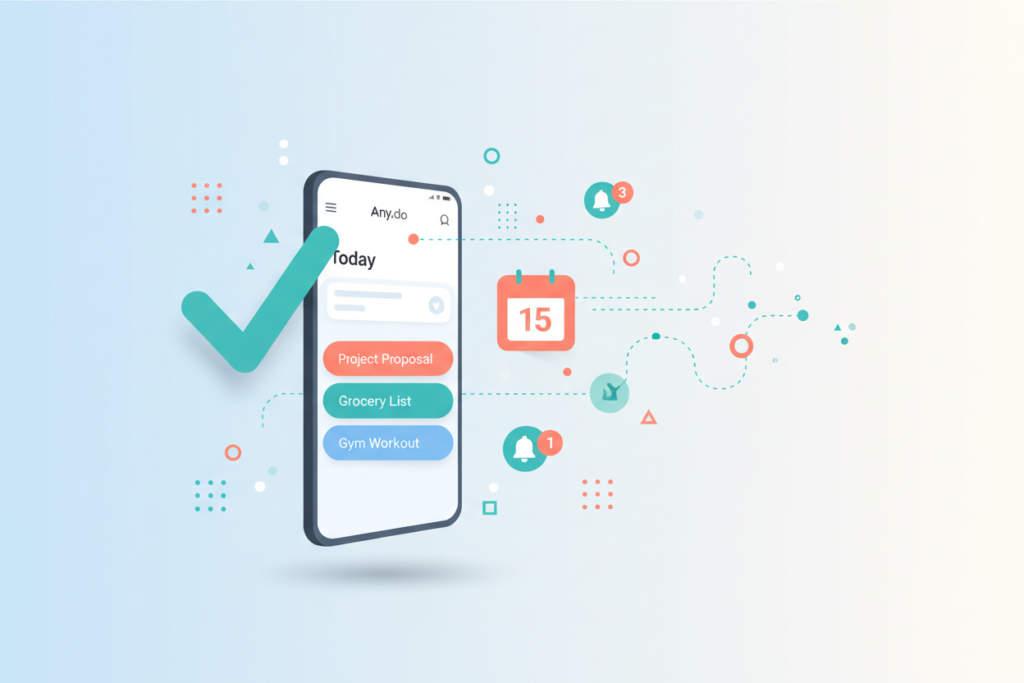
In today’s fast-paced world, staying organized can be a challenge. Thankfully, the Google Tasks mobile app provides a seamless way to manage your to-do lists and keep track of your priorities. Whether you’re a student, a professional, or simply someone who loves staying on top of things, this guide will walk you through everything you need to know about using the Google Tasks mobile app in 2026. 📅
Table of Contents
1. Introduction to Google Tasks
2. Setting Up Google Tasks on Your Mobile
3. Creating and Managing Tasks
4. Integrating Google Tasks with Other Apps
5. Tips for Maximizing Productivity with Google Tasks
6. Conclusion
7. FAQs
Introduction to Google Tasks
Google Tasks is a powerful tool that allows users to create to-do lists, set reminders, and organize their tasks in a simple and intuitive way. Unlike other task management apps, Google Tasks integrates seamlessly with other Google services, making it easier to manage your life all in one place. Whether you’re on Android or iOS, the app offers a user-friendly interface that helps you stay productive on the go. 📱
Setting Up Google Tasks on Your Mobile
Getting started with Google Tasks is a breeze. Follow these steps to set up the app on your mobile device:
Step 1: Download the App
First, head over to the Google Play Store or Apple App Store and download the Google Tasks app. Once installed, open the app to begin the setup process.
Step 2: Sign In
You’ll need a Google account to use Google Tasks. If you already have one, simply sign in. If not, create a new account by following the on-screen instructions.
Step 3: Grant Permissions
The app will request access to certain features on your device, such as notifications. Grant the necessary permissions to ensure you receive timely reminders about your tasks.
Creating and Managing Tasks
Now that your app is set up, it’s time to start creating and managing your tasks.
Creating a Task
1. Open the Google Tasks app.
2. Tap the “+” button to add a new task.
3. Enter the task details, such as the title and due date.
4. Tap “Save” to add the task to your list.
Organizing Tasks with Lists
Google Tasks allows you to create different lists to categorize your tasks. For instance, you might have separate lists for work, personal, and shopping tasks. To create a new list:
1. Tap on the “Menu” button (three horizontal lines).
2. Select “Create new list”.
3. Name your list and start adding tasks.
Setting Reminders
Never miss a deadline by setting reminders for your tasks. Simply tap on a task, select “Add date/time”, and choose when you’d like to be reminded. ⏰
Integrating Google Tasks with Other Apps
One of the standout features of Google Tasks is its ability to integrate with other Google services:
Google Calendar
By integrating with Google Calendar, you can view your tasks alongside your events, making it easier to plan your day. To enable this feature, open Google Calendar, go to “Settings”, and select “Tasks”.
Gmail
Turn emails into tasks with just a click. In Gmail, open an email, click on the “More” button (three dots), and select “Add to Tasks”. It’s that simple! 📧
Tips for Maximizing Productivity with Google Tasks
Here are some expert tips to get the most out of Google Tasks:
Prioritize Your Tasks
Use the drag-and-drop feature to rearrange tasks based on their priority. Focus on high-priority tasks first to boost productivity.
Take Advantage of Subtasks
Break larger tasks into smaller, more manageable subtasks. This helps you track progress and makes daunting tasks feel more achievable.
Review Regularly
Set aside time each week to review and update your task lists. This ensures that you’re always working on the most important tasks and helps prevent backlog.
Conclusion
Google Tasks is an invaluable tool for anyone looking to streamline their task management process. With its easy setup, seamless integration with other Google services, and user-friendly interface, it’s never been easier to stay organized and on top of your game. Whether you’re managing personal errands or professional projects, Google Tasks is your go-to app for getting things done. ✅
FAQs
Q: Can I use Google Tasks offline?
A: Yes, you can create and edit tasks offline. However, changes will sync once you’re back online.
Q: Is Google Tasks free to use?
A: Absolutely! Google Tasks is completely free for all users.
Q: Can I share my task lists with others?
A: As of 2026, Google Tasks doesn’t support sharing task lists directly. However, you can collaborate by using shared Google Docs or Sheets.
Q: Does Google Tasks work with voice commands?
A: Yes, you can use Google Assistant to add tasks via voice commands, making it even more convenient to manage your tasks hands-free. 🎤
We hope this guide has equipped you with everything you need to master Google Tasks in 2026. Happy organizing! 🚀