Mastering Google Tasks on Mobile: A Tutorial for 2026
In the fast-paced digital era, staying organized is no longer a luxury but a necessity. Enter Google Tasks, a simple yet powerful tool that helps you keep track of your to-dos seamlessly across devices. As we step into 2026, mastering Google Tasks on mobile has never been more crucial. Whether you’re a seasoned pro or a newbie just getting started, this comprehensive guide will walk you through the ins and outs of using Google Tasks on your mobile device.
Table of Contents
1. Introduction to Google Tasks
2. Setting Up Google Tasks on Mobile
3. Navigating the Google Tasks Interface
4. Creating and Organizing Tasks
5. Integrating Google Tasks with Other Apps
6. Advanced Tips for Power Users
7. Conclusion
8. FAQs
Introduction to Google Tasks
Google Tasks is a versatile task management app that integrates seamlessly with other Google services like Gmail and Google Calendar. Despite being often overshadowed by more robust project management tools, Google Tasks excels in its simplicity and ease of use. It’s perfect for individuals who need a straightforward solution to keep their personal and professional lives organized. With the rise of remote work and digital nomadism, understanding how to leverage this tool on your mobile can boost your productivity significantly. 📱✨
Setting Up Google Tasks on Mobile
Getting started with Google Tasks on your mobile device is a breeze. Here’s how you can set it up:
1. **Download the App:** Head to the Google Play Store or Apple App Store and download the Google Tasks app. It’s free! 🎉
2. **Sign In:** Open the app and sign in with your Google account. If you use Gmail or Google Calendar, you’re already halfway there.
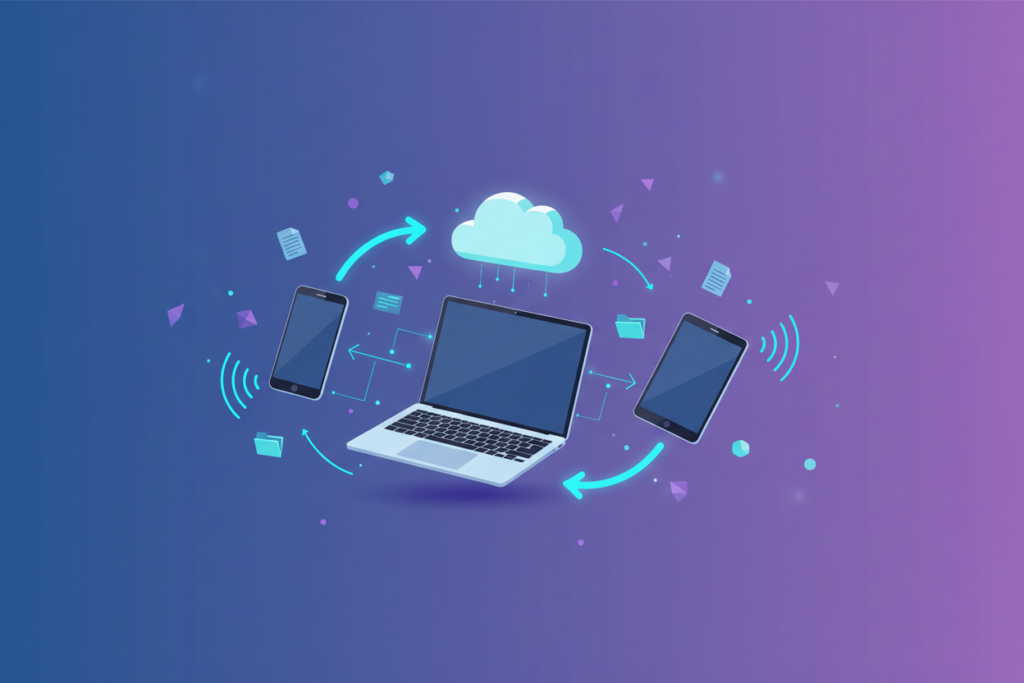
3. **Sync with Google Services:** Once signed in, Google Tasks will automatically sync with your Gmail and Google Calendar, allowing you to manage tasks across platforms effortlessly.

Navigating the Google Tasks Interface
The Google Tasks mobile interface is designed to be intuitive. Here’s a quick guide to navigate it:
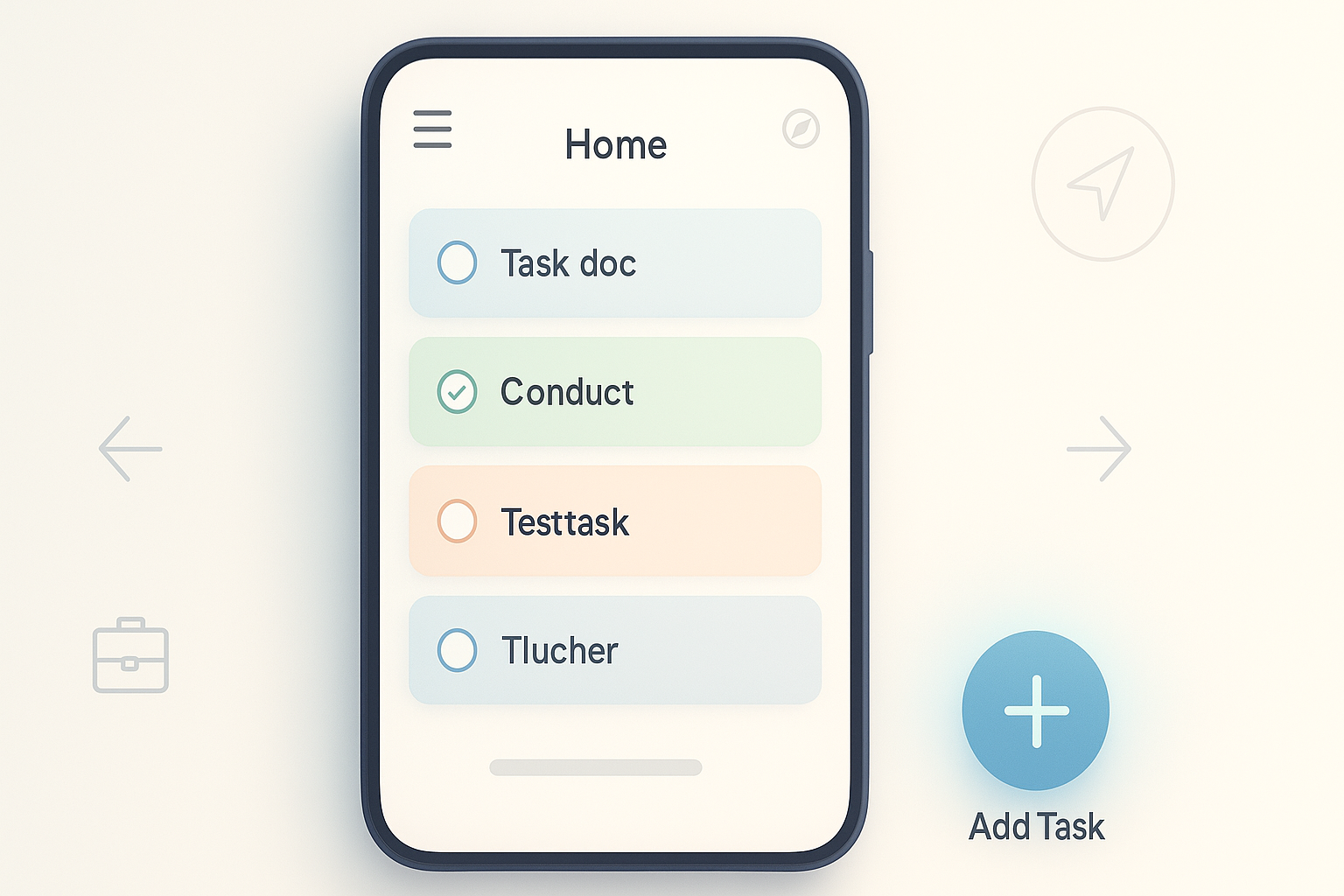
**Home Screen:** Upon opening the app, you’ll land on the home screen where all your tasks are visible.
**Add Task Button:** At the bottom right, there’s a ‘+’ button to add new tasks. Tap it, and you’re on your way!
**Task Lists:** Swipe left or right to switch between different task lists. You can create separate lists for work, personal tasks, shopping, etc.
**Menu Icon:** Tap on the three horizontal lines on the top left to access settings and switch accounts if needed.
Creating and Organizing Tasks
Creating tasks in Google Tasks is as easy as pie:
**Add a Task:** Tap the ‘+’ button, type in your task, and press enter. Voila! Your task is saved.
**Set Due Dates:** Tap on a task to open it, then tap the calendar icon to set a due date. You’ll receive reminders, ensuring nothing slips through the cracks.
**Add Details:** For more complex tasks, you can add subtasks or notes by tapping on the task and selecting ‘Details.’
**Reorder Tasks:** Hold and drag tasks up or down to prioritize them according to your needs. This helps keep your to-do list tidy and focused.
Integrating Google Tasks with Other Apps
One of Google Tasks’ strengths is its ability to integrate with other apps:
**Gmail Integration:** Turn emails into tasks with a simple drag-and-drop feature on desktop, which will then appear on your mobile app.
**Google Calendar:** View your tasks alongside your calendar events. This integration ensures you’re always aware of what’s on your plate.
**Third-Party Apps:** Use tools like Zapier to connect Google Tasks with other productivity apps, expanding its functionality.
Advanced Tips for Power Users
For those looking to take their Google Tasks usage to the next level, here are some advanced tips:
**Use Keyboard Shortcuts:** If you switch between desktop and mobile, learn keyboard shortcuts for faster task management on your computer.
**Voice Commands:** On Android, use Google Assistant to add tasks via voice commands. Simply say, “Hey Google, add a task to my list,” and you’re set!
**Color Coding:** Although Google Tasks lacks built-in color coding, you can use emoji or text symbols in task titles for visual differentiation.
Conclusion
As we navigate through 2026, mastering Google Tasks on mobile can make a world of difference in managing your daily life efficiently. From setting up the app to integrating it with other Google services, this guide has covered everything you need to know. Embrace these tips and transform your productivity game! 🚀
FAQs
Q1: Can I use Google Tasks offline?
A: Yes, you can access and manage your tasks offline. Once you’re back online, your changes will sync automatically.
Q2: Is Google Tasks available on iOS devices?
A: Absolutely! Google Tasks is available for both Android and iOS devices.
Q3: How secure is my data on Google Tasks?
A: Google Tasks uses the same security infrastructure as other Google services, ensuring your data is protected.
Q4: Can I share my task lists with others?
A: Currently, Google Tasks does not support direct list sharing, but you can share tasks via Google Keep or Google Calendar.